Translate Your Restaurant Menu to 54 Languages with AI
6 minutes
Your international customers deserve to read clear menu information in their language. In this section, you will learn how to work with IAMenu's catalogue of 54 supported languages, activate the 2, 4, or 8 languages included in your plan, generate contextual translations, and review them before publishing.
What You Will Learn in This Section
- Why contextual translation is different from Google Translate
- How to activate languages in your restaurant
- How automatic backfill works (bulk translation)
- How Smart Swap works when creating in another language
- How to manually edit translations and protect them
- How to compare AI-assisted translation with other workflows
Step 1: Why Menu Context Matters
Before activating languages, it is useful to understand the role of context. IAMenu can use product categories, ingredients, and descriptions instead of translating an isolated label. That extra context can improve a first draft, but it does not remove the need for review.
Real Example:
| Original Dish | Google Translate (EN) | IAMenu AI (EN) |
|---|---|---|
| Huevos Rotos con Jamon Iberico | Broken Eggs with Iberian Ham | Crispy Fried Eggs with Iberian Ham |
| Pulpo a la Gallega | Galician Octopus | Galician-Style Octopus with Paprika |
| Tarta de la Abuela | Grandmother's Cake | Homestyle Almond Cake |
These examples illustrate why literal output can be misleading. The appropriate wording still depends on the actual recipe and audience, so review regional dishes instead of assuming one universal translation.
This is what we call contextual translation: the AI takes into account the product category, subcategory, ingredients, and description to generate a draft for review.
Tip
IAMenu automatically translates names, descriptions, and marketing labels. All with a single AI call per product, not word by word.
Step 2: Activate Languages in Your Restaurant
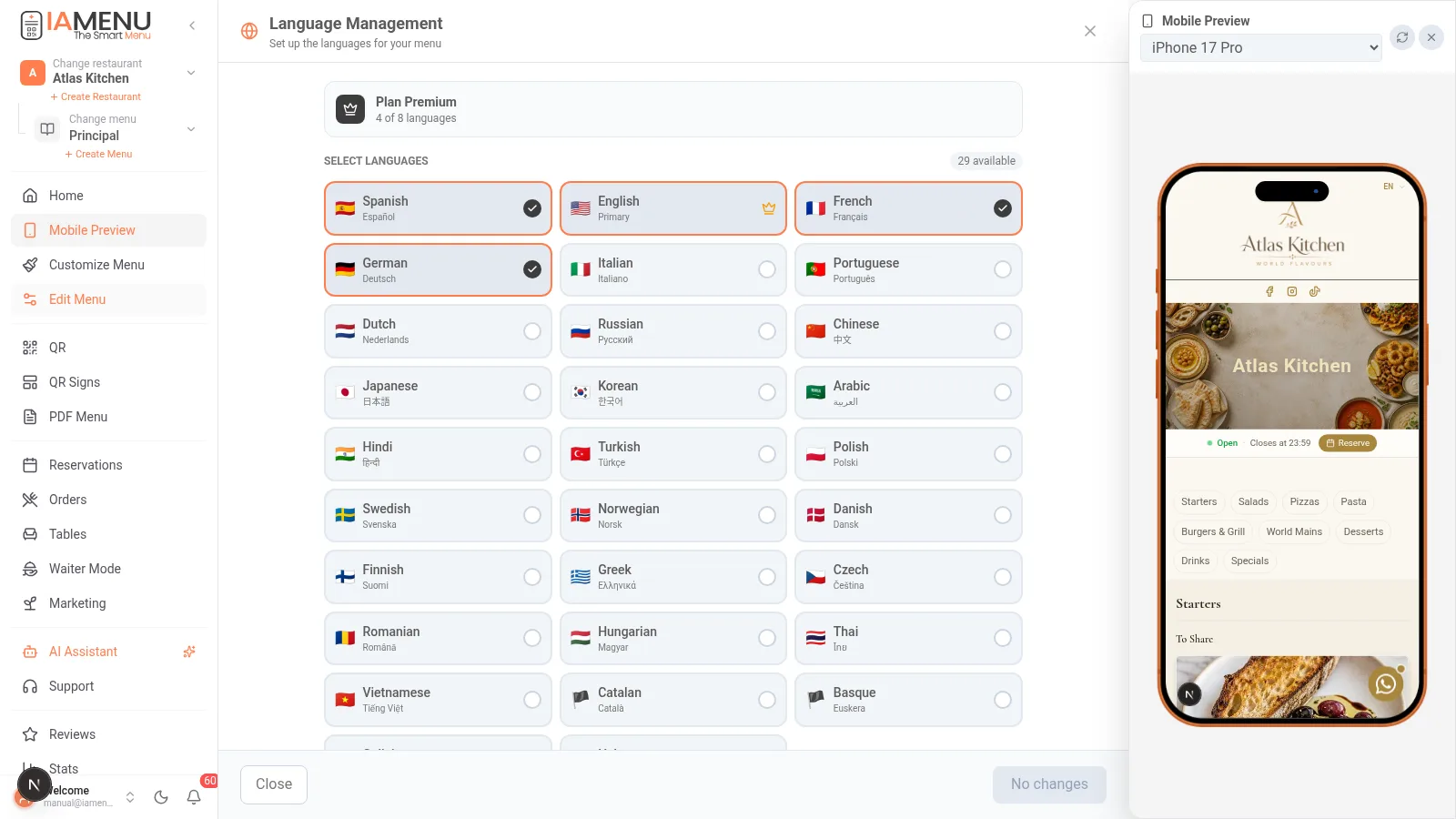
🖥️ On desktop: Open the sidebar menu, click on "Settings" and go to the "Languages" tab. You will see a list of 54 available languages with flags. Activate the ones you need with the switch, and they will be saved automatically.
📱 On mobile: The process is just as simple. Open the sidebar menu (three-line icon), select "Settings", find the "Languages" section, and activate the necessary ones by sliding down.
The available languages include major European languages (English, French, German, Italian, Portuguese), Asian languages (Chinese, Japanese, Korean), and many more. In total, IAMenu supports 54 languages across the platform; activate those most relevant to your customers.
Languages by plan:
| Plan | Included Languages |
|---|---|
| Starter | 2 languages |
| Professional (39 EUR/month) | Up to 4 languages |
| Premium (69 EUR/month) | Up to 8 languages |
Tip
If you have a restaurant in a tourist area, use booking and customer data to choose the languages most relevant to your guests.
Step 3: Automatic Backfill - Translate Your Existing Menu
When you activate a new language, IAMenu automatically detects that you have products without translation in that language and launches the automatic backfill: a bulk translation in the background.
Upon activating a new language, you will see a progress indicator on the dashboard (e.g., "Translating to Français... 45/130 products").
You can continue working while the AI translates in the background. Duration depends on the number and length of items and current queue load. When it finishes, review products, categories, subcategories, ingredients, and allergen wording in the new language.
Importante
For a large menu, allow more processing time and use the progress indicator. If processing stalls, reopen the dashboard and verify the status before retrying.
Step 4: Smart Swap - Create Products in Any Language
One of the most powerful features of IAMenu is Smart Swap. It allows any team member to create products in their native language, and the system automatically translates to all other languages.
How it works:
Imagine your Italian chef creates a dish called "Risotto ai Funghi Porcini" from the dashboard set to Italian:
- The system detects that the creation language (Italian) is not the base language (Spanish).
- It automatically translates "Risotto ai Funghi Porcini" to Spanish and saves it as the main name.
- It saves the Italian version as a translation.
- It automatically translates to all other active languages (English, French, German...).
- The generated language versions are then available for review.
When creating a product in a different language than the base, the process is completely transparent. The language indicator in the top bar shows which language you are working in. No matter which you choose: the product is created correctly in all languages using automatic translation.
On mobile, simply change the language in the top selector of the dashboard to create in your preferred language.
Tip
Smart Swap is especially useful for multinational teams. The French chef can write in French, the German manager in German, and the menu will always be synchronized in all languages.
Step 5: Manually Edit Translations
Although the AI generates high-quality translations, you may want to adjust a specific translation. IAMenu allows you to manually edit any translation, and once edited, the AI will not overwrite it.
To edit a translation:
- Change the active language of the dashboard to the language you want to edit (for example, English) using the top selector.
- Open the product you want to modify.
- Edit the name or description.
- When saving, two options appear (both on mobile and desktop):
- Save only in English: Only updates the English translation (the AI will not touch it in the future).
- Translate to all languages: Uses your edit as the base and re-translates to the other languages.
The radio button option appears whenever you edit a product in a language different from the main one.
Importante
When you choose "Save only in English," that translation is marked as manually reviewed. If you later change the product name in Spanish, the English version will NOT be re-translated automatically to respect your edit. You can unlock it at any time by choosing "Translate to all."
Comparison of Translation Methods
| Google Translate | ChatGPT (without context) | Human Agency | IAMenu AI | |
|---|---|---|---|---|
| Cost model | External service terms | External service terms | Quoted per project/provider | Included within IAMenu plan quotas |
| Workflow | Usually copy/paste | Usually separate from menu data | Managed with translator files | Integrated with menu fields and backfill |
| Menu Context | Depends on supplied context | Depends on supplied context | Strong when the specialist receives a brief | Uses category, ingredients, description, and menu context |
| Languages | Provider-dependent | Provider-dependent | Provider-dependent | 29 supported; 2/4/8 active by plan |
| Update | Manual workflow | Manual workflow | New revision workflow | Regenerate or edit within IAMenu |
| Quality control | Human review recommended | Human review recommended | Professional review is part of the service scope | Restaurant review required before publishing |
Pro Tips for Perfect Translations
Some tips to make the most of automatic translations:
-
Activate languages BEFORE creating content. If you activate languages first, each new product is translated instantly. If you do it later, the backfill takes longer.
-
Be descriptive in Spanish. The more detailed the description in the base language, the better the translations will be. "Galician beef tenderloin grilled with baked potatoes" translates much better than just "Tenderloin."
-
Use clear ingredients. The AI uses the ingredients to translate better and detect allergens. "Buffalo mozzarella, San Marzano tomatoes, fresh basil" generates better translations than just the name of the dish.
-
Review key languages. If your restaurant receives a lot of tourism from a specific country, review those translations first. The AI is excellent, but a quick review always helps.
-
54 languages include Arabic, Chinese, and Japanese. If your area has Asian or Middle Eastern tourism, activate those languages. Few competitors offer digital menus in these languages.
Recommendations and Best Practices
Follow these recommendations to achieve perfect translations in your digital menu:
- Activate languages BEFORE creating content. If you activate languages first, each new product is translated instantly. If you do it later, the backfill needs to process the entire existing menu.
- Write detailed descriptions in the base language. "Galician beef tenderloin grilled with baked potatoes" translates much better than just "Tenderloin." The more context, the better the translation.
- Include clear ingredients. The AI uses the ingredients to translate accurately and detect allergens. "Buffalo mozzarella, San Marzano tomatoes, fresh basil" generates superior translations.
- Review the key languages in your area. If your restaurant receives a lot of tourism from a specific country, review those translations first. The AI is excellent, but a quick review always helps.
- Leverage Smart Swap for multinational teams. Each team member can create in their native language. The system automatically translates and synchronizes to all active languages.
- Do not manually translate what the AI can do. Only edit translations if you detect a specific error. Each manual edit blocks the automatic update for that product in that language.
Common Problem Solutions
The backfill bar is stuck
If the bulk translation stops, refresh the dashboard page. The process will automatically resume from where it left off. For menus with more than 200 products, backfill may take 5-8 minutes.
A product is not translating to a new language
Check that the language is active in the business settings. If the product was manually edited in that language, it is marked as "reviewed," and the AI will not overwrite it. Edit the product and choose "Translate to all" to unlock it.
The translation of a dish is incorrect
Edit the product in the language where the translation is incorrect, correct the text, and choose "Save only in this language." The correction will be protected. If the original name in Spanish is not descriptive, improve the original first so that the AI translates better.
Smart Swap does not activate when creating in another language
Check that the active language of the dashboard (top selector) is different from the base language of your business. If you create in the base language, there is no swap because you are already in the correct language.
I have reached the monthly translation limit
Limits are by plan: each plan includes a monthly quota of swaps (your exact balance is in Billing). If you need more, upgrade your plan. Batch translations (backfill of 50 products to 3 languages) count as 1 single swap.
Frequently Asked Questions
How many languages does IAMenu support?
IAMenu supports 54 languages including European, Asian (Chinese, Japanese, Korean), and Arabic. The number of active languages depends on your plan: Starter 2, Professional 4, Premium 8.
How is IAMenu translation different from a general translation tool?
IAMenu can use category, ingredients, description, and menu context when preparing a draft. Review every output, especially regional dish names, allergens, and culturally specific terms.
Can I correct an AI translation?
Yes. Edit the translation and choose "Save only in this language" to protect it. The AI will not overwrite it in the future. You can unlock it whenever you want by choosing "Translate to all."
What is Smart Swap and how does it work?
It allows you to create products in a supported language. If your chef creates "Risotto ai Funghi" in Italian, the system prepares the base-language and other active-language versions for review.
How long does the bulk translation of my entire menu take?
Duration depends on menu size and queue load. You can continue working while the translation runs in the background and follow progress in the dashboard.
Related Tutorials
Continue setting up your multilingual menu with these guides:
- Gaston - Your AI Assistant to translate entire categories with a single voice command
- Create Products to add dishes with detailed descriptions that improve translation
- Customer View to see how your international customers view the menu in their language
- Export PDF to generate multilingual PDF menus with blocks separated by language
- Allergens and Labels to ensure allergens appear translated in each language
Ready to Translate Your Menu to 54 Languages?
Create your account and review the current plans and terms.
More information: