How to Create Products for Your Restaurant's Digital Menu Step by Step
8 minutes
Creating products is the heart of your digital menu. This guide explains how to add dishes, prices and descriptions, generate optional AI images, and review translation and allergen suggestions before publishing. Estimated reading time: 8 minutes.
What You Will Learn in This Section
- Access the product creation modal
- Fill in the name, price, and description of the dish
- Generate a professional photo with GPT Image
- See how automatic translation works into multiple languages
- Generate dish descriptions with AI (bonus)
Step 1: Access the Creation Modal
To add a product to your digital menu, you first need to be within a category or subcategory. IAMenu offers you several ways to create products depending on where you want them to appear on your menu.
In the desktop dashboard, you have three options to create a product:
- Within a subcategory: Click the "+ Product" button that appears next to the subcategory name. The product will be created within it.
- Within a category (without subcategory): Click the "+ Product" button next to the category name. It will be created as a direct product in that category.
- Standalone product: Use the "+ Standalone Product" button at the top of the dashboard. Ideal for items like bread, cutlery, or water that do not belong to any category.
Clicking will open the creation modal with several tabs: Information, Image, Features, and Customization.
In the mobile version, first navigate to the category or subcategory where you want to create the product:
- From the main dashboard screen, tap the desired category
- If it has subcategories, tap the subcategory
- Press the "+ Product" button at the bottom of the list
A full-screen modal will open where you can fill in all the product data by sliding between sections.
Tip
You can also create products using Gaston, the AI assistant from IAMenu. Just type something like "create a Margherita Pizza for 12 euros in the Pizzas category," and Gaston will take care of everything: name, price, allergens, image, and translations. Check the Gaston section for more details.
Step 2: Fill in Name, Price, and Description
Once the creation modal is open, the first step is to complete the essential information about your dish.
In the Information tab of the modal, you will find:
- Product Name: Write the name of the dish as you want it to appear on your digital menu. For example: "Margherita Pizza," "Mushroom Risotto," or "Homemade Cheesecake."
- Price: Enter the price of the product. The currency symbol is automatically configured according to the country of your restaurant (€,$,£, and 17 more currencies).
- Description: You can write a manual description or generate it with AI (we will cover this in the bonus step). A good description includes the main ingredients and the preparation method.
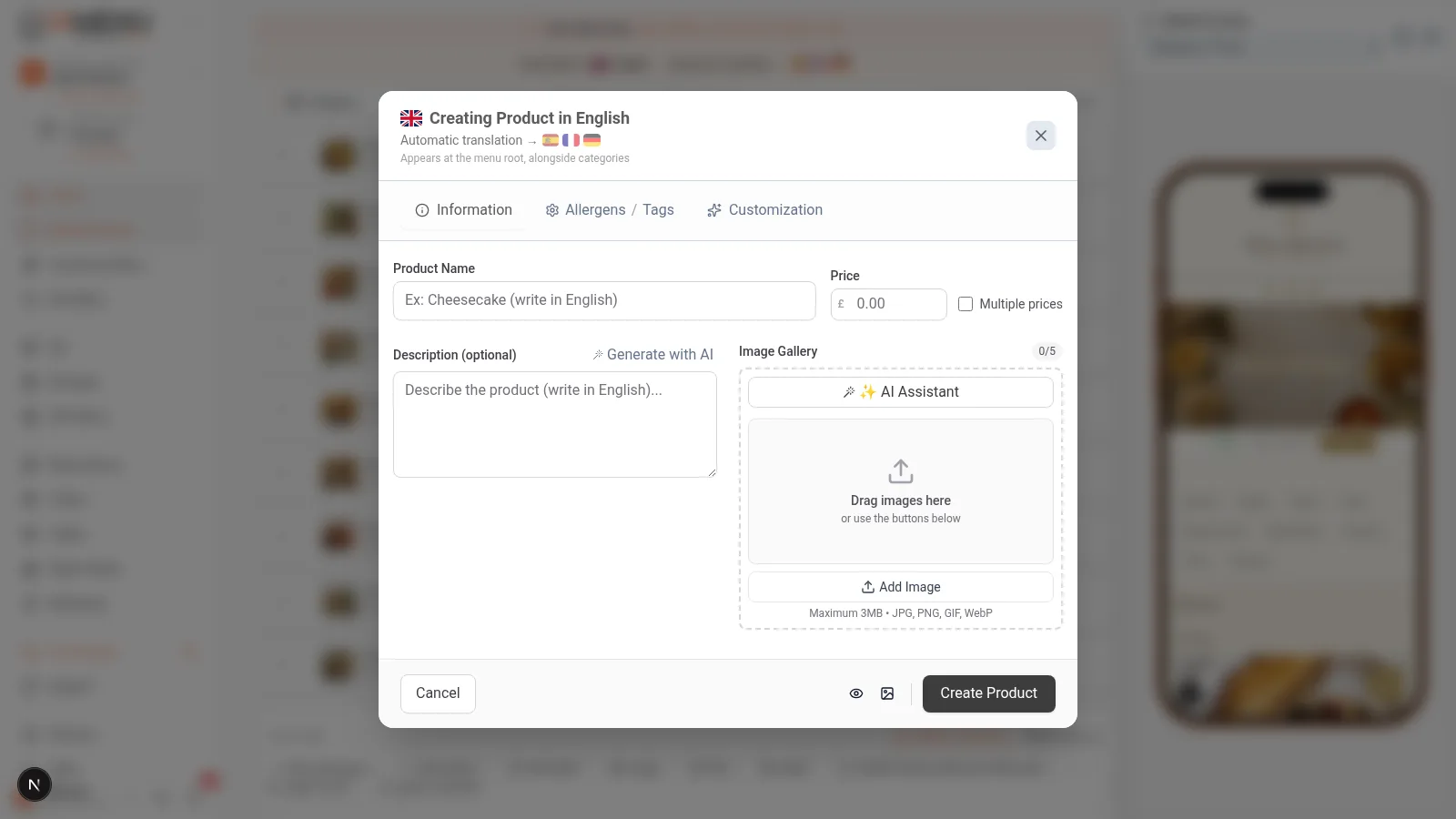
Below the price, you will see the option "Multiple Prices." Activate it if your product has size or format variants (for example: small, medium, and large). We explain this in detail in the bonus section.
The first section of the mobile modal shows the basic fields:
- Tap the "Name" field and write the name of the dish
- Tap the "Price" field and enter the value
- Optionally, write a description or use the AI button to generate it automatically
Scroll down to access the other sections of the product: image, allergens, and customization.
Tip
If you write the main ingredients in the description (for example: "tomato, fresh mozzarella, basil, olive oil"), IAMenu will detect allergens more accurately. The more detail you include, the better the automatic allergen detection works.
Step 3: Generate a Professional Photo with GPT Image
You don't need to hire a photographer for your digital menu. IAMenu integrates GPT Image from OpenAI to generate professional photos of your dishes with a single click. The result looks like it came from a professional food photography session.
In the Image tab of the product modal:
- Click the "Generate Image with AI" button
- IAMenu will use the name and description of the product to automatically create an optimized prompt
- Wait while IAMenu generates a proposed image for your dish
- If you are not satisfied with the result, press "Regenerate" to get a different version
- You can also upload your own photo from your computer if you prefer to use real images
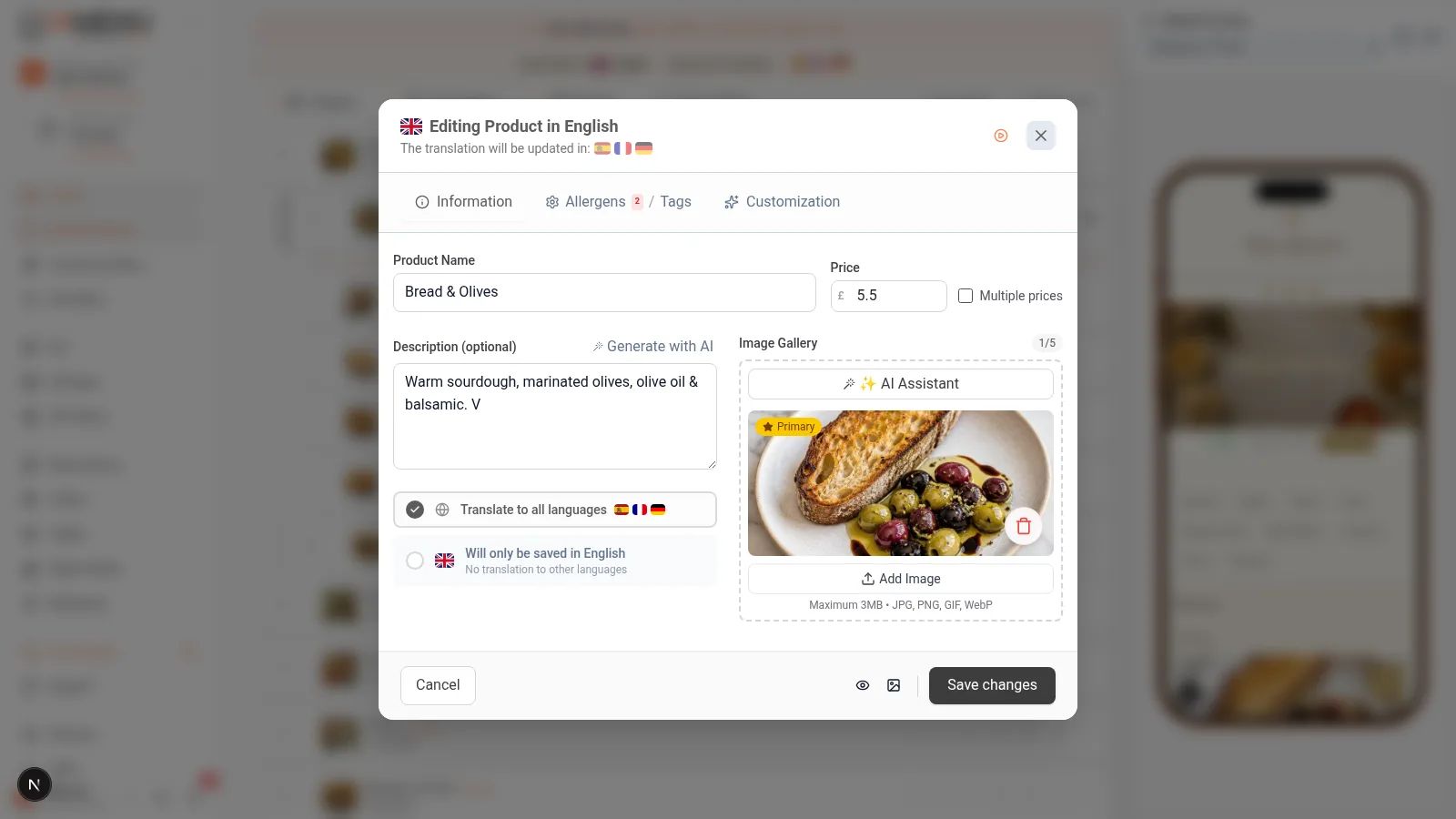
Each product can have up to 5 images in its gallery. The first will be the main image that appears on your QR menu. The others will be displayed when the customer clicks on the product to see the details.
The generated image is automatically optimized in 3 sizes (thumbnail, medium, and large) in WebP format so that your menu loads quickly on any device.
In the image section of the mobile modal:
- Tap "Generate Image with AI"
- Wait a few seconds while GPT Image creates the photo of your dish
- Review the result and tap "Regenerate" if you want another version
- You can also tap "Upload Photo" to use an image from your mobile gallery
The image automatically adjusts to the format of your digital menu so that it looks perfect on both mobile and desktop.
Importante
AI image generation has monthly limits depending on your plan: Starter (10 images), Professional (30), and Premium (75). Review generated images carefully; they are illustrative and may not reproduce the exact appearance of your real dish.
Step 4: Automatic Translation into Multiple Languages
When you save a product, IAMenu automatically translates it into all active languages of your business. If you have English, French, and German activated, your "Margherita Pizza" will appear translated in all three languages without you having to do anything manually.
The translation process is completely automatic:
- Create your product in any language (it doesn't have to be Spanish)
- When you press "Save," IAMenu translates the name and description into all active languages of your business
- You will see a notification in the top bar: "Translating Margherita Pizza... EN FR DE"
- In a few seconds, the translations will be ready
- If you want to review or edit a translation, change the language of the dashboard with the flag selector and edit the product in that language
If you manually edit a translation (for example, to use a regional name or a local expression), IAMenu marks it as "reviewed" and will not overwrite it in future automatic translations. Your judgment always takes priority over AI.
The translation on mobile works exactly the same:
- Create the product with the name and description in your language
- When saving, the translation runs automatically in the background
- You will see the translation notification at the top of the screen
- To verify the translations, change the language with the flag selector in the bottom bar of the dashboard
You can create products in any language. If you create a dish in English but your base language is Spanish, IAMenu does a "smart swap": it saves the Spanish version as the main one and preserves the English version as a translation. Your menu always maintains consistency.
Tip
IAMenu supports up to 54 languages with automatic translation, ideal for restaurants in tourist areas, international hotels, and chains with a presence in multiple countries. Check the translations section to learn how to activate languages, manage existing translations, and optimize AI results.
Step 5: Save and Verify the Product
Once all the data is completed, it's time to save your product and verify that it appears correctly on the digital menu.
- Check that the name, price, and description are correct
- Verify that the image looks good (or generate one with AI if you haven't added it yet)
- Press the "Save" button at the bottom of the modal
- The product will immediately appear in the dashboard within its category
- In the background, IAMenu prepares allergen suggestions and translations for review
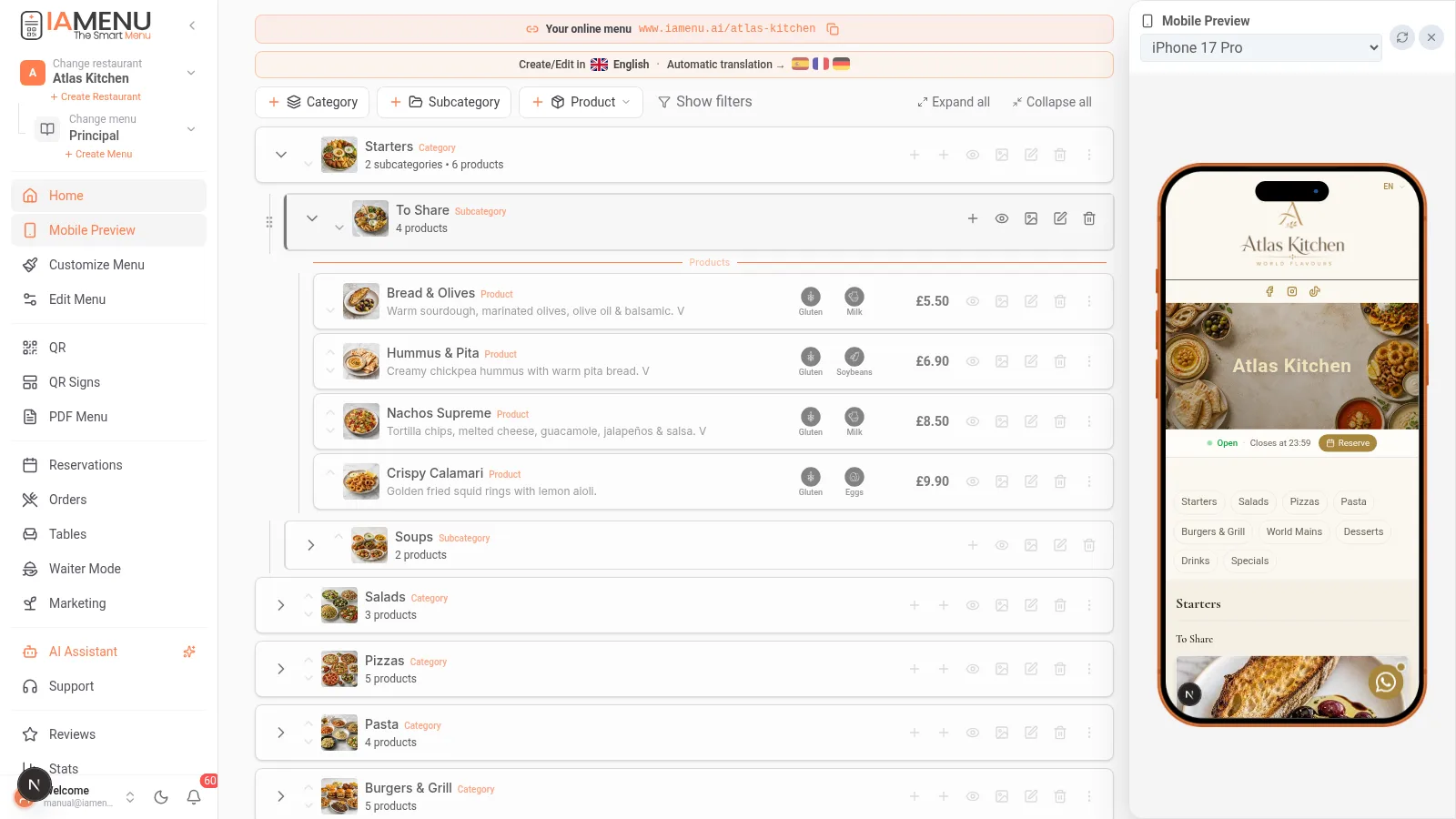
You can click on the product at any time to edit it. All changes you make are reflected instantly in your digital menu without the need to reprint any QR code.
- Review the product data by scrolling through the sections of the modal
- Tap "Save" at the bottom
- The product will appear in the list of the category or subcategory where you created it
- Allergen suggestions and translations are processed in the background for review
Any changes you make are updated in real-time. Your QR menu always shows the most recent version without you having to do anything additional.
Bonus: Generate Dish Descriptions with AI
If you don't want to write the descriptions of your dishes one by one, IAMenu can generate them automatically using artificial intelligence. Choose from 4 styles and 4 lengths to adapt the tone to your restaurant.
- In the description field of the modal, click the "Generate with AI" button
- Choose the writing style: Classic, Modern, Poetic, or Technical
- Choose the length: Short (15-20 words), Medium (30-40), Long (60-80), or Very Long (100-120)
- IAMenu generates the description using the product name, category, ingredients, and price as context
- If you don't like the result, press "Regenerate" to get a different version
The generated descriptions respect the language you are currently working in. If your dashboard is in French, the description will be generated directly in French.
- Tap the "Generate with AI" button next to the description field
- Select the desired style and length
- Review the result and tap "Regenerate" if you need a different version
This is especially useful when you have dozens of products and want all of them to have attractive descriptions without spending hours writing them.
Importante
The limits for AI generation reset each month. Description limits are Starter: 30/month, Professional: 200/month, and Premium: unlimited. You can check current usage in the billing section.
Tips and Best Practices
Follow these recommendations to efficiently create products in your digital menu:
- Write short and clear names. "Margherita Pizza" is better than "Our delicious artisanal wood-fired margherita pizza." The customer scans the menu quickly.
- Include ingredients in the description. If you write "tomato, mozzarella, basil," the AI detects allergens more accurately and generates more faithful translations.
- Generate the image before the description. The visual result can inspire you to write a more attractive description of the dish.
- Use Gaston to create products en masse. Instead of creating one by one, dictate: "Create 5 classic pizzas with prices between 10 and 15 euros." Gaston creates everything with allergens, image, and translations.
- Take advantage of multiple prices. If your restaurant offers tapas, half portions, and full portions, activate this option to show all three prices in a single product.
- Review translations in key languages. Although AI translates with high precision, verify the names in the languages most used by your customers. Manually edited translations are protected.
- Don't forget the gallery. Each product can have up to 5 photos. The first is the main one that appears on the QR menu. The others are shown when the customer taps the product.
Common Problem Solutions
I don't see the button to create products
Make sure you are inside a category or subcategory. Products are created within a section of the menu, not at the root of the dashboard. On mobile, navigate first to the category and then look for the "+ Product" button at the bottom.
The image generated with AI doesn't look like my dish
GPT Image generates images based on the name and description of the product. If the description is too generic, the result may not be accurate. Add specific ingredients and presentation style for better photos. You can also upload your own photo.
The product does not appear in the customer view
Check that the product is active (not deactivated). Also, verify that the category where you created it has at least one active product. Empty categories are not shown to customers.
Translations are not generated when saving
Make sure you have more than one language activated in the business settings. Translations are only generated if there are additional active languages. Also, check that you have not reached the translation limit of your plan.
The price does not show the correct currency
The currency is automatically configured according to the country of your restaurant. If it is not correct, you can change it in the business settings. IAMenu supports 20 different currencies.
Frequently Asked Questions
How many products can I create?
Starter has a product limit; Professional and Premium allow unlimited products. The current limits are listed on the pricing page.
Can I generate photos with AI?
Yes. GPT Image generates professional photographs of your dishes with a single click. Each product can have up to 5 images in its gallery.
Are products automatically translated?
Yes. IAMenu can translate the name and description into the active languages allowed by your plan. Review the translated menu before publishing it.
Can I create in a different language than the base?
Yes. IAMenu does an automatic Smart Swap: it saves the version in the base language and preserves the original as a translation.
Can Gaston create products automatically?
Yes. Ask Gaston to create a product, then review its fields and any generated content or allergen suggestions before publishing.
Related Tutorials
Continue setting up your digital menu with these guides:
- Create Categories to organize the sections of your menu
- Create Subcategories to divide categories into clear sections
- Allergens and Labels to configure automatic allergen detection EU
- Customization to set up happy hour, availability, and multiple prices
- Gaston - Your AI Assistant to automate the management of your menu with artificial intelligence
Ready to create your first product with AI?
Create your account and review the current plans and terms.
No credit card required for the 14-day trial.
More information: