Reservation System for Restaurants: Online and Manual Bookings Without Per-Diner Commissions
7 minutes
Your digital menu can also fill your dining room. With the IAMenu reservation system, the customer viewing your menu can reserve a table at that very moment, without registering, without apps, and without paying a commission per diner. You manage everything from the panel: confirm, seat, mark no-shows, and also record reservations that come in by phone or WhatsApp.
Unlike traditional reservation portals, here the reservation originates from YOUR menu and the customer is YOURS: their data remains in your CRM (Marketing section), not in a third-party database.
What you will learn in this section
- Activate online reservations in your public menu
- Configure the reservation policy (advance notice, group size, hours)
- How your customer reserves step by step
- Manage reservations from the panel: confirm, seat, complete
- Register manual reservations (phone, WhatsApp, walk-in)
- Automatic emails: confirmation, 24h reminder, and cancellation with 1 click
- Control no-shows
Step 1: Activate online reservations
Reservations require a Professional or Premium plan (in the 14-day trial they are unlocked for you to try).
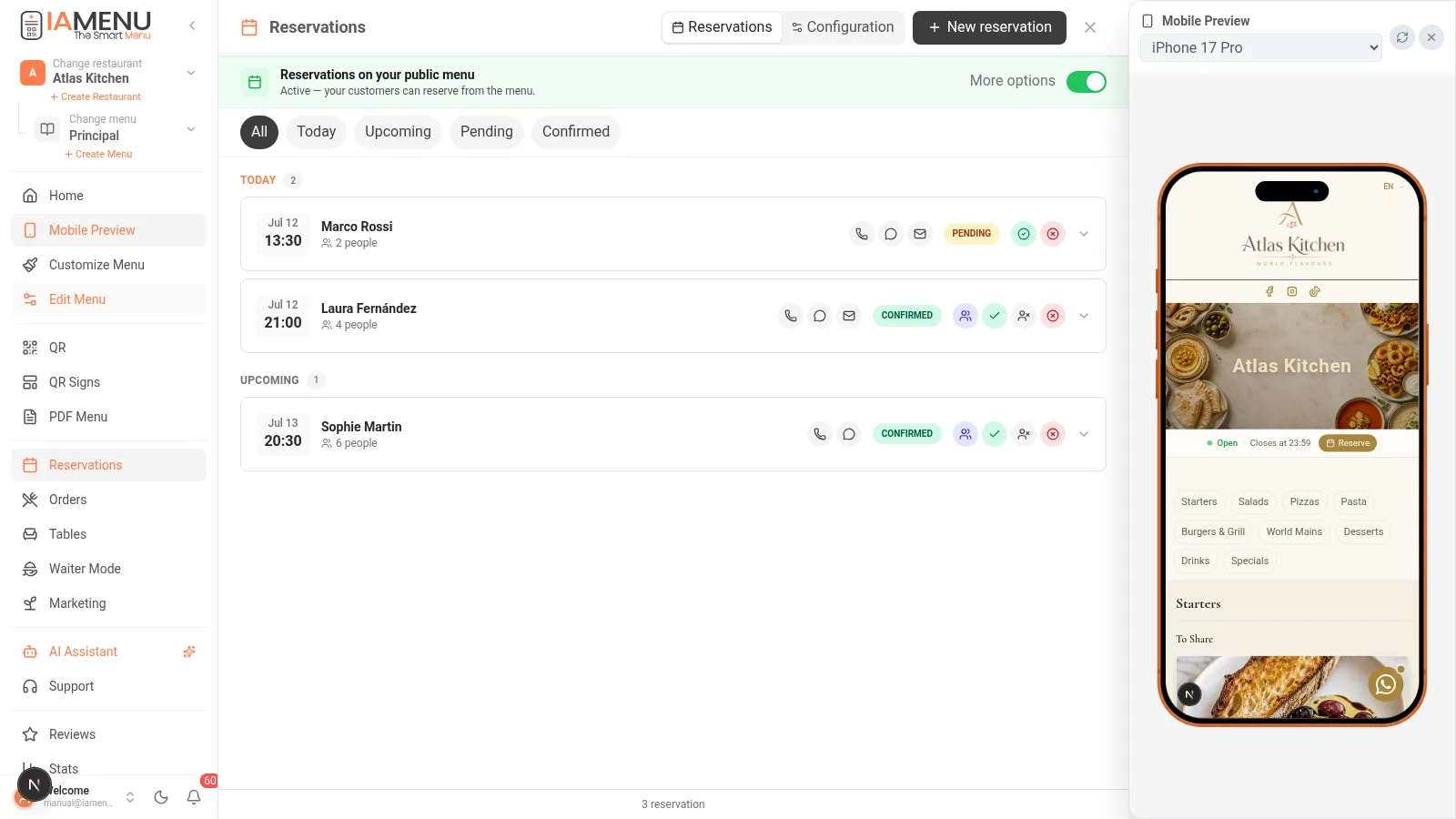
In the side menu, go to Reservations. At the top, you will see the switch "Reservations in your public menu":
- Activated — your customers see the "Reserve" button on your digital menu
- Deactivated — the button disappears from the public menu, but you can still register manual reservations
⚠️ To activate online reservations, you need to have configured hours in Customize Menu → Hours. Without hours, there are no slots to offer, and IAMenu will notify you and guide you to configure them.
In the mobile dashboard, open the side menu and go to Reservations. The same switch "Reservations in your public menu" is at the top of the list. You can confirm and manage reservations from your mobile while you are in the room.
Step 2: Configure your reservation policy
In the Settings tab of the Reservations panel (or in Customize Menu → Reservations), you define the rules of the game:
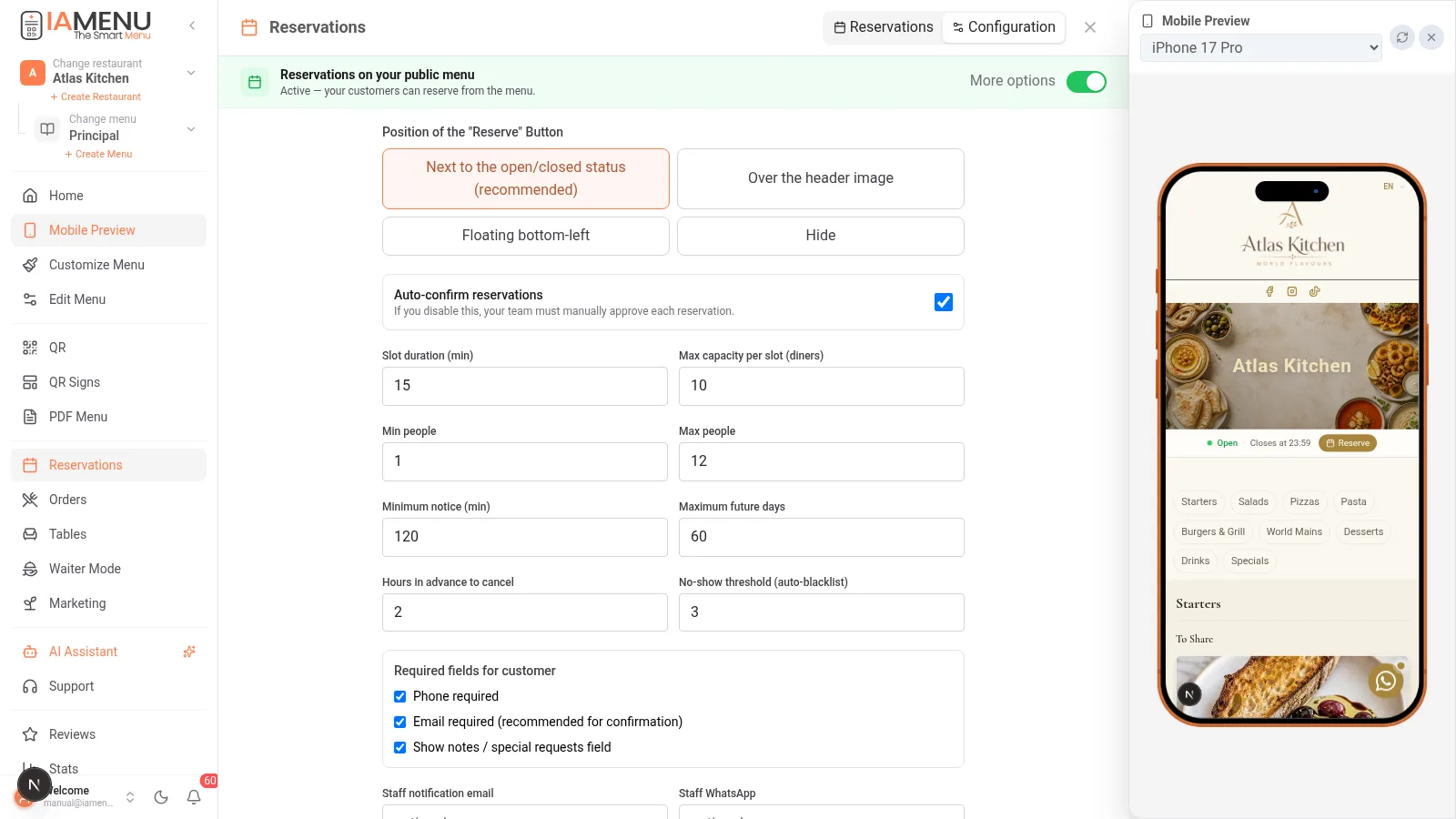
| Setting | What it controls | Recommendation |
|---|---|---|
| Minimum advance notice | How many minutes in advance the customer can reserve | 60-120 min for small kitchens |
| Maximum advance days | How far in the future reservations can be made | 30 days |
| Group size (min-max) | Accepted online groups | 1-8; larger groups should be handled by phone |
| Cancellation policy text | Displayed to the customer and in their email | "Notify 2h in advance" |
| Automatic reminder | Email 24h before the reservation | Activated (reduces no-shows) |
Tip
The customer's calendar only offers days and times when your restaurant is OPEN according to your hours. If you close on Mondays, Monday will appear crossed out. You cannot receive impossible reservations.
Step 3: This is how your customer reserves
The customer clicks "Reserve" on your digital menu and completes 4 steps: date → time → people → their details (name and phone; email optional).
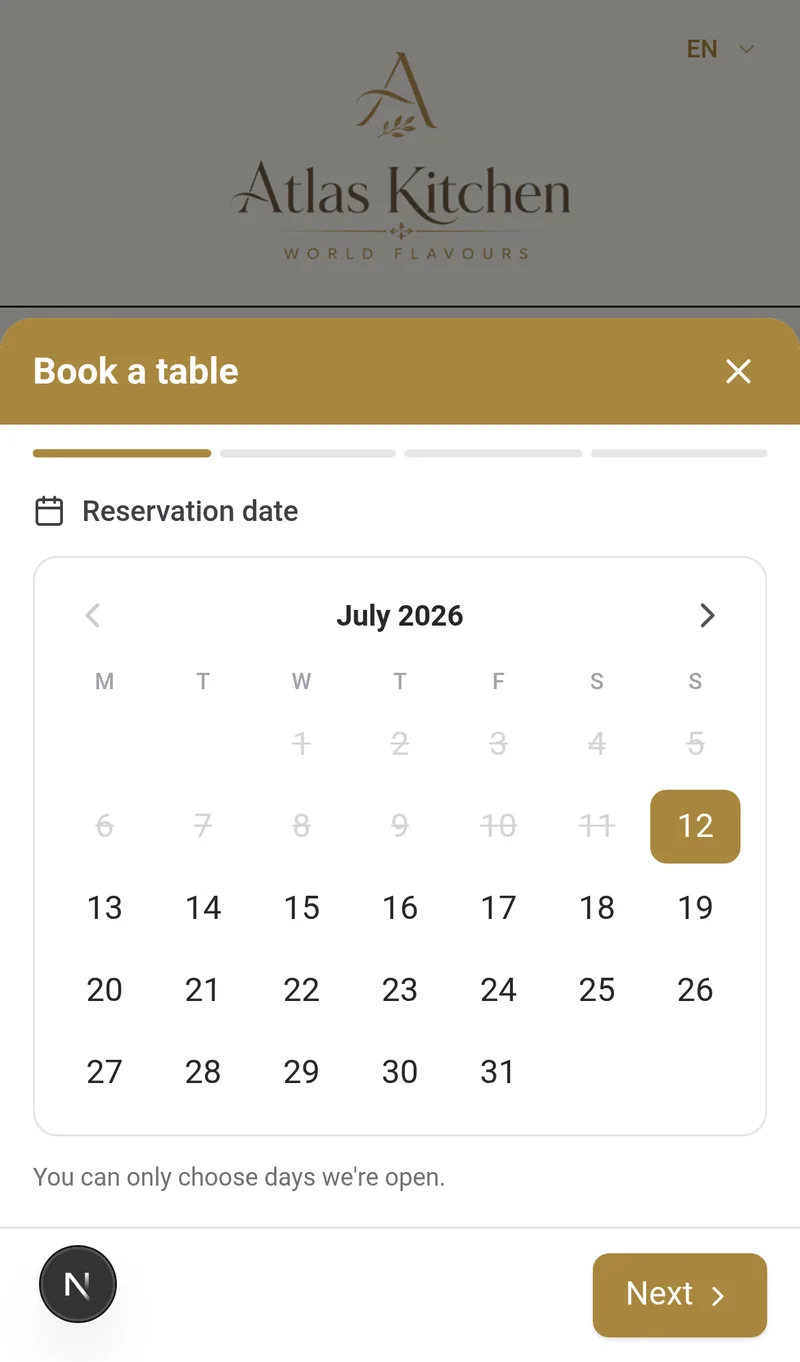
- No registration or app: the customer does not create an account. They authenticate their reservation with a unique link they receive by email.
- In their language: the reservation modal follows the active languages of your menu; IAMenu supports 54 languages across the platform.
- Integrated anti-spam: IP limits and honeypot traps prevent automated junk reservations.
Step 4: Manage reservations from the panel
Each reservation goes through a cycle of states that you control with a click:
Pending → Confirmed → Seated → Completed
              ↘ Cancelled       ↘ No-show
In the list, you have quick actions in each row: ✅ confirm, 🪑 seat, 🚫 mark no-show, ❌ cancel. You can also call, message via WhatsApp, or email the customer with the direct contact icons.
Pro Tip
Filter by "Today" every morning and confirm the pending ones. A clear confirmation and a timely reminder can help customers remember or cancel their booking.
Step 5: Manual reservations (phone, WhatsApp, walk-in)
The reality of a restaurant: most reservations still come in by phone. To avoid them living in a notebook, click "+ New reservation":
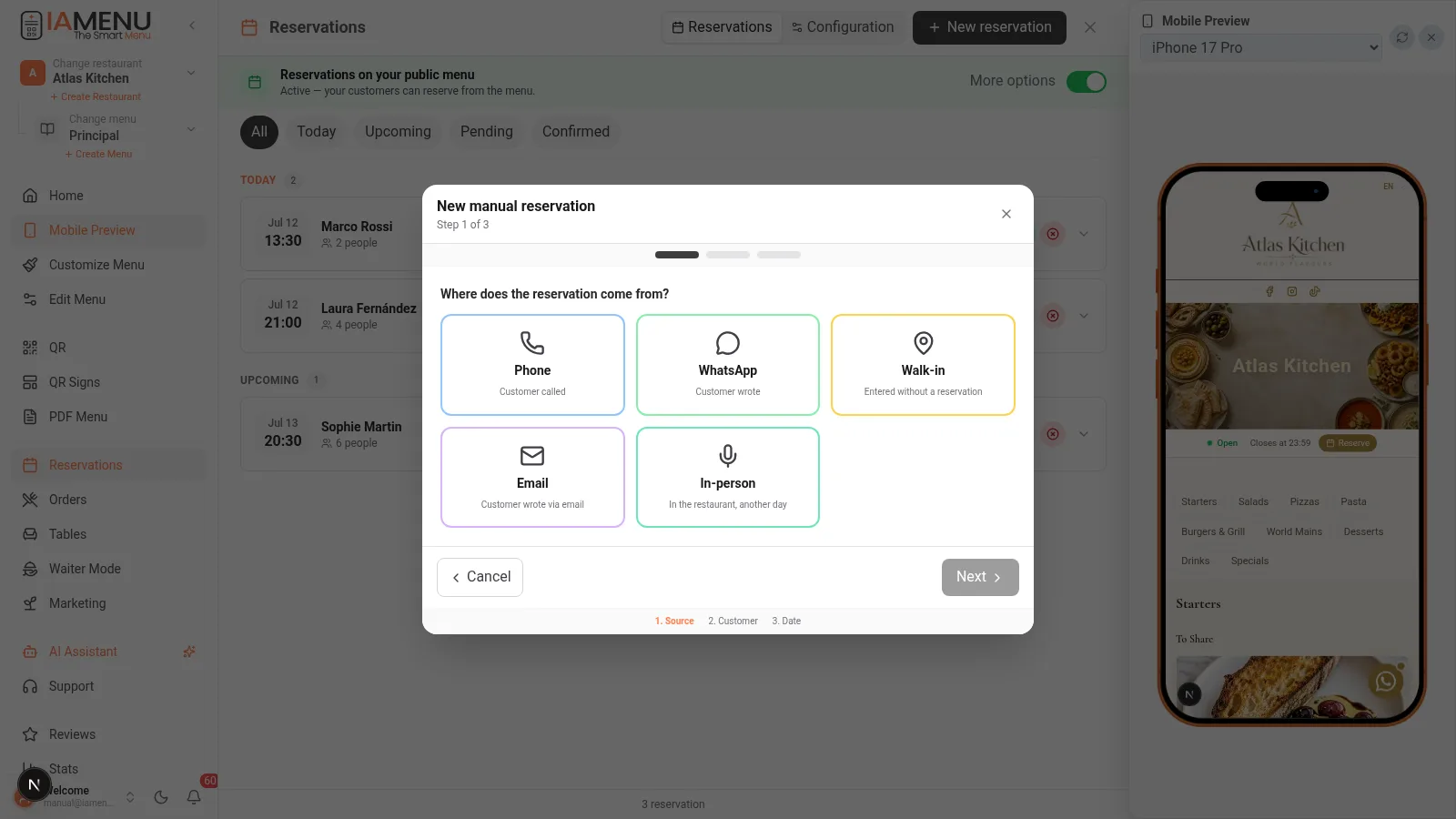
- Choose the source: Phone, WhatsApp, Walk-in, Email, or In-person (this will be recorded for your statistics)
- Customer details: when entering the phone number, IAMenu detects if it is a returning customer and shows you their history ("3 reservations · 1 no-show") before accepting
- Date, time, and people: no advance notice restrictions — you decide
Manual reservations are already confirmed (you have already spoken with the customer).
Tip
You can also dictate it to Gaston: "Book a reservation for Marta tomorrow at 21:00, 4 people, wine by phone." The AI assistant creates it for you. More in the Gaston section.
Step 6: Automatic emails that work for you
| When it is sent | What it contains | |
|---|---|---|
| Confirmation | When creating the online reservation | Details + buttons "I confirm my attendance" / "Cancel" (1 click, no login) |
| Reminder | 24 hours before | Reminder + cancellation policy + cancellation link |
The emails are sent with your restaurant name, in the customer's language, and respect your real time zone. If the customer cancels, the table is freed instantly in your panel.
Step 7: No-shows under control
- Mark No-show when a confirmed customer does not show up; retain customer history only as long as justified by your configured purpose and privacy obligations
- In the next reservation for that phone number, you will see the recurrence warning
- The no-show counter per customer is in the CRM (Marketing → Customers)
IAMenu Reservation Model
| Capability | IAMenu |
|---|---|
| IAMenu commission per diner | 0 EUR |
| Customer relationship | Managed by the restaurant in its IAMenu CRM, subject to privacy obligations |
| Mandatory booking discount | No |
| Phone and WhatsApp reservations | Manual entry with source and duplicate checks |
| QR menu integration | Reservation flow opens from the restaurant's public menu |
Common troubleshooting
The "Reserve" button does not appear on my menu
Check: (1) that the switch "Reservations in your public menu" is activated, (2) that you have configured hours with at least one open day, and (3) that your plan is Professional or Premium (or you are in trial).
The customer says they did not receive the confirmation email
Ask them to check spam. The email is sent as soon as the reservation is created. If they entered their email incorrectly, you can resend the details via WhatsApp from the contact icons of the reservation.
I want to accept groups of more than 8 people
Increase the "maximum group size" in the policy, or leave the online limit and manage larger groups by phone as a manual reservation (without limits).
Related tutorials
- QR Orders at the table so the customer can also order from the table
- Marketing and CRM to turn each reservation into a repeat customer
- Customization and hours to configure the hours that feed the calendar
- Gaston to create and consult reservations by speaking
Ready to fill more tables without paying commissions?
Create your account and review the current plans and terms.