Log in to IAMenu - Google or Email Login
2 minutes
Accessing IAMenu is quick and secure. You can log in with your Google account in just one click or use your email and password. In this step-by-step guide, you will learn both access methods, how to recover your password if you forget it, and tips to keep your account secure. Whether you manage a restaurant, a hotel, or a chain of establishments, the process is the same. Estimated time: 3 minutes.
What You Will Learn in This Section
- Access the IAMenu login page
- Log in with Google (the fastest method)
- Log in with email and password
- Recover your password if you have forgotten it
- Security tips for your account
Step 1: Access the Login Page
To get started, open your browser and go to iamenu.ai. If you do not have an active session, you will be automatically redirected to the login screen. You can also access it directly by typing iamenu.ai/login in the address bar.
On desktop, you will see a sleek screen with the IAMenu logo, the "Continue with Google" button at the top, and below it the email and password form.
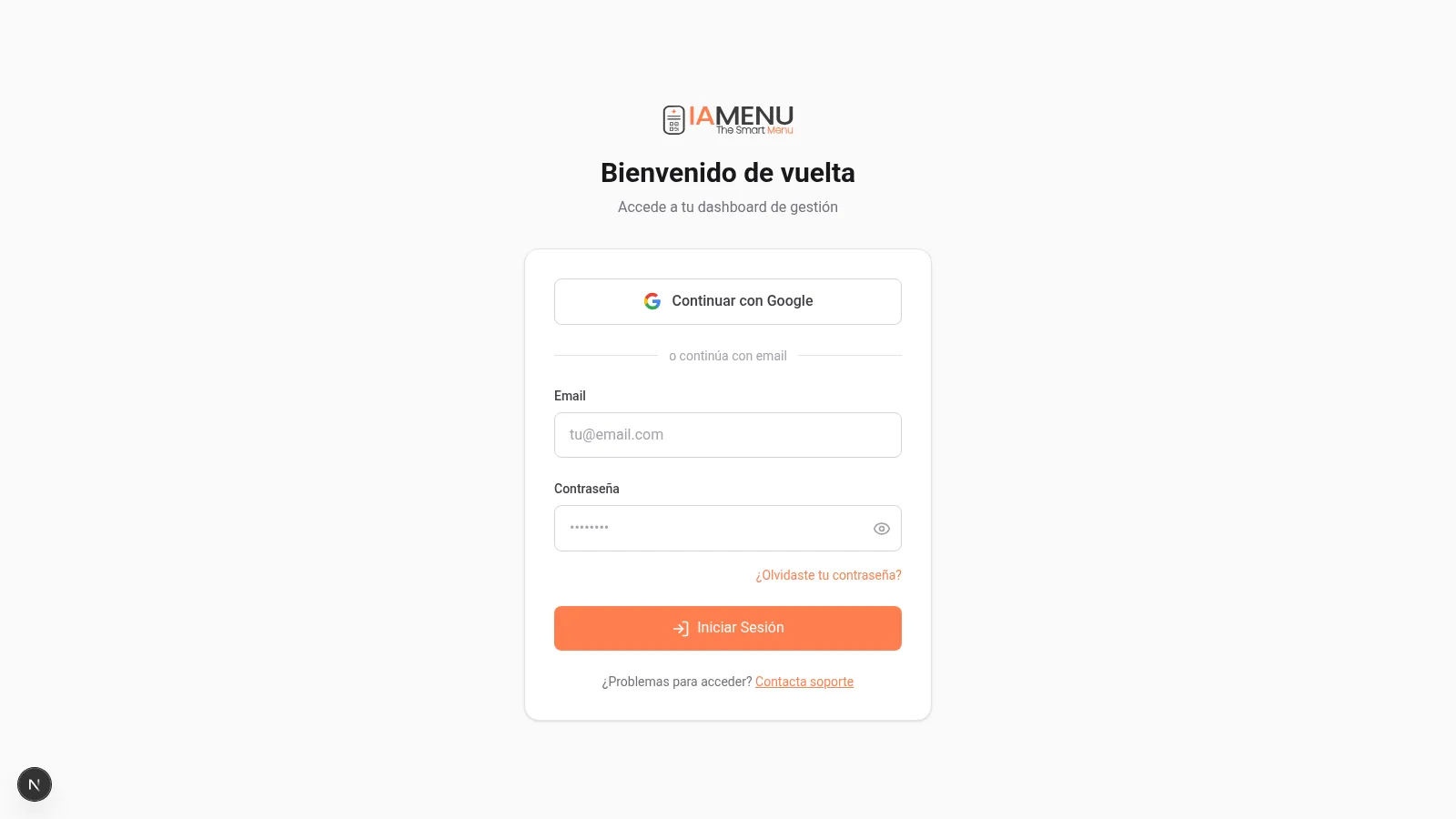
The login interface shows:
- Google Button at the top (quick access)
- Separator "or continue with email"
- Fields for email and password
- Button "Log In"
On mobile, the login screen automatically adjusts to your screen. All elements are accessible with one hand.
The mobile design is identical in functionality: Google button at the top, email form below.
Tip
If you already have an active session, IAMenu will redirect you directly to the dashboard without needing to log in again.
Step 2: Log In with Google (Recommended)
The fastest way to access IAMenu is with your Google account. You only need one click and you don’t have to remember any additional passwords. This method uses Google’s OAuth protocol, which means that IAMenu never sees or stores your Google password.
- Click the "Continue with Google" button at the top of the form
- A Google pop-up window will open where you select your Gmail account
- Google authorizes the access and you will automatically return to IAMenu
- You will be redirected to your restaurant's dashboard
The entire process takes less than 5 seconds. You do not need to remember any password.
- Tap the "Continue with Google" button
- Your mobile will show the Google account selection
- Select the account associated with IAMenu
- You will automatically return to the dashboard
On mobile, if you already have the Google account active on your device, the process is practically instantaneous.
Tip
If you created your IAMenu account with email and want to start using Google to log in, make sure to use the same email in both cases. IAMenu automatically links accounts by email.
Step 3: Log In with Email and Password
If you prefer not to use Google, you can access with the email and password you used during the registration at IAMenu. This method is ideal if your company has policies that restrict the use of personal Google accounts or if you simply prefer to manage your credentials separately.
- In the "Email" field, type your email address
- In the "Password" field, type your password
- Optionally, check the "Remember Me" box to keep your session active
- Click the "Log In" button
You can use the eye icon to the right of the password field to show or hide what you type. This is useful to verify that there are no typing errors.
- Tap the "Email" field and type your email
- Tap the "Password" field and type your password
- Press "Log In"
On mobile, the keyboard automatically adjusts to the type of field: email keyboard for the email, and text keyboard for the password.
Importante
If you enter an incorrect email or password, IAMenu will display a red error message above the form. Verify that your email is correctly typed and that the password is correct (it is case-sensitive).
Step 4: Recover Your Password
If you have forgotten your password, don’t worry. IAMenu allows you to recover it easily through a reset link sent to your email. The process is quick and secure, as the link is one-time use and has a limited duration.
- On the login screen, click the "Forgot your password?" link below the password field
- A new page will open where you must enter your email
- Click "Send Recovery Link"
- Check your inbox (and spam folder)
- Click the link in the email to create a new password
Once you create your new password, you will be able to log in normally with it.
- Tap "Forgot your password?" on the login screen
- Enter your email on the recovery page
- Click "Send Recovery Link"
- Open the email on your mobile and tap the link
- Create your new password
The recovery link expires after a few hours, so use it as soon as possible.
Tip
If you do not receive the recovery email within a few minutes, check your spam or junk folder. If you use Gmail, also check the Promotions tab.
Step 5: Security Tips for Your Account
Keeping your IAMenu account secure is essential, especially if you manage the digital menu of your restaurant, hotel, or chain of establishments. Your account contains sensitive information about prices, products, and your business settings.
Good Security Practices:
- Use Google to log in whenever possible. It is safer because it benefits from Google authentication, including two-step verification if you have it enabled on your Google account.
- Choose a strong password if you use email: at least 8 characters combining uppercase letters, lowercase letters, numbers, and special symbols.
- Do not share your credentials with other employees. IAMenu includes a team and permissions system that allows you to invite your staff with specific roles and permissions (Owner, Manager, Chef, Staff).
- Log out when using a shared or public computer by clicking on your avatar and selecting "Log out."
- Review access periodically from your business settings to ensure that only authorized people have access.
Importante
Never share your password with other employees. If you need someone else to access the system, invite them as a user with the appropriate role (Chef, Manager, Staff) from your business settings. Each role has different permissions to control what each person can see and modify. Check the team and permissions section in your business settings to learn how to manage your team.
Tips and Best Practices
Follow these recommendations to manage your account securely and efficiently:
- Use Google whenever you can. It is faster and safer. If your Google account has two-step verification, your IAMenu account inherits that protection.
- Use a unique password. Do not reuse your IAMenu password on other websites. Choose at least 8 characters with letters, numbers, and symbols.
- Invite your team with roles. Do not share your credentials. IAMenu allows you to invite employees with specific permissions (Owner, Manager, Chef, Staff). Each person has their own access.
- Log out on shared devices. If you use a public or shared computer, log out when you finish. Click your avatar and select "Log out."
- Review access periodically. From your business settings, you can see who has access and remove users who no longer work with you.
- Check the Remember Me box. On your personal device, enable this option so you don’t have to enter your credentials every time.
Common Problems and Solutions
I can't access my account
Verify that the email is correct and that the password is case-sensitive. If you use Google, make sure to select the correct Gmail account.
I am not receiving the password recovery email
Check the spam or junk folder. In Gmail, also check the Promotions tab. If it does not arrive within 5 minutes, request the link again.
The Google button is not working
Make sure you do not have a pop-up blocker active. Logging in with Google opens a pop-up window that some browsers block. Add an exception for iamenu.ai.
It says my email is already registered
You may have previously created an account with that email. Try logging in with your password or use the recovery option. If you used Google the first time, click "Continue with Google."
My session keeps expiring
Check that your browser is not blocking cookies from iamenu.ai. Cookies are necessary to keep your session active. You can also check "Remember Me" when logging in.
Frequently Asked Questions
Can I log in with Google?
Yes. It is the fastest and safest method. You only need one click, and IAMenu never sees your Google password.
What should I do if I forgot my password?
Click "Forgot your password?" on the login screen. Enter your email, and you will receive a link to create a new password. The link expires in a few hours.
Can I link my email account with Google?
Yes. If you use the same email in both cases, IAMenu automatically links the accounts. You can access with either method.
Is it safe to log in to IAMenu?
Yes. IAMenu uses HTTPS encryption and secure authentication. Passwords are stored with a hash, never in plain text. If you use Google, you benefit from two-step verification.
Can I use IAMenu on multiple devices?
Yes. Your session works on computer, mobile, and tablet at the same time. Changes you make on one device are reflected instantly on the others.
Related Tutorials
Continue setting up your digital menu with these guides:
- Onboarding to set up your first restaurant step by step
- Dashboard to discover the control center of your digital menu
- Create Categories to organize the sections of your menu
- Create Products to add dishes with prices and AI images
- Gaston - Your AI Assistant to automate the management of your menu with artificial intelligence
Ready to create your digital menu with AI?
Create your account and review the current plans and terms.
More information: