Manage Your Digital Menu: Reorder, Duplicate, and Multi-Menu
5 minutes
Learn how to organize, reorder, and manage your digital menu. Discover how to update prices, move products, and create menus for different times, all without needing to reprint your QR code.
What You Will Learn in This Section
- Reorder categories, subcategories, and products with drag & drop
- Move products between categories and subcategories
- Create multiple menus (lunch, dinner, special events)
- Update your menu without reprinting the QR code
- The 7 real problems of paper menus and how to solve them with a digital menu
Step 1: Reorder Items with Drag & Drop
The order in which your categories and products appear on the dashboard is exactly the same as what your customers will see. Place the star dishes and the most popular categories in the top positions to maximize their visibility.
On desktop, hold down any item (category, subcategory, or product) and drag it to the desired position. The system automatically saves the new order.
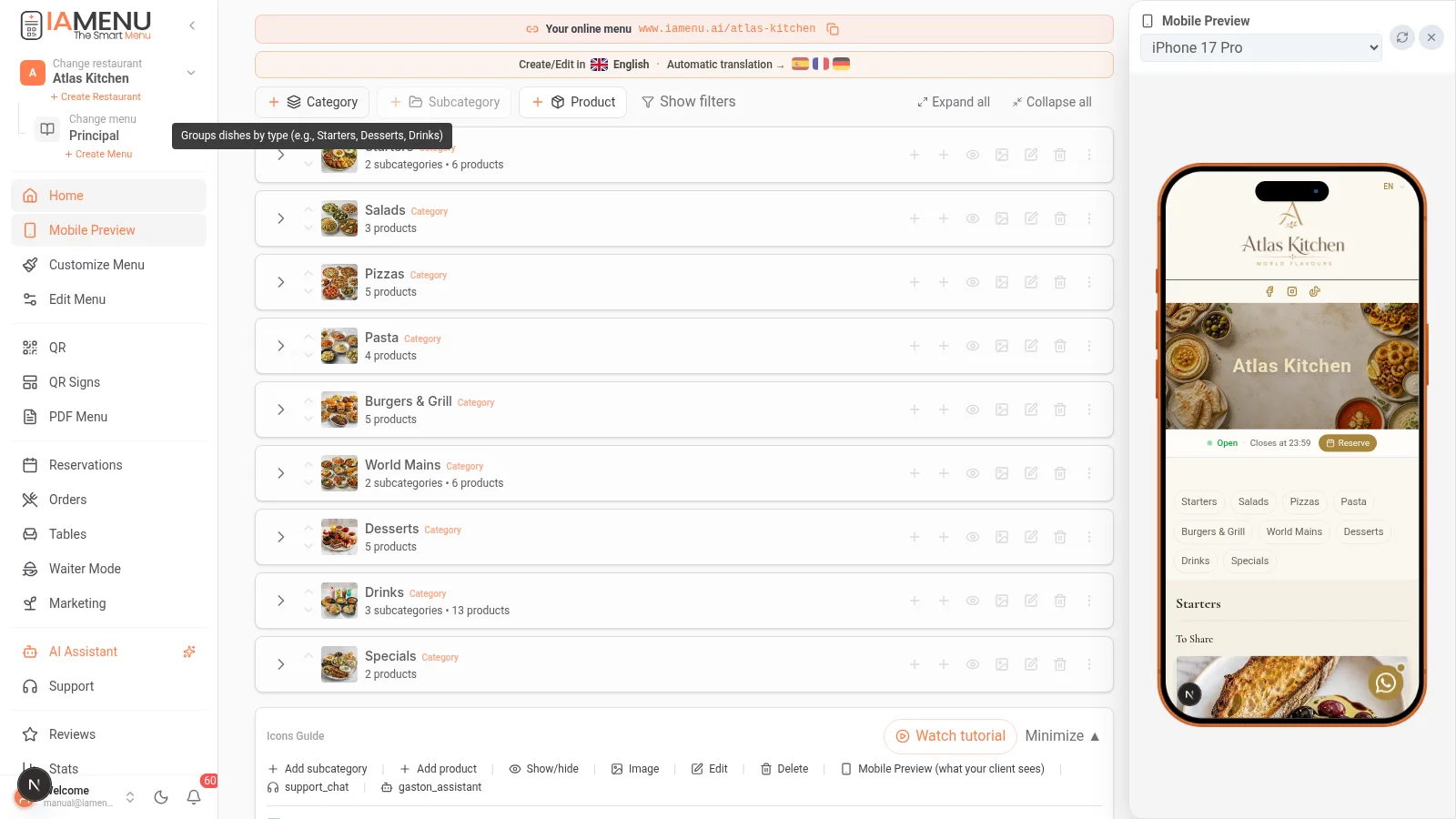
You can reorder:
- Categories among themselves (for example, move Desserts before Beverages)
- Subcategories within a category
- Products within their subcategory or category
On mobile, drag & drop is replaced by sorting arrows. Tap the up/down arrow icon next to each item to change its position.
Steps on mobile:
- Navigate to the category or subcategory you want to reorder
- Use the up/down arrows next to each item
- The change is saved automatically
Pro Tip
Pro Tip: Place your most profitable and popular products in the top positions of each category. Studies show that customers pay more attention to the first and last items on the list.
Step 2: Move Products Between Categories
When reorganizing your menu, you may need to move a product from one category to another. For example, moving "Tiramisu" from "Specialties" to "Desserts," or converting a regular product into a loose product.
To move a product between categories on desktop:
- Open the options menu of the product (three dots)
- Select "Move to..."
- Choose the destination category and subcategory
- The product moves while retaining all its information, images, translations, and allergens
You can also drag a product directly over another category to move it.
On mobile, the process is similar:
- Tap on the product options
- Select "Move to..."
- Navigate and choose the destination category
Tip
Important: When moving a product, all its translations, images, allergens, and tags remain intact. You do not need to reconfigure anything.
Step 3: Multi-Menu for Different Times
Many restaurants need different menus depending on the time of day: breakfast menu, lunch menu, dinner menu, or menus for special events. With IAMenu, you can create multiple menus and define when each one is displayed automatically.
To create a new menu:
- In the dashboard header, tap the menu selector (next to the name of the active menu)
- Click on "+ Create Menu"
- Assign a name: "Lunch Menu," "Dinner Menu," "Christmas Event Menu"
- Set the activation days and times
- Add specific categories and products for that menu
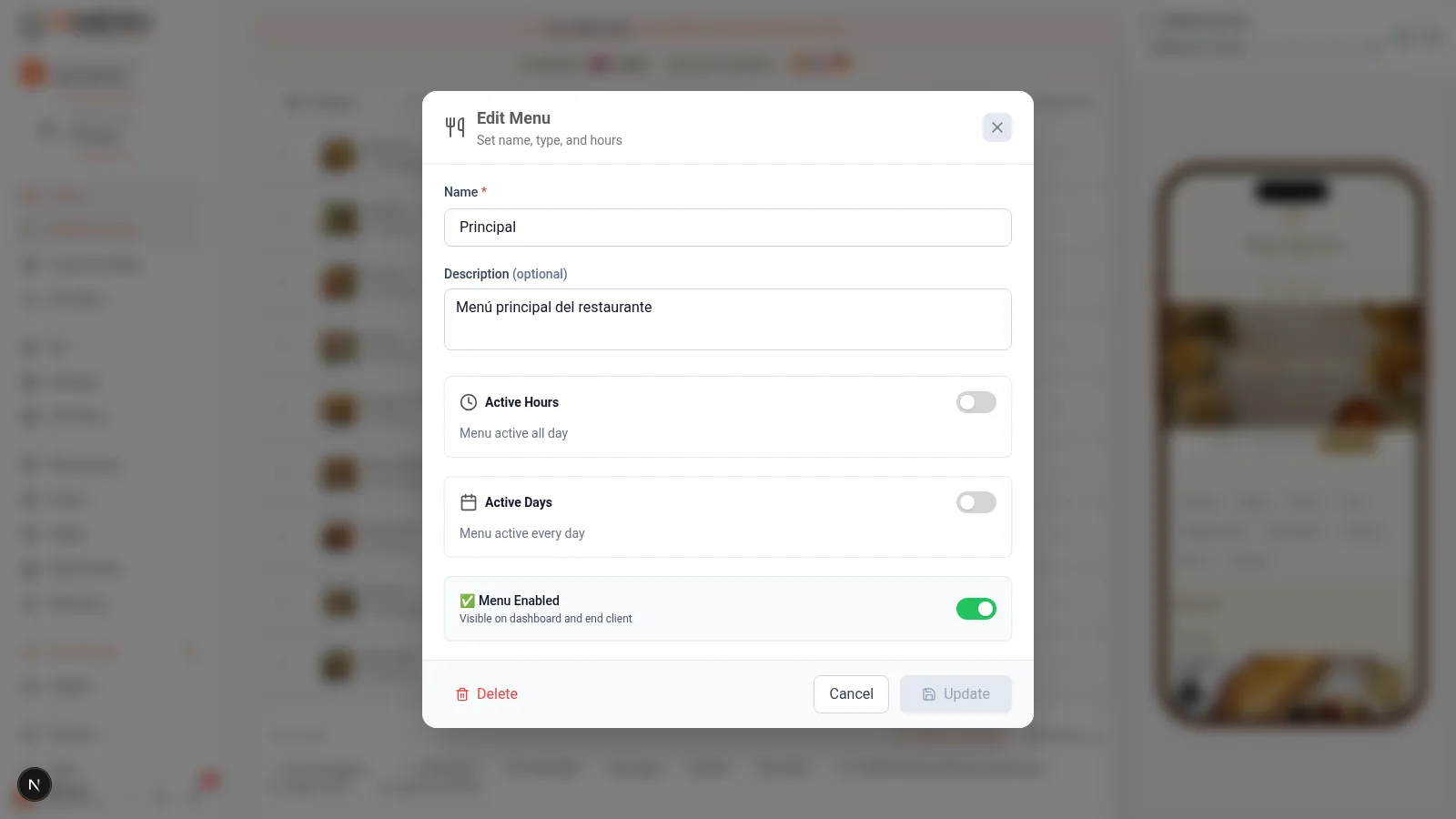
Real example: A restaurant with a daily menu from 12:00 to 16:00 and a full menu from 20:00 to 23:30. Each menu is activated automatically according to the time.
On mobile:
- Tap the name of the current menu at the top
- Select "+ Create Menu"
- Set the name, schedule, and active days
- Add the content of the new menu
Shared Categories Between Menus
A key feature: you can make certain categories appear in all menus. For example, the "Beverages" category can be available in both the lunch menu and the dinner menu.
- Shared categories (without assigned menu): Appear in all menus
- Exclusive categories (with assigned menu): Only appear in their menu
Pro Tip
Pro Tip: For restaurants with a daily menu, create a separate menu with the categories "First Course," "Second Course," and "Dessert." Update it from mobile before service so customers see the current menu when scanning the QR.
Step 4: Update Your Menu Without Reprinting the QR
This is one of the biggest advantages of IAMenu and a practical reason to move from paper menus to a digital menu with QR code.
The QR is Dynamic: Points to a URL, Not a PDF
When you generate your QR code with IAMenu, it points to the web address of your restaurant (for example, iamenu.ai/my-restaurant). The QR never changes, but the content it displays updates in real time.
This means you can:
- Change prices instantly (without reprinting anything)
- Add or remove products every day if you want
- Activate the daily menu in the morning and the full menu at night
- Correct errors in names or descriptions immediately
- Add new languages for the tourist season
- Update allergens when you change a recipe
How it works:
- Your printed QR points to
iamenu.ai/your-restaurant - You make any changes in the dashboard (price, product, language...)
- Your customers scan the same QR and see the updated version
- You never need to reprint the QR code
Updating from mobile is just as easy:
- Open IAMenu on your phone
- Make the changes you need (prices, products, schedules)
- Save and you're done: your customers see the new version instantly
Importante
Caution: The only reason to reprint the QR would be if you change the URL of your restaurant (the slug). If you only change content, prices, or languages, the existing QR continues to work perfectly.
Common Use Cases
| Situation | Solution with IAMenu | Need to Reprint QR? |
|---|---|---|
| 5% price increase | Update prices in the dashboard | No |
| New seasonal dish | Create product and activate it | No |
| Different daily menu each day | Edit categories of the daily menu | No |
| Special menu for Valentine's Day | Create event menu with date | No |
| Menu in 3 languages for summer | Activate additional languages | No |
| Remove out-of-stock product | Temporarily deactivate product | No |
| Change photo of a dish | Upload new image or generate with AI | No |
Sustainability: The Environmental Impact of the Digital Menu
A benefit that many restaurants do not consider: using a digital menu with QR can reduce repeated menu printing.
- Price, availability, and seasonal changes can be published without a new print run
- A durable table QR can keep pointing to the current online menu
- Printed menus can still be offered when they are useful or required locally
Tip
Practical note: The reduction depends on how often your restaurant currently reprints menus. The QR continues working while its URL remains unchanged.
The 7 Real Problems of Managing a Paper Menu (and How a Digital Menu Solves Them)
If you still use printed menus, these problems will sound familiar. They are the most common pain points in hospitality that disappear when switching to a digital menu with QR.
1. Changing prices requires reprinting the entire menu
With a paper menu, raising the price of a dish means reprinting all copies. If you have 40 tables with 2 menus each, that's 80 new menus. With a digital menu, you change the price in the dashboard and all customers see the update instantly.
Cost impact: Your savings depend on your current print volume and materials. IAMenu removes the need to reprint solely because a price or dish changed.
2. Out-of-stock products still on the menu
A customer orders a dish that you haven't served for 3 days because the main ingredient is out of stock. With a printed menu, the waiter has to explain it. With a digital menu, you can deactivate the product so it disappears from the menu. When it becomes available again, reactivate it.
3. Daily menu that changes every day
Restaurants with a daily menu need to update their menu every morning. With paper, that can mean handwritten boards, daily photocopies, or verbal communication. With IAMenu, you can edit the daily menu from mobile before opening. Customers scanning the QR see the published version.
4. Tourist season without menu in other languages
Summer arrives and your restaurant receives German, French, and English tourists. Your menu is only in Spanish. With IAMenu, you can activate the languages included in your plan and generate contextual menu translations for review before publishing. Learn more about automatic translations.
5. Mandatory allergens that no one updates
Allergen information must be accurate and kept up to date under the rules that apply to your restaurant. IAMenu can suggest the 14 EU-regulated allergens from product information, but your team must review every suggestion against recipes and supplier data before publishing. See the compliance checklist.
6. Outdated or nonexistent dish photos
Adding useful dish photos can help customers understand the menu. With IAMenu, you can generate food images with GPT Image directly from the dashboard or ask Gaston to generate them in batches. Review generated images before publishing so they represent the dish honestly.
7. Not knowing which dishes work and which do not
With a printed menu, you have no data. You don't know which products your customers look at, which they ignore, or which convert the most. With IAMenu, you have integrated analytics: ranking of most viewed products, sessions by time, and interaction data that help you make informed decisions about your menu.
Pro Tip
Pro Tip: Estimate your own current costs for reprints, manual translations, photography, and staff time. That gives you a realistic comparison with the IAMenu plan that fits your restaurant; savings vary by operation.
Gaston: Voice Management
Remember that you can use Gaston, the AI assistant, to manage your menu by speaking in natural language:
- "Move the Paella to the Rice category"
- "Duplicate the American Coffee and change the price to 3 euros"
- "Reorder the desserts by price from lowest to highest"
- "Create a menu called Daily Menu with the categories First Course, Second Course, and Dessert"
Tips and Best Practices
Follow these recommendations to manage your digital menu efficiently:
- Place star dishes in the top positions. Studies show that customers pay more attention to the first and last items on the list. Use drag & drop to position your most profitable dishes at the top.
- Use shared categories for Beverages. If you have a lunch menu and a dinner menu, make the Beverages category shared so it appears in both menus without duplicating products.
- Update the daily menu from mobile. Edit the daily dishes from your phone before opening. Customers will see the published menu when scanning the QR.
- Deactivate products instead of deleting them. If a dish is temporarily unavailable, deactivate it. When it becomes available again, reactivate it with a tap. This way, you don't lose the translations, images, and allergens configured.
- Use Gaston for bulk changes. Instead of editing product by product, dictate to Gaston: "Increase all prices in the Main category by 5%." It's much faster.
- Review the menu from the customer's view. After making changes, scan your QR to verify that everything displays correctly from the customer's perspective.
Common Problem Solutions
Drag & drop not working on the dashboard
Drag & drop only works in the desktop version. On mobile, use the up/down arrow buttons to reorder. If you are on desktop and it doesn't work, try refreshing the page.
I moved a product and it lost its image
This should not happen. When moving a product, all its images, translations, allergens, and tags remain intact. If the image does not appear, refresh the dashboard page.
The multi-menu does not change automatically according to the time
Check that you have correctly configured the activation days and times for each menu. Also, verify that the business time zone is correct in the general settings.
I don't see the button to create a new menu
Each plan includes a maximum number of menus per restaurant, shown on the plans page; if you have reached yours, you need a higher plan or to delete a menu you don't use.
Customers see the previous version of the menu
Changes are reflected instantly when a customer refreshes the page. If someone has the page open while you make changes, they will see the new version the next time they refresh or scan the QR again.
Frequently Asked Questions
Do I need to reprint the QR when I change the menu?
No. The QR points to your URL, not to a PDF. Changes are reflected instantly. You only reprint if you change the restaurant's URL.
Can I have multiple menus for different times?
Yes. Create separate menus with automatic activation schedules. Categories can be shared or exclusive to a menu.
How do I move a product to another category?
Open the options menu of the product and select "Move to...". The product retains all its images, translations, and allergens.
How do I reorder products?
On desktop, drag and drop. On mobile, use the arrows. The change is saved automatically.
How much do I save by leaving the paper menu?
Savings vary with your current print volume and materials. IAMenu lets you change digital content without reprinting the menu for every update.
Related Tutorials
Continue setting up your digital menu with these guides:
- Create Categories to organize the sections of your menu
- Create Products to add dishes with prices, images, and AI descriptions
- QR Code to generate professional QR codes with scanning statistics
- PDF Menu to export your menu in 10 professional templates
- Gaston - Your AI Assistant to manage your menu with voice commands
Ready to manage your digital menu without limits?
Create your account and review the current plans and terms.
No credit card required. Update your menu whenever you want without reprinting the QR for content changes.
More information: