Generate QR for Restaurant Menu: Complete Guide
6 minutes
Learn how to create, customize, and download the QR code for your digital menu in less than 6 minutes. With IAMenu, you get a dynamic QR that updates automatically when you modify your menu, without the need to reprint anything.
What you will learn in this section
- Open the QR code generator
- Customize your QR (5 styles, colors, logo)
- Use professional templates for printing (A4, A5, A6, square)
- Download your QR in multiple formats (PNG, SVG, PDF)
- Troubleshoot common scanning issues
- Understand the advantage of dynamic QR over static QR
Step 1: Open the QR generator
The QR code generator from IAMenu is accessible from the sidebar menu of the dashboard. Here you can create both QR codes for your digital menu and QR codes to collect customer reviews.
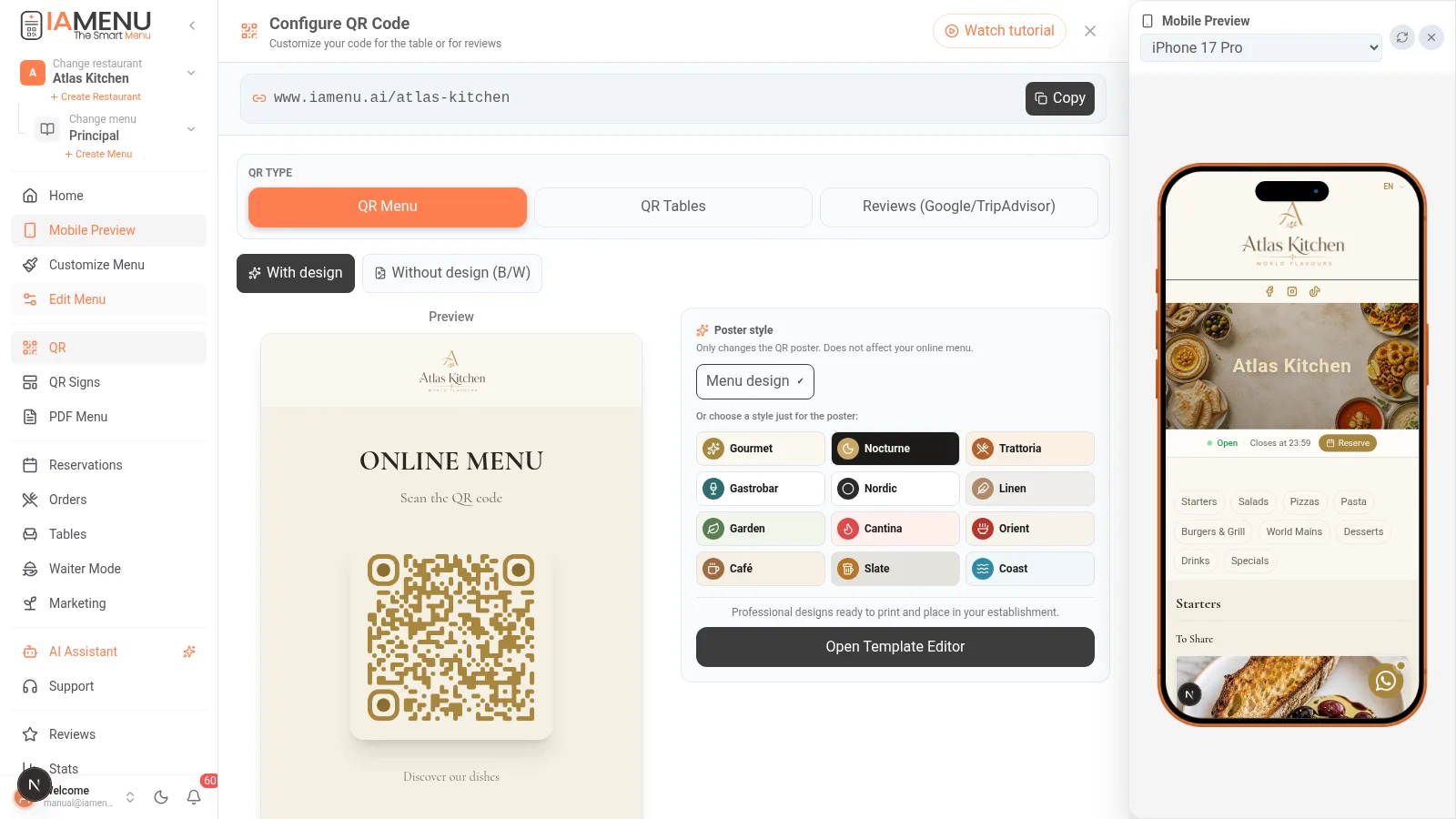
From the left sidebar menu, click on "QR Code". The generator modal will open with a real-time preview of your QR.
At the top, you will see two options:
- QR Menu: Links directly to your public digital menu
- QR Reviews: Links to your reviews page for customers to rate your restaurant
Tap the hamburger menu icon in the upper left corner and select "QR Code". The generator will open in full screen with the same options as on desktop.
Tip
Your menu QR points to a unique and permanent URL like iamenu.ai/your-restaurant. This URL never changes even if you modify prices, products, or languages.
Step 2: Customize your QR code
IAMenu offers 5 different QR styles and advanced customization options so that your QR code integrates with your restaurant's visual identity.
The available customization options are:
QR Style (5 options):
- Square: The classic QR with angular corners
- Rounded: Soft corners, modern look
- Dots: Minimalist with circles
- Elegant: Professional with refined edges
- Borders: With a decorative frame around
Colors:
- QR Color: Choose the color of the dots and modules (black by default)
- Background Color: White by default, you can change it to any color
Size:
- Adjust with the slider between 200px and 400px depending on where you will place it
Logo:
- Upload your restaurant's logo and it will appear centered in the QR
- The logo integrates without affecting the readability of the code
All changes are reflected in real-time in the preview on the right.
On mobile, the customization options appear in vertical format. Scroll down to see all options: style, colors, size, and logo. The QR preview updates in real-time at the top.
Importante
Avoid using very light colors for the QR dots (like yellow or white on a light background). The contrast between the QR and the background must be high for phones to scan it correctly.
Step 3: Use professional templates for printing
In addition to the basic QR, IAMenu includes a professional template editor with 7 formats ready for printing. This is ideal for placing on tables, bars, showcases, or walls.
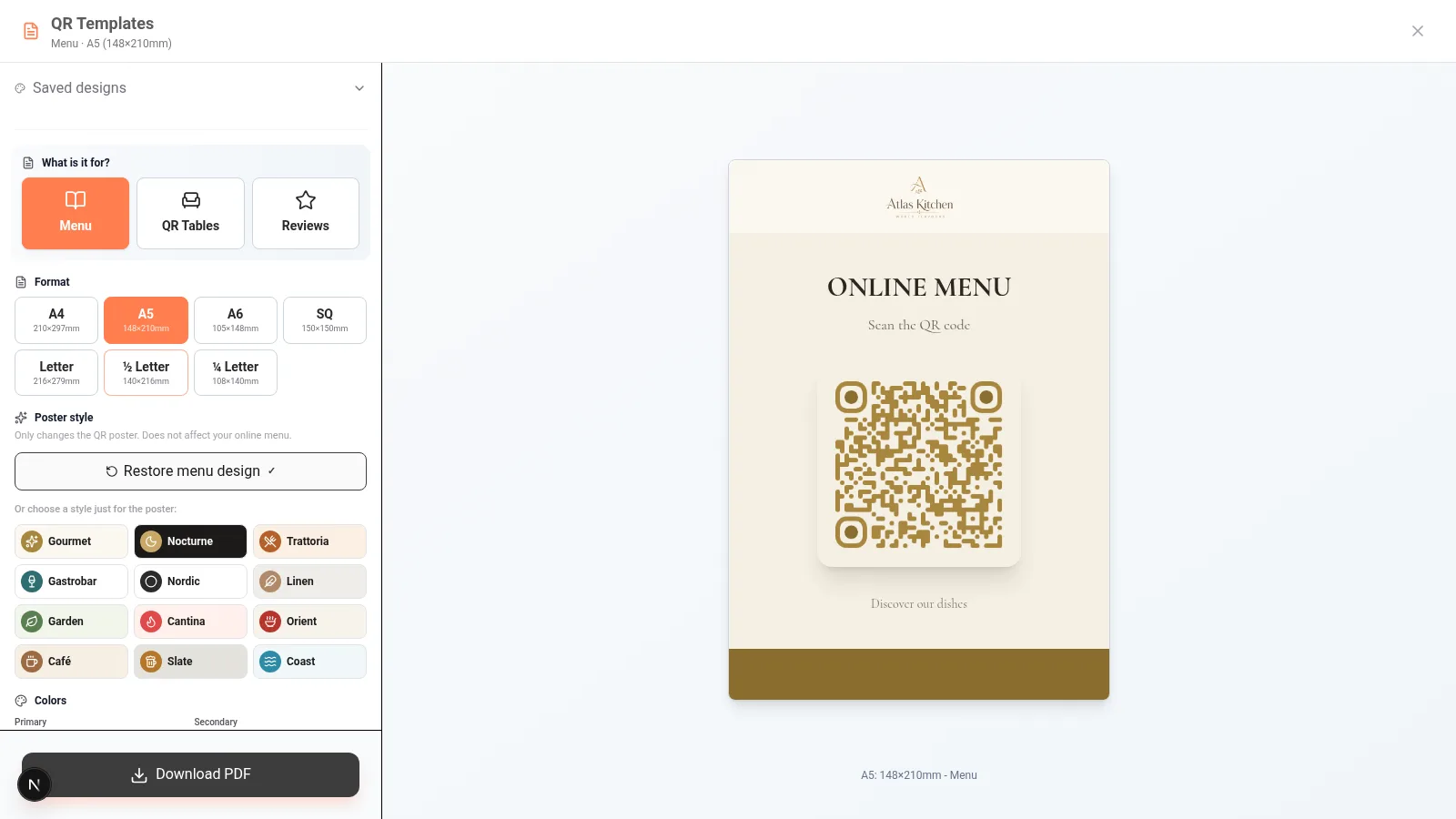
Click on "QR Templates" to open the editor in full screen. You have 7 formats available:
| Format | Size | Ideal Use |
|---|---|---|
| A4 Menu | 210x297mm | Poster for wall or entrance |
| A4 Reviews | 210x297mm | Poster for collecting reviews |
| A5 Menu | 148x210mm | Standard table card |
| A5 Reviews | 148x210mm | Reviews card for table |
| A6 Menu | 105x148mm | Compact card (bar) |
| A6 Reviews | 105x148mm | Compact reviews card |
| Square | 150x150mm | Modern square display |
Each template allows customization of:
- Title and subtitle text with 5 sizes (S, M, L, XL, XXL)
- Theme colors: primary (header), secondary (footer), background, and text
- QR style within the template (same 5 styles)
- Restaurant logo integrated into the design
For Reviews templates, you can activate special options:
- Flat (SVG) or 3D (emoji) style stars
- Logos from Google, TripAdvisor, and TheFork
- Brand presets (Google Light/Dark, TripAdvisor Light/Dark)
Professional templates are also available on mobile. Tap "QR Templates" to access the full editor. You can choose format, customize colors and text, and download directly from your phone.
Tip
The A5 format (148x210mm) is the ideal size for restaurant tables. It is large enough to be easily scanned without taking up too much space on the table.
Table QR and Review QR
The poster editor has a selector "What is it for?" with three purposes:
- Menu — the general QR for your menu
- Table QR — generates a multi-page PDF with the SAME elegant design for all your tables, each with its number and unique QR (orders arrive with the table number; see Orders)
- Reviews — poster to collect reviews from Google/TripAdvisor (see Reviews)
Additionally, the poster inherits by default the design of your menu (colors, logo, and typography of the style you chose in Customize Menu), with the option "No design (B/W)" if you prefer the bare QR. And don't worry: IAMenu monitors the contrast to ensure the QR is always scannable.
Step 4: Download your QR in multiple formats
Once you have customized your QR code, you can download it in three different formats depending on its intended use.
Available download formats:
- PNG: Ideal for digital use (social media, web, email). Optional transparent background
- SVG: Scalable vector, perfect for professional printing. Does not lose quality at any size
- PDF: Ready to print directly. Includes margins and maximum quality
If you used a professional template, the download button will generate a complete PDF with the design, title, colors, and logo included. You just need to print it.
The download buttons appear at the bottom of the screen. Tap the format you need and the file will download directly to your device. You can send it via WhatsApp, email, or print it from the files app.
Tip
If you are going to send your QR to a printer, download in SVG format. It is vector-based and does not lose quality regardless of the size you print it, whether it's a 5cm sticker or a 2-meter poster.
Step 5: Troubleshoot QR scanning issues
If your menu QR code is not scanning correctly, check these common points before reprinting it.
Common problems and solutions:
| Problem | Cause | Solution |
|---|---|---|
| QR not scanning | Low contrast | Use dark colors on a light background |
| QR blurry | Size too small | Print at least 3x3 cm |
| QR takes time to read | Logo too large | Reduce the size of the central logo |
| Camera not focusing | Shiny surface | Use matte paper, not glossy laminated |
| QR does not load the page | No internet | The customer needs WiFi or data connection |
Recommended sizes according to location:
- Table (close): Minimum 3x3 cm - the customer holds it at 20-30 cm
- Wall (medium distance): Minimum 8x8 cm - visible from 1-2 meters
- Entrance (long distance): Minimum 15x15 cm - visible from 3+ meters
Importante
Never print the QR at a size smaller than 3x3 centimeters. Phone cameras need a minimum area to focus and decode the QR modules correctly.
Step 6: The advantage of dynamic QR
With IAMenu, your QR code is dynamic. This means that the QR URL never changes, but the content it points to updates automatically every time you modify your menu.
Comparison of dynamic QR vs static QR:
| Feature | Dynamic QR (IAMenu) | Static QR (traditional) |
|---|---|---|
| Update prices | No reprinting | Reprint every time |
| Change dishes | Immediate in the app | New QR needed |
| Show active menu languages | Same QR; 29 supported, with 2/4/8 active by plan | Often one QR per language |
| URL | Permanent and unique | Fixed to content |
| Printing cost | One time only | Each change = new print |
| Scanning statistics | Included (date, time, location) | Not available |
How it works in practice:
- You print your QR once and place it on the tables
- A customer scans and sees your updated digital menu
- You change the price of the "Margherita Pizza" from 12 to 13 euros in the dashboard
- The next customer who scans the same QR will see the new price
- You haven't had to reprint or touch the physical QR
This is especially useful for restaurants that frequently change prices, have a daily menu, or manage menus in multiple languages.
Tip
IAMenu includes scanning statistics in your dashboard. You can see how many times your QR has been scanned, on what dates, and from which locations. Useful for measuring real traffic in your restaurant.
Tips and Best Practices
Follow these recommendations to ensure your QR code works perfectly in your restaurant:
- Always use a white background and dark dots. High contrast is key for phones to scan without issues. Avoid combinations like yellow on white or gray on gray.
- Print on matte paper. Glossy or laminated paper creates reflections that hinder scanning, especially with artificial restaurant lighting.
- Test the QR with 3 different phones before printing in bulk. Android, old iPhone, and new iPhone have different cameras. If it works on all three, it will work for everyone.
- Place the QR where there is good lighting. Cameras need light to focus. Avoid dark corners or under lamps that cast direct shadows on the QR.
- Use the A5 format for tables. It is the ideal size: large enough to be easily scanned without taking up too much space on the table.
- Add your logo to the QR. Reinforces your brand and makes the QR recognizable. IAMenu integrates the logo without affecting the readability of the code.
- Download in SVG if you are going to print at a print shop. The vector format does not lose quality regardless of size. For digital use (social media, email), PNG is sufficient.
Common Problem Solutions
The QR does not scan with any phone
Check that there is sufficient contrast between the QR dots and the background. Use dark dots (black, navy blue) on a light background (white, cream). If you added a very large logo, reduce its size to 20% of the QR area.
The QR scans but loads a blank page
Make sure your menu has at least one active product. Menus without content show a blank page. Add a product from the dashboard and try again.
The QR takes a long time to read
It may be that the size is too small. For close scanning (table) you need at least 3x3 cm. Also, check that the paper is not wrinkled or folded, which can distort the QR modules.
I want to change the design of the QR
The existing physical QR keeps working because its destination URL does not change, but its printed colors, logo, or poster design cannot change on paper. Download and reprint the asset only if you want the physical design itself to look different.
The QR works on WiFi but not with mobile data
The problem is the customer's connection, not the QR. Make sure your restaurant has WiFi available for customers. You can include the WiFi password next to the QR poster.
Frequently Asked Questions
Do I have to reprint the QR every time I change prices?
No. The IAMenu QR is dynamic. You change prices or dishes in the dashboard, and the next customer who scans the same physical QR will see the changes instantly.
Can I customize the QR with my restaurant's colors?
Yes. You have 5 styles (square, rounded, dots, elegant, borders), customizable dot and background colors, and the option to add your centered logo.
In what formats can I download my QR?
Three formats: PNG (digital use), SVG (professional printing, scalable without loss), and PDF (ready to print). Professional templates generate a complete PDF with the design included.
Does the QR include scanning statistics?
Yes. IAMenu records the date, time, and location of each scan. You can view the statistics in your dashboard to measure the real traffic of the restaurant.
What is the minimum recommended size for the QR?
For tables (20-30 cm distance) minimum 3x3 cm. For walls (1-2 meters) minimum 8x8 cm. For entrances (3+ meters) minimum 15x15 cm.
Related Tutorials
Continue optimizing your digital menu with these guides:
- Export Your Menu in PDF to generate professional printed menus with 10 templates
- Customer View to understand how your customers see the menu when scanning the QR
- Customize Your Menu to set up happy hour, multiple prices, and dividers
- Gaston - Your AI Assistant to automate menu management with artificial intelligence
- Automatic Translations to publish reviewed translations in the active languages of your QR menu
Ready to generate your professional QR?
Create your account and review the current plans and terms.
More information: