Set Up Your Digital Menu: First Steps of Onboarding
5 minutes
When you create your account on IAMenu, a setup assistant guides you step by step to get your restaurant ready in less than 5 minutes. By the end, you will have a dashboard with a complete sample menu that you can edit directly, without starting from scratch.
What You Will Learn in This Section
- Create your account with email or Google
- Choose the right plan for your restaurant
- Set up the name, main language, and additional languages
- Select a pre-translated sample menu (Italian, Spanish, or café)
- Access your dashboard with content ready to customize
Step 1: Create Your Account
The first step to setting up your digital menu is to register. You have two options: create an account with email and password, or log in with Google for instant access.
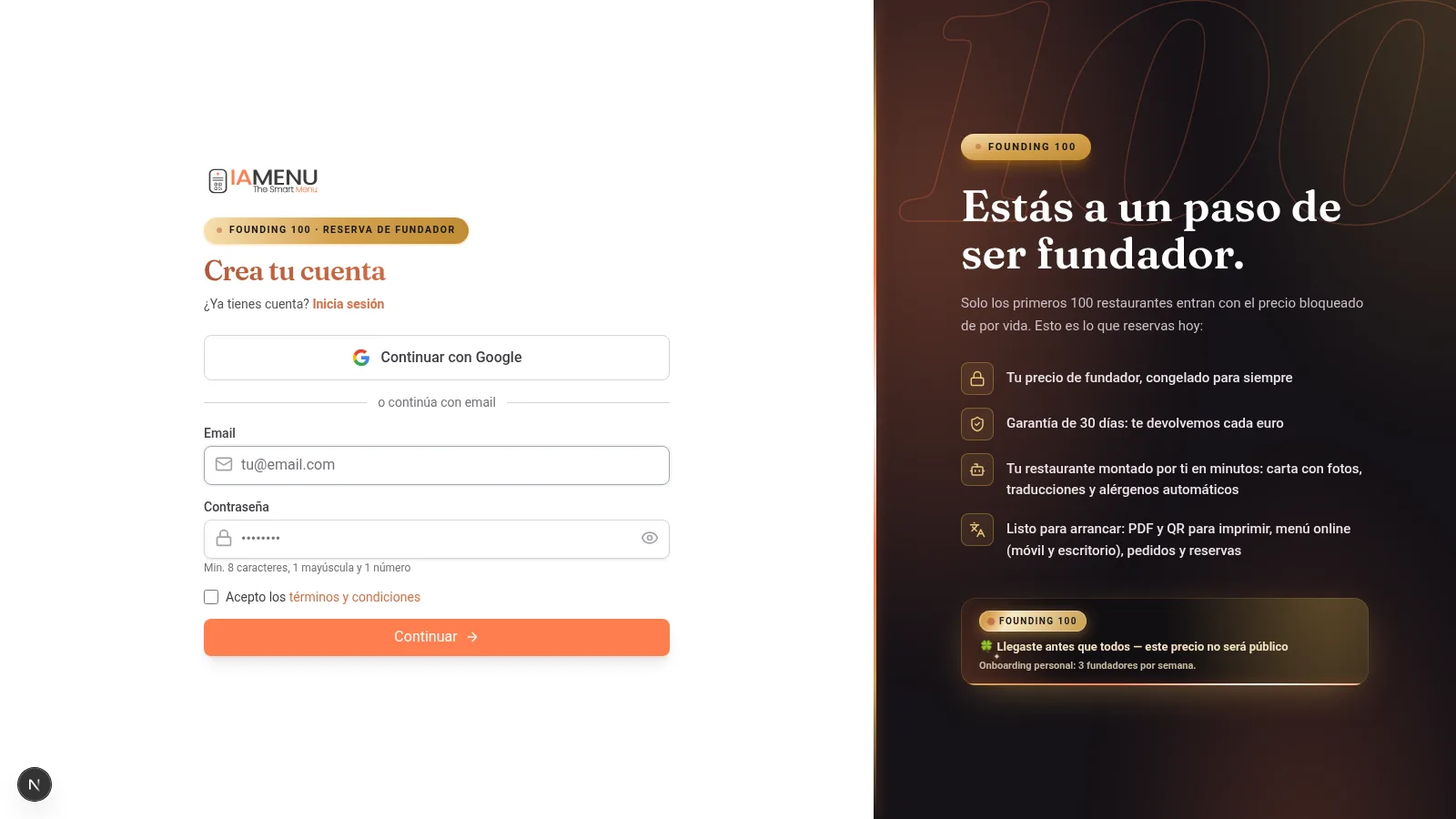
On desktop, you will see the registration form with two options:
- Email + Password -- Enter your email address and choose a secure password. The system checks that the email is not already registered.
- Continue with Google -- One click. Your Gmail account is linked automatically, skipping the credential step.
At the top of the form, you will see the progress indicator with the 5 steps of the wizard, so you always know where you are.
On mobile, the form is identical but optimized for touch screens. The fields are larger, and the Google button takes up the full width for easier tapping.
The step indicator appears compact at the top showing your progress.
Tip
Tip: If you choose Google, you don’t need to remember another password. Your IAMenu account will be linked to your Gmail, and you can access it with one click in the future.
Step 2: Choose Your Plan
IAMenu offers three options so you can find the one that best fits your restaurant. You do not need a credit card to start.
The plan selector presents three clear options:
| Plan | Price | Languages | AI | Best for |
|---|---|---|---|---|
| Starter | 19 EUR/month | 2 | 10 images/month | Small restaurant |
| Professional | 39 EUR/month | 4 | 30 images, 200 descriptions | Restaurant with tourists (most popular) |
| Premium | 69 EUR/month | 8 | 75 images, unlimited descriptions | Hotel, chain, multi-location |
You can use the 14-day trial, with everything unlocked, without entering a card. When the trial ends, choose the paid plan that fits you, starting from 19 EUR/month.
On mobile, the plans are displayed as cards that you can compare by swiping. Each card indicates the price, included features, and AI limits.
Tap the plan you are interested in to select it and move on to the next step.
Pro Tip
Pro Tip: If you arrive from a landing page with a pre-selected plan (for example /register?plan=premium), the wizard will already have that plan marked. You can change it if you prefer another.
Step 3: Restaurant Name and Languages
This is the key step in the initial setup of your digital menu. Here you define what your restaurant will be called on IAMenu and in which languages you want to offer your menu.
Fill in three fields:
-
Restaurant Name -- The name that your customers will see when scanning the QR code. A URL slug is generated automatically (for example, "La Trattoria" becomes
la-trattoria). -
Main Language -- Select from 15 languages with visual flags. This will be the base language of your menu. The most important thing: don’t worry about choosing “wrong,” because you can create content in any language, and IAMenu automatically translates it to the rest.
-
Additional Languages -- Check the extra languages you want your menu to be automatically translated into with AI. The available amount depends on your plan (2 in Starter, 4 in Professional, 8 in Premium).
IAMenu automatically detects your country to assign the correct currency. If you are in Chile, the prices on your menu will be shown in CLP. If you are in Europe, in EUR. You can change the currency later in the settings.
On mobile, the form is vertical. Type your restaurant name, select the main language by tapping the corresponding flag, and check the additional languages by scrolling through the list.
The emoji flags make it intuitive to identify each language without needing to read the text.
Tip
Tip: You can add or remove languages at any time from the business settings. When you activate a new language, IAMenu queues translations for existing content. Review the translated menu before publishing it.
Your Actual Menu, Imported with AI
In addition to the sample menu, during registration you can upload your current menu and let the AI digitize it:
- Accepts compatible PDF, image, Word and Excel/CSV files, with up to 10 files of the supported type in one import
- Gaston Vision detects categories, products, prices, and descriptions for review
- IAMenu can prepare allergen suggestions and translations for you to review
- Optional AI image tools remain subject to the active plan and should be reviewed before publication
Step 4: Choose a Sample Menu
To ensure you don’t start with an empty dashboard, IAMenu offers you three types of pre-created sample menus with categories, subcategories, products, prices, images, and translations into the 54 available languages.
Choose the type of menu that most resembles your restaurant:
- Italian -- Pizzas, pastas, antipasti, dolci. Ideal for trattorias, pizzerias, and Italian restaurants.
- Spanish -- Tapas, mains, desserts, drinks. Perfect for bars, taverns, and Spanish cuisine restaurants.
- Café / Bar -- Coffees, teas, pastries, cocktails. Designed for cafés, bars, and brunch spots.
The sample menu comes complete: organized categories, products with name, description, price, and image, and pre-generated translations in the languages you selected. Everything is 100% editable: change names, prices, images, or delete what you don’t need.
On mobile, the three options are displayed as cards with a preview of what each includes. Tap the one you prefer and proceed.
Don’t worry if none fits your type of cuisine exactly: the sample content is just a starting point for you to see how IAMenu works. You can modify absolutely everything afterward.
Ahorra Tiempo
Save Time: A sample menu avoids starting from an empty dashboard. Replace its example content with your real dishes before publishing.
Step 5: Load and Access the Dashboard
After confirming your selection, IAMenu creates your complete restaurant in the background: user account, business, subscription, sample menu with all its translations, and visual theme. In a few seconds, you will be inside.
Importante
Important: Do not close the browser during the loading screen. Although the process is quick (usually less than 5 seconds), closing before it finishes could leave your account in an incomplete state. If this happens, simply log in again, and the system will detect the pending state.
Tips and Best Practices
Follow these recommendations to make the most of the registration process:
- Prepare your restaurant name before you start. The system automatically generates a URL slug from the name. Choose a short and clear name. You can change it later.
- Activate the languages you need from the beginning. If you activate languages during registration, the sample menu will come pre-translated in all of them. Adding languages later is also possible but triggers a translation backfill.
- Choose the sample menu that is most similar to your business. Italian, Spanish, or café. It doesn’t matter if it’s not exact: it’s a starting point that you can edit completely.
- Use Google to register. It’s faster and more secure. You skip the email and password step and can access with one click in the future.
- Don’t worry about the plan. You can start with the free 14-day trial and decide later. If you don’t choose a plan, your account hibernates, and you keep your content for 90 days.
- Review the sample menu before editing it. Navigate through the categories and products to understand how the IAMenu structure works before making changes.
Common Troubleshooting
The loading screen is not advancing
Do not close the browser. The process usually takes less than 5 seconds. If it doesn’t advance in 30 seconds, refresh the page and log in. The system will detect the pending state and complete the setup.
I don’t see the sample menu on my dashboard
If the dashboard appears empty after registration, refresh the page. The sample menu is generated in the background and may take a few seconds to appear. If the problem persists, contact support.
I want to change the type of sample menu
The sample menu can be completely deleted and a new one created from scratch. Simply delete the categories and products you don’t need and add your own.
My country does not appear in the currency selector
IAMenu automatically detects your country by your location. If it does not detect it correctly, you can change the currency manually in the business settings after registration. IAMenu supports 20 different currencies.
I registered with email but want to use Google
If your Google account uses the same email, simply click "Continue with Google" on the login screen. IAMenu will automatically link the accounts.
Frequently Asked Questions
How long does onboarding take?
The guided setup is designed to be short. Importing and reviewing a real menu takes longer depending on its size and source quality.
Do I need a credit card to register?
No. The 14-day trial does not require a card. Afterward, choose a paid plan starting from 19 EUR/month.
Can I change my restaurant name later?
Yes. You can change the name, URL slug, languages, and currency at any time from your business settings.
What does the sample menu include?
Categories, subcategories, products with name, description, price, and image. All pre-translated into the active languages. It is 100% editable.
Can I register more than one restaurant?
Yes. With the Professional and Premium plans, you can create multiple businesses from a single account with independent menus, QR codes, and settings.
Related Tutorials
Continue setting up your digital menu with these guides:
- Log In to access your account with Google or email
- Dashboard to discover the control center of your digital menu
- Create Categories to organize the sections of your menu
- Create Products to add dishes with prices and AI images
- Gaston - Your AI Assistant to automate the management of your menu with artificial intelligence
Ready to set up your digital menu in 5 minutes?
Create your account and review the current plans and terms.
More information: