Gaston: The AI Assistant for Restaurants that Creates Your Menu by Voice
8 minutes
Gaston is the AI assistant integrated into IAMenu that allows you to manage your restaurant workspace using natural language. Instead of navigating through menus and forms, tell Gaston what you need: create products, generate images, translate menu content into the languages active on your plan, book a reservation, create a promotion, or change the colors of your menu. It accepts voice and text commands in supported languages and applies confirmed changes directly to IAMenu.
With over 100 integrated functions, Gaston can execute real changes in your menu, reservations, tables, and marketing without copying and pasting from external tools. And if you prefer not to open the web, it also works via WhatsApp.
What You Will Learn in This Section
- Open Gaston's chat and familiarize yourself with the interface
- Create categories, subcategories, and products using voice or text commands
- Generate professional images in batches with GPT Image
- Create attractive descriptions with 4 styles and 4 lengths
- Automatically translate your entire menu into multiple languages
- Import an existing menu from PDF with Vision AI
- Execute bulk operations (duplicate, move, reorder, merge)
- Query intelligent information and get dish suggestions
Step 1: Open Gaston's Chat
Gaston is always available from any screen on the dashboard. You don't need to install anything or configure special access.
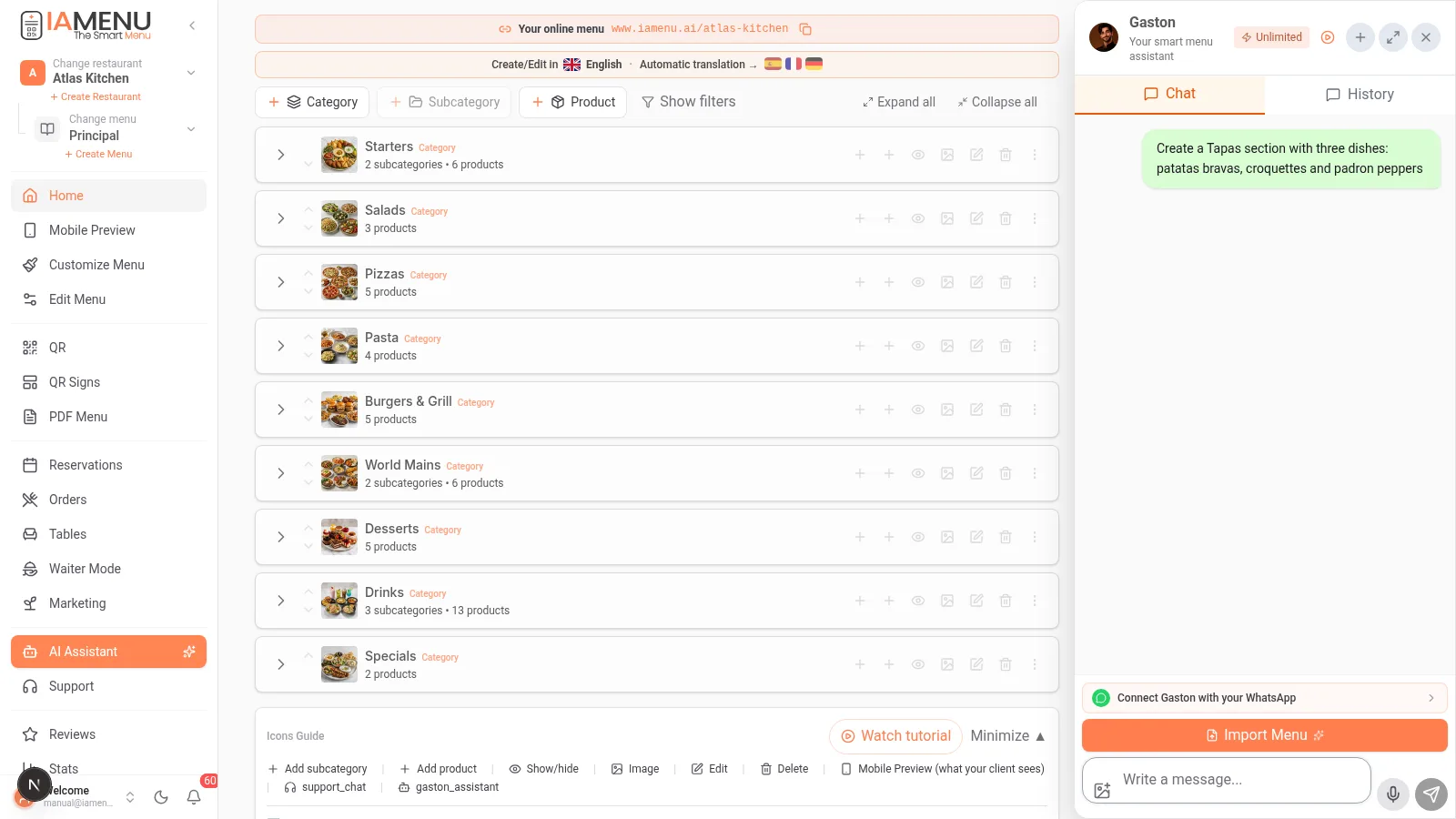
In the bottom right corner of the dashboard, you will see the Gaston icon, represented by a floating chat button. Click to open the conversation window.
The chat interface opens as a sidebar where you can type messages or use the microphone to dictate voice commands. Gaston supports the languages available in IAMenu and normally responds in the language you use.
The chat maintains the history of conversations. You can create multiple conversations and pick up where you left off at any time.
On mobile, the Gaston icon floats over the dashboard in the bottom right corner. Tap to open the chat in full screen.
The mobile interface is optimized for touch interaction: a text field at the bottom with a microphone button for voice input. You can talk to Gaston while moving around the restaurant, from the kitchen, or at any time.
Tip
Gaston remembers the context of your conversation. If you said "Create category Meats," later you can say "Add Entrecote at 22 euros there" and he will understand that you are referring to the Meats category without you having to repeat it.
Step 2: Create Products with Natural Language
Gaston’s most powerful function is the complete creation of your menu through natural commands. You can create categories, subcategories, and the 3 types of products with a single message.
Create Categories and Subcategories
- "Create a category Pizzas with subcategories Classics and Gourmet" — Gaston creates the category and both subcategories in one step (2 internal turns)
- "Add subcategory Vegan within Pizzas" — Creates within the existing category
- "Merge Reds and Whites into a subcategory Wines" — Uses
merge_sectionsto combine
Create Products (3 types)
- "Add Margherita at 10 euros in Classic Pizzas" — Normal product (within subcategory)
- "Create a chef's dish Special Paella at 18 euros in the category Rice" — Product in category (direct, without subcategory)
- "Create loose product Menu of the Day at 12 euros" — Loose product (visible throughout the menu)
Batch Creation
- "Create 5 beers: Mahou 3 euros, Estrella Galicia 3.50, Heineken 4, Paulaner 5 and Guinness 5.50 in Drinks" — All products in one message
- "Duplicate the category Pizzas as Summer Pizzas" — Complete copy with all products
Gaston shows you confirmation before executing changes. The dashboard updates automatically upon confirmation.
From mobile, you can use the microphone button to dictate voice commands:
- "Create category Desserts" — Gaston creates it and shows you confirmation
- "Add Tiramisu at 7 euros in Desserts" — The product automatically appears in your menu
- "Create a loose product called Menu of the Day at 12 euros" — Visible throughout the menu
After confirmation, you will see the new product directly in your mobile dashboard list without needing to refresh the page.
Tip
Be specific for better results. "Add Latte at 2.50 euros in Hot Coffees" works better than "Add a coffee." Always include the price and location (category or subcategory) so that Gaston doesn't have to ask you.
Step 3: Generate Professional Images in Batches
Gaston can generate professional photographs of your dishes using GPT Image with an automatic optimization pipeline. The most powerful feature is batch generation: you can ask him to create images for an entire category.
Try these commands to generate images with artificial intelligence:
- "Generate image for Tiramisu" — Creates a single professional photo
- "Generate images for all products in Meats" — Batch generation
- "Create overhead style photos for desserts" — With specific style
Gaston will ask you for the style before generating. The 4 photographic styles available are:
| Style | Result | Ideal for |
|---|---|---|
| Professional | Blurred neutral background, studio lighting | Elegant restaurants |
| Minimalist | Solid white background, clean composition | Modern menus, e-commerce |
| Overhead | Top view (flat lay), wooden table | Social media, Instagram |
| Ambient | Restaurant context, background bokeh | Websites and marketing |
Batch generation works in groups of 5 products. Gaston will ask you "Shall I continue with the next 5? (8 remaining)" so you can control the process. You can change the style between batches: start with professional and switch to overhead halfway through.
Each image goes through an automatic optimization pipeline: GPT Image generates the photo and IAMenu automatically optimizes it in various WebP sizes for maximum loading speed on the customer view.
You can also enhance existing photos with enhance_image: upload an amateur photo of your dish and the AI transforms it into a professional photograph with studio lighting.
From mobile, you can also generate images with AI:
- "Take a photo of the Margherita Pizza" — Generates individual image
- "Generate photos for all dishes in Appetizers" — In batches
The process may take a few seconds per image. You will see the progress indicating how many have been generated. You can continue using the chat while they are being generated.
Importante
Images generated with AI consume credits according to your plan: Starter 10/month, Professional 30/month, Premium 75/month. Batch generation is the most efficient way to use your credits. If a product already has an image, Gaston skips it automatically (unless you tell him "with replacement").
Step 4: Generate Attractive Descriptions with AI
Gaston can write professional descriptions for your dishes by combining 4 writing styles with 4 lengths, generating up to 16 possible variations per product. He can also generate descriptions for entire categories and subcategories.
Commands to generate descriptions with gastronomic copywriting AI:
- "Generate a description for the Sirloin with Whisky" — Classic style, medium length (by default)
- "Describe the Valencian Paella in poetic style and long" — Specific style and length
- "Generate descriptions for all products in Main Dishes" — In batches with
bulk_generate_descriptions - "Generate descriptions for the subcategories of Wines" — Subcategory descriptions with
bulk_generate_section_descriptions - "Generate descriptions for all categories" — Category descriptions with
bulk_generate_category_descriptions
The 4 available styles are:
| Style | Ideal for | Example |
|---|---|---|
| Classic | Traditional restaurants | "Grilled beef sirloin, flamed with Scottish whisky and accompanied by fondant potatoes." |
| Modern | Bistros and gastro bars | "Beef. Grill. Whisky. The combination you didn't know you needed." |
| Poetic | Fine dining | "A noble cut that dances among the flames, embraced by amber notes of oak." |
| Technical | Wine lists, gourmet dishes | "Galician beef entrecote (350g), sous-vide at 55C for 2h, finished on the grill." |
Each style comes in 4 lengths: short (15-20 words), medium (30-40), long (60-80), and very long (100-120 words).
Gaston also detects products without descriptions and alerts you: "List all products without descriptions" and then "Generate descriptions for all."
On mobile, dictate the command by voice or type it:
- "Describe the Mushroom Risotto" — Generates quick description
- "Generate short descriptions for the entire category Appetizers" — In batches
- "Which products do not have a description?" — Detects incomplete content
The generated description is saved directly in the product. If translations are enabled, review the translated versions in the active menu languages before publishing.
Tip
IAMenu can generate translations for the active languages included in your plan. Review dish names, ingredients, and culinary terminology before publishing them to customers.
Step 5: Translate Your Entire Menu
Gaston integrates IAMenu's translation system, which supports 54 languages across the platform. The number of languages you can activate at once depends on your plan: Starter 2, Professional 4, and Premium 8. You can translate individual products, categories, or a complete menu with a command and then review the result.
Translation commands:
- "Translate the entire menu to French" — Activates the language and translates all content
- "Translate the Desserts category to English, German, and Italian" — Multiple languages at once
- "What languages are active in my menu?" — Status inquiry
The translation uses AI with gastronomic context. Review culturally specific dish names, ingredients, and regional terminology before publishing.
The Smart Swap system helps place source and translated content in the appropriate language fields when you create content in a supported language. Check the result before publishing.
From mobile, you can activate translations by voice:
- "Translate everything to English" — Starts the complete translation
- "Add German to the menu languages" — Activates language and translates existing content
You will see a progress bar in the top banner indicating how many products remain to be translated. The process is automatic and you can continue working while it completes.
Importante
Translations consume monthly credits: each plan includes a monthly quota of swaps (your exact balance is in Billing). A batch translation of 50 products into 3 languages = 1 swap (not 150). It is the most efficient way to use your credits.
Step 6: Import Menu from PDF
One of the time-saving functions of Gaston is the import of existing menus. If you already have a menu in PDF or in photos (up to 10 images of the same menu, taken with your mobile), Gaston analyzes it with Vision AI and automatically digitizes all products.
To import your menu from PDF:
- Open Gaston's chat
- Type "Import my menu from PDF" or drag the PDF file into the chat
- Gaston analyzes the document with Vision AI, detecting categories, products, prices, and descriptions
- He shows you a preview of what he is going to create with all the detected data
- Confirm and all products are automatically created in your dashboard
Import speed depends on the file size, layout, image quality, and number of products. Gaston prepares a structured preview so you can correct names, prices, and categories before creating the menu.
The vision AI can read text in images, complex price tables, menus with multiple columns, and even handwritten menus. For best results, use PDFs with legible text and good resolution.
On mobile, you can upload the PDF directly from your gallery or device files:
- Open Gaston and tap the file attachment icon
- Select the PDF of your menu (you can also scan with the camera)
- Gaston processes it and shows you the detected products
- Confirm to create everything in your dashboard
The import works especially well with printed menus you have scanned or PDFs from your printer.
Tip
After importing, IAMenu can suggest the 14 EU-regulated allergens and generate translations for active languages. Review the imported products, allergen suggestions, and translations against recipes and supplier information before publishing.
Step 7: Bulk Operations and Reorganization
Gaston allows you to execute changes on multiple products at once and reorganize the entire structure of your menu. This includes moving, duplicating, merging, reordering, and converting between types of entities.
Move Entities (3 functions)
- "Move the Tiramisu to the subcategory Special Desserts" —
move_productbetween subcategories - "Move the subcategory Soft Drinks to the Drinks category" —
move_sectionbetween categories - "Move the category Pizzas to the Dinner menu" —
move_categorybetween menus
Duplicate Entities (4 functions)
- "Duplicate the Margherita as Margherita with Truffle" —
duplicate_productwith new name - "Duplicate the subcategory Classics as Specials" —
duplicate_sectionwith all products - "Duplicate the category Pizzas as Summer Pizzas" —
duplicate_categorycomplete - "Duplicate the Main menu as Summer Menu 2026" —
duplicate_menuwith all content
Reorder (3 functions)
- "Put the Drinks category first" —
reorder_categories - "Put Red Wines before Whites" —
reorder_sections - "Sort the products in Pizzas by price from lowest to highest" —
reorder_products
Advanced Reorganization
- "Increase the price of all Meat products by 10%" —
bulk_update_priceswith percentage - "Deactivate all Soup products" —
toggle_availabilityfor seasonal menus - "Merge Reds and Whites into a subcategory Wines" —
merge_sectionscombines products - "Put the categories Coffees, Soft Drinks, and Beers inside Drinks" —
convert_categories_to_sectionsautomatically converts them into subcategories
Gaston always asks for confirmation before executing bulk changes that affect more than 10 products, showing exactly how many items will be affected.
The same bulk operations are available from mobile:
- "Deactivate the entire Salads category" — For seasonal changes
- "Move the Tiramisu to Special Desserts" — Move individual product
- "Sort Drinks by price" — Quick reordering
- "Duplicate the Main menu as Summer Menu" — Complete clone
Ideal for chefs who need to update the menu from the kitchen without sitting at the computer.
Tip
Use bulk operations for seasonal changes. When summer arrives: "Deactivate Soups and activate Cold Salads" in a single message. When winter arrives: "Duplicate the menu as Winter Menu and deactivate the salads."
Step 8: Intelligent Queries and Suggestions
In addition to creating and editing, Gaston can answer questions about your menu, detect problems, and suggest new dishes based on the ingredients you already have.
Information Queries
- "Which products contain gluten?" — Filter by allergen
- "How many products do I have in total?" —
get_menu_statswith complete statistics - "What is the most expensive product?" — Search by criteria
- "List all products without images" — Content audit
- "Which products do not have a description?" —
list_products_without_descriptionto detect incomplete content - "Show vegan products" — Filter by marketing label
- "Are there mislocated products?" — Gaston analyzes your menu with gastronomic knowledge and detects wines in the coffee section or desserts among the appetizers
Dish Suggestions with AI
- "What dishes can I create with what I have?" —
suggest_dishes_from_ingredientsanalyzes your current ingredients and suggests new dishes WITHOUT buying anything else - "What ingredients should I buy to expand the menu?" —
suggest_dishes_with_new_ingredientsrecommends new ingredients with estimated ROI
The suggestions include dish name, recommended price, difficulty level, and which ingredients from your menu are reused. Gaston acts as a culinary consultant who knows your kitchen.
From mobile, use voice for quick queries:
- "Which dishes do not have a photo?" — To complete your menu
- "How many categories do I have?" — Quick overview
- "Are there products without a price?" — Quality control
- "Suggest new dishes" — Ideas based on your ingredients
Perfect for a quick review before opening the restaurant each day.
Tip
Gaston knows all the data about your restaurant: products, prices, allergens, languages, categories, images, and more. He is your quick consultation assistant 24/7. Ask him anything about your menu and he will respond with real data, not assumptions.
Gaston Now Manages EVERYTHING in Your Restaurant (Not Just the Menu)
Since 2026, Gaston is a total assistant: in addition to the menu, he operates the rest of the app for you. Real examples:
| Area | Tell Gaston... |
|---|---|
| Reservations | "Book a reservation for Marta tomorrow at 21:00, 4 people" · "What reservations do I have today?" |
| Tables | "Create 10 tables" · "Add a terrace table for 6" |
| Marketing | "Create a 2-for-1 promotion on pizzas on Tuesdays" · "Make me a post for Instagram about the weekend menu" |
| Statistics | "How am I doing this month?" — visits, orders, and trends |
| Styles and Colors | "Put the menu in Night style" · "Generate a warm palette" |
| Languages | "Activate Japanese in all my restaurants" (with automatic translation included) |
| QR and PDF | "Send me the link to my menu" · "Generate the PDF of the menu" |
| Team | "Register the waiter Luis with PIN" |
| Reviews | "Set up reviews with my Google link" |
| Scheduling | "Tomorrow at 9, raise the Carbonara to 12.50" — it executes automatically |
| Images via chat | Send him a photo: "use this as a logo" or "create this dish" |
All of this also works via WhatsApp, with voice notes and photos included.
Importante
Safety first: sensitive deletions (categories, menus, batches of products) ALWAYS require confirmation in a modal on the dashboard. Gaston never deletes anything with an ambiguous "yes" in the chat.
The Over 100 Functions of Gaston
These tables collect the most used MENU functions (the complete list exceeds 100, including reservations, tables, marketing, styles, languages, and team). You don't need to memorize commands: speak in natural language and Gaston automatically detects which function to use.
Categories (6 functions)
| Function | What it does | Example command |
|---|---|---|
create_category | Creates a new category | "Create category Desserts" |
list_categories | Lists all categories | "What categories do I have?" |
update_category | Edits name or description | "Change the name of Appetizers to Antipasti" |
reorder_categories | Changes the order | "Put Drinks at the end" |
move_category | Moves to another menu | "Move Pizzas to the Dinner menu" |
duplicate_category | Duplicates with all products | "Duplicate Pizzas as Summer Pizzas" |
Subcategories (8 functions)
| Function | What it does | Example command |
|---|---|---|
create_section | Creates a new subcategory | "Create subcategory Classics in Pizzas" |
list_sections | Lists subcategories | "What subcategories does Pizzas have?" |
update_section | Edits name or description | "Rename Classics to Traditionals" |
move_section | Moves to another category or menu | "Move Reds to the Wines category" |
reorder_sections | Changes the order | "Put Reds before Whites" |
merge_sections | Merges two subcategories | "Merge Reds and Whites into Wines" |
duplicate_section | Duplicates with products | "Duplicate Classics as Specials" |
convert_categories_to_sections | Converts categories into subcategories | "Put Coffees and Soft Drinks inside Drinks" |
Products (7 functions)
| Function | What it does | Example command |
|---|---|---|
create_product | Creates in subcategory | "Add Margherita at 10 euros in Classics" |
create_product_in_category | Creates directly in category | "Create Chef's Dish at 18 euros in Main Dishes" |
create_product_at_menu | Creates loose product | "Create Menu of the Day at 12 euros" |
list_products | Lists and searches products | "List products in Pizzas" |
update_product | Edits name, description, etc. | "Change the description of Margherita" |
update_price | Changes price | "Set the Margherita to 12 euros" |
reorder_products | Changes order | "Sort Pizzas by price" |
Bulk Operations (3 functions)
| Function | What it does | Example command |
|---|---|---|
bulk_update_prices | Updates prices in bulk | "Increase 10% on all Meat products" |
duplicate_product | Duplicates a product | "Duplicate Margherita as Margherita with Truffle" |
toggle_availability | Activates/deactivates in bulk | "Deactivate the entire Soups category" |
AI and Content (8 functions)
| Function | What it does | Example command |
|---|---|---|
generate_images | Generates AI photos (GPT Image) | "Generate images for all desserts" |
enhance_image | Improves existing photo | "Enhance the photo of the Paella" |
delete_image | Deletes image | "Delete the image of Margherita" |
list_products_without_description | Detects without description | "Which products do not have a description?" |
bulk_generate_descriptions | Mass descriptions for products | "Generate descriptions for Appetizers" |
bulk_generate_section_descriptions | Descriptions for subcategories | "Generate descriptions for subcategories of Wines" |
bulk_generate_category_descriptions | Descriptions for categories | "Generate descriptions for all categories" |
duplicate_menu | Duplicates complete menu | "Duplicate the menu as Summer Menu 2026" |
Management and Queries (2 functions)
| Function | What it does | Example command |
|---|---|---|
delete_entity | Deletes entity (with confirmation) | "Delete the subcategory Cold Soups" |
get_menu_stats | Menu statistics | "Give me menu statistics" |
Advanced Functions (3 functions)
| Function | What it does | Example command |
|---|---|---|
move_product | Moves between categories/menus | "Move Tiramisu to Special Desserts" |
suggest_dishes_from_ingredients | Suggests dishes with existing ingredients | "What else can I make with what I have?" |
suggest_dishes_with_new_ingredients | Suggests ingredients to buy | "What should I buy to expand?" |
Importante
Gaston has monthly message limits according to your plan: Starter 30 messages/month, Professional 100/month, Premium 250/month with voice input. Each command counts as 1 message. Batch operations (creating 10 products at once) count as 1 single message, so take advantage of them.
Comparison: Gaston vs Other Solutions
What makes Gaston unique compared to other AI assistants for restaurants is that it is directly integrated into the management of your digital menu. It is not an external tool where you generate text and then copy and paste.
| Function | Gaston (IAMenu) | Generic ChatGPT | AI Chef Pro | Digital Menu |
|---|---|---|---|---|
| Create products directly in the menu | Yes (over 100 functions) | No (only generates text) | No (internal management) | No |
| Generate professional images of dishes | Yes (GPT Image + Sharp pipeline) | No | No | No |
| Translate menu content in supported languages | Yes (Smart Swap; active-language limits by plan) | Separate workflow | No | Varies |
| Import PDF and digitize | Yes (Vision AI) | No | No | No |
| Suggest 14 EU-regulated allergens for review | Yes (Super Chef AI) | Separate workflow | No | Manual |
| Bulk operations by voice | Yes (duplicate, move, merge) | No | No | Basic |
| Description with 4 styles x 4 lengths | Yes (16 combinations) | Generic (1 style) | 2 styles | No |
| Batch generation (batch) with control | Yes (in groups of 5, change style) | No | No | No |
| Suggest dishes by ingredients | Yes (analyzes your real kitchen) | Generic (does not know your menu) | No | No |
| Works integrated into your digital menu | Yes (real-time changes) | No (external tool) | No (only back office) | No |
| Voice input in supported languages | Yes (integrated microphone) | Varies | No | No |
| Multi-menu (lunch, dinner, events) | Yes (operate between menus) | Does not apply | No | Basic |
Gaston vs Copying and Pasting from ChatGPT
The fundamental difference is the direct integration. With generic ChatGPT:
- You write a prompt asking for a description of "Valencian Paella"
- ChatGPT generates text
- You copy the text
- You open IAMenu, search for the product, paste
- You repeat 50 times for 50 products
With Gaston:
- You say "Generate descriptions for all products in the Rice category in classic style"
- Review the generated descriptions and any translations for the active languages before publishing.
The integrated workflow can reduce repetitive copying and navigation, especially for batch tasks. The actual time saved depends on the menu and the amount of review required.
Tips and Best Practices
Follow these recommendations to get the most out of Gaston in your day-to-day:
- Be specific in your commands. "Add Latte at 2.50 euros in Hot Coffees" works much better than "Add a coffee." Include price and location so that Gaston doesn't have to ask you.
- Use batch operations to save messages. "Create 5 beers: Mahou 3 euros, Estrella 3.50, Heineken 4, Paulaner 5, Guinness 5.50 in Drinks" counts as 1 single message instead of 5.
- Take advantage of batch image generation. "Generate images for all products in Meats" is more efficient than generating one by one. Gaston processes in groups of 5 and asks you before continuing.
- Import your menu from PDF before creating manually. If you already have a printed menu, drag the PDF into the chat, review the detected structure, and confirm the import instead of entering every item from scratch.
- Use the microphone from the kitchen. Gaston accepts voice commands. Perfect for chefs who need to update the menu without sitting at the computer.
- Periodically review products without descriptions. Ask "Which products do not have a description?" and then "Generate descriptions for all" to complete your menu.
- Combine description styles. Use "classic" for traditional dishes and "modern" for contemporary creations. You can change the style between batches.
Common Problem Solutions
Gaston does not respond to my message
Check that you have messages available in your plan (Starter 30/month, Professional 100/month, Premium 250/month). If you have reached the limit, upgrade your plan from billing or wait until next month.
Gaston cannot find a category I just created
The dashboard needs a few seconds to synchronize. Wait 2-3 seconds after creating and try again. If it persists, refresh the page and open the chat again.
The generated image does not look like my dish
Gaston generates images based on the product name. Add ingredients or a more detailed description of the dish and regenerate. "Margherita Pizza with buffalo mozzarella and fresh basil" generates better images than just "Pizza."
The voice command is not recognized correctly
Speak clearly and slowly, especially with dish names in other languages. If recognition fails, type the command. Gaston works just as well with text as with voice.
The PDF import does not detect all products
PDFs with good resolution and legible text work best. Scanned menus with low quality or handwritten may miss some products. Check Gaston's preview before confirming and manually add any that are missing.
Frequently Asked Questions
What can Gaston do that ChatGPT cannot?
Gaston executes real changes to your menu: creates products, generates images, translates, and reorganizes your menu. ChatGPT only generates text that you then have to copy and paste manually.
Can I create my entire menu by voice?
Yes. Gaston accepts voice commands in any language. Dictate categories, products with prices, and locations. Everything is automatically created in your digital menu.
How many messages can I send per month?
Starter 30 messages/month, Professional 100/month, Premium 250/month with voice input. Batch operations count as 1 single message, so take advantage of them to maximize your credits.
Can Gaston import my menu from a PDF?
Yes. Drag your PDF into the chat and Gaston analyzes it with Vision AI. It detects categories, products, prices, and descriptions for you to review before confirming.
Does Gaston generate professional images of my dishes?
Yes. It uses GPT Image with 4 styles (professional, minimalist, overhead, ambient). It can generate in batches in groups of 5, and you can change the style between batches.
Related Tutorials
Continue mastering the AI tools of IAMenu with these guides:
- Create Products to understand the 3 types of products and how to create them from the modal
- Automatic Translations to translate menu content into the languages active on your plan
- Allergens and Labels to set up automatic detection with Super Chef
- Export PDF to generate professional printed menus with 10 templates
- Generate QR Code to create dynamic and professional QR codes
Ready to automate your menu with artificial intelligence?
Create your account and review the current plans and terms.
More information: