Allergens and Tags: Review AI Suggestions in Your Digital Menu
5 minutes
EU food-information rules identify 14 allergen categories that require particular attention. IAMenu can suggest possible allergens from menu content, but the restaurant must review those suggestions against recipes, preparation methods and supplier information before publishing. This section explains that review workflow and the separate use of menu tags.
What You Will Learn in This Section
- How Super Chef prepares allergen suggestions
- Review and validate the allergens detected by the AI
- Manually mark or unmark allergens
- Protect manual edits against the AI
- The 14 mandatory allergens with official icons
- Marketing labels to highlight your products
- Where to verify local allergen-information requirements
Step 1: Super Chef Prepares Allergen Suggestions
When you create or edit a product, Super Chef analyzes the name, description, ingredients and category context to suggest allergens that may require review.
When saving a product, the AI automatically activates in the background. You will see the detected allergens with an "AI" badge in the "Features" tab of the product modal.
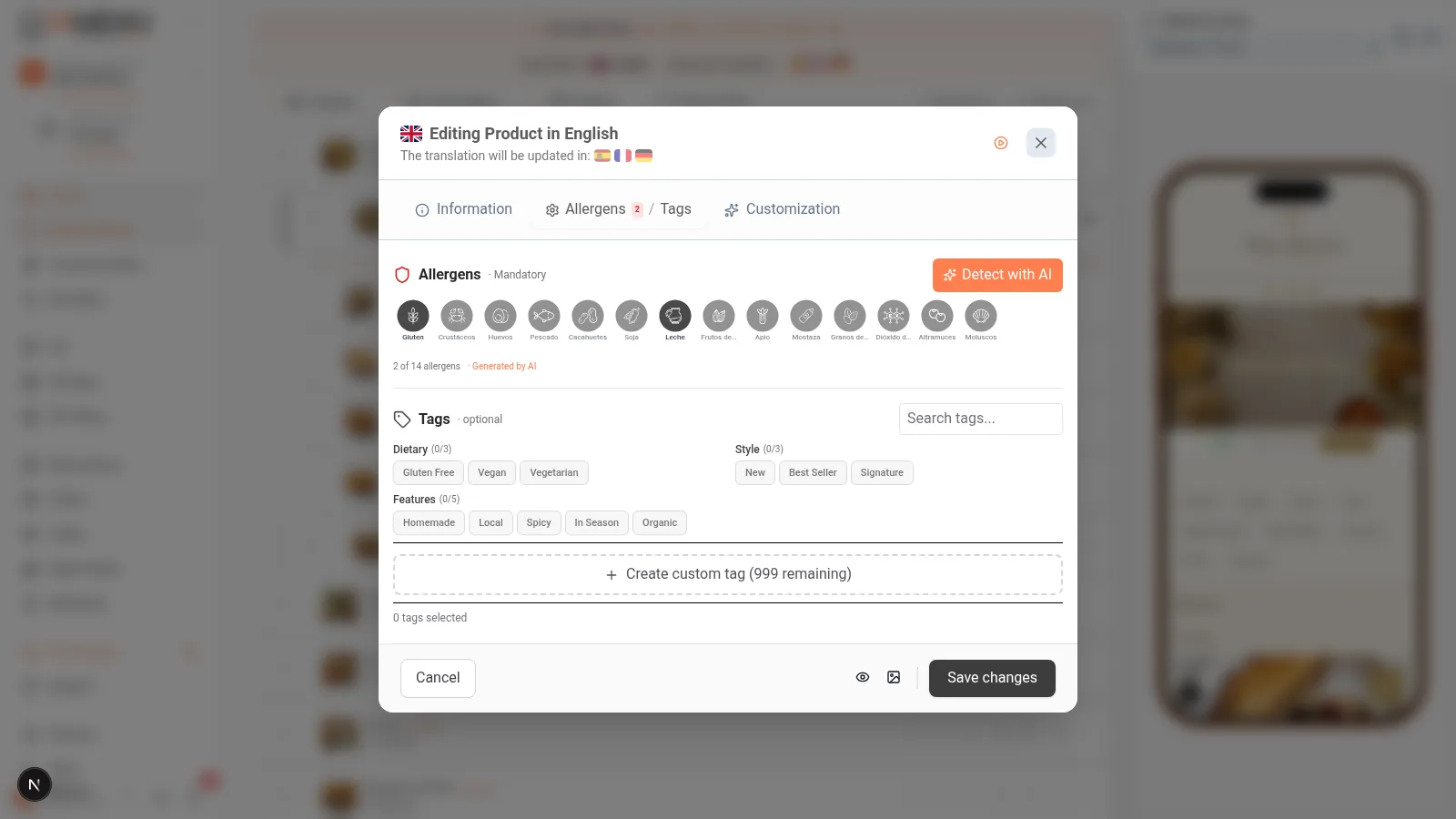
Super Chef does not only analyze the explicit. If your product is in the "Pizzas" category, the AI automatically infers that the dough contains gluten, even if you haven't indicated it in the ingredients. The same applies to "Battered" (gluten + egg) or "Soups" (hidden celery and sulfites).
On mobile, detection works the same way. Swipe to the allergens section to see the results.
The analysis runs in the background when you save the product. Open the allergen section to review the result before publication.
Tip
Context helps the model surface ingredients that deserve attention, including sauces, batters, breads and dressings. These are suggestions, not a substitute for checking the real recipe and supplier labels.
Step 2: Review Detected Allergens
Once Super Chef analyzes your product, review every result. Recipes, cross-contact and supplier formulations cannot be determined reliably from a menu description alone.
Click on the product and open the "Features" tab. You will see two sections:
- Allergens detected by AI — marked with a blue "AI" badge and confidence score
- Manually marked allergens — without a badge, added by you
Each allergen shows its official icon, name translated into the active language of the dashboard, and the AI's confidence level.
Tap on the product and swipe to the allergens section. The icons show the same data as on desktop.
Importante
Always review the detected allergens. The AI is a tool for assistance, it does not replace the chef's knowledge of their own recipes. Regulation EU 1169/2011 states that the final responsibility lies with the establishment.
Step 3: Manually Mark or Unmark Allergens
You can add allergens that the AI did not detect or unmark those that do not correspond to your specific recipe. The mandatory allergen list must reflect the reality of your kitchen, not just what the AI detects.
The 14 allergens regulated by the EU appear as interactive icons. Tap on any to activate or deactivate it:
- Highlighted icon with color: Allergen present in the product
- Gray icon: Allergen not present
- "AI" badge: Automatically detected by Super Chef
Tap on each allergen icon to mark or unmark it. The operation is identical to desktop.
Step 4: Protection of Manual Edits
When you manually edit an allergen, IAMenu marks that selection as "reviewed". This means that the AI will never overwrite your decision, even if you edit the product later.
If you manually mark that your "Pasta Carbonara" does not contain mustard (even though the AI suggested it), that decision remains protected. When editing the name or description, the AI re-analyzes but respects your manual selection.
This system works in a cascading manner:
- If you manually mark an allergen, it remains permanently protected
- If the AI detects a new one after editing the description, it adds it without touching the protected ones
- If you radically change the recipe, you can "reset" the protection and let the AI re-analyze everything
The protection works exactly the same on mobile. Once you manually review an allergen, it remains protected forever.
Tip
This system is critical for complying with allergen regulations in restaurants. If your chef knows that their "Cheesecake" does not contain tree nuts (even though the AI suggests it due to the type of base), mark the correction once and you will never have to repeat it.
Step 5: The 14 Mandatory EU Allergens
Regulation (EU) 1169/2011 requires declaring these 14 mandatory allergens on any restaurant menu. IAMenu detects and displays all of them with official icons, automatically translated into the customer's language.
| No. | Allergen | Common Examples | Super Chef Detection |
|---|---|---|---|
| 1 | Gluten | Wheat, barley, rye, pasta, bread | Automatic + category context |
| 2 | Crustaceans | Shrimp, prawns, crab | Automatic by ingredients |
| 3 | Eggs | Omelette, mayonnaise, battered | Automatic + inference for fried foods |
| 4 | Fish | Hake, salmon, anchovies, surimi | Automatic by name |
| 5 | Peanuts | Satay sauce, snacks, peanut oil | Automatic by ingredients |
| 6 | Soy | Soy sauce, tofu, edamame, lecithin | Automatic by ingredients |
| 7 | Dairy | Cheese, cream, butter, béchamel | Automatic + sauces context |
| 8 | Tree nuts | Walnuts, almonds, pistachios, hazelnuts | Automatic + inference for desserts |
| 9 | Celery | Soups, broths, salads, vegetable broth | Automatic by typical recipes |
| 10 | Mustard | Sauces, dressings, curry, marinades | Automatic + composition |
| 11 | Sesame | Hamburger buns, hummus, tahini | Automatic + bakery context |
| 12 | Sulfites | Wine, vinegar, dried fruit, reduction | Automatic by drinks/sauces |
| 13 | Lupin | Lupin flour, snacks, gluten-free bread | Automatic by ingredients |
| 14 | Mollusks | Mussels, octopus, squid, cuttlefish | Automatic by name |
In the allergens panel, you will see the 14 official icons. Those detected by the AI are automatically highlighted with their name in the active language of the dashboard.
The 14 icons are displayed in a grid adapted to the mobile screen.
Pro Tip
The names of the allergens are automatically translated. If your dashboard is in French, you will see "Gluten", "Crustacés", "Oeufs"... And your German customers will see "Gluten", "Krebstiere", "Eier" on the public menu. All automatic thanks to IAMenu's translation system.
Step 6: Marketing Labels to Highlight Products
In addition to the mandatory allergens, you can add marketing labels to your products to make them stand out on the digital menu: "Vegan", "Gluten-Free", "Spicy", "New", "Chef's Recommendation", and more.
In the labels tab of the product modal, you will find:
- 11 predefined global labels: Vegan, Vegetarian, Gluten-Free, Spicy, New, Popular, Organic, Lactose-Free, Homemade, Recommended, Seasonal
- Custom labels that you can create yourself
- Auto-translation: each label is automatically translated into the active languages of your menu
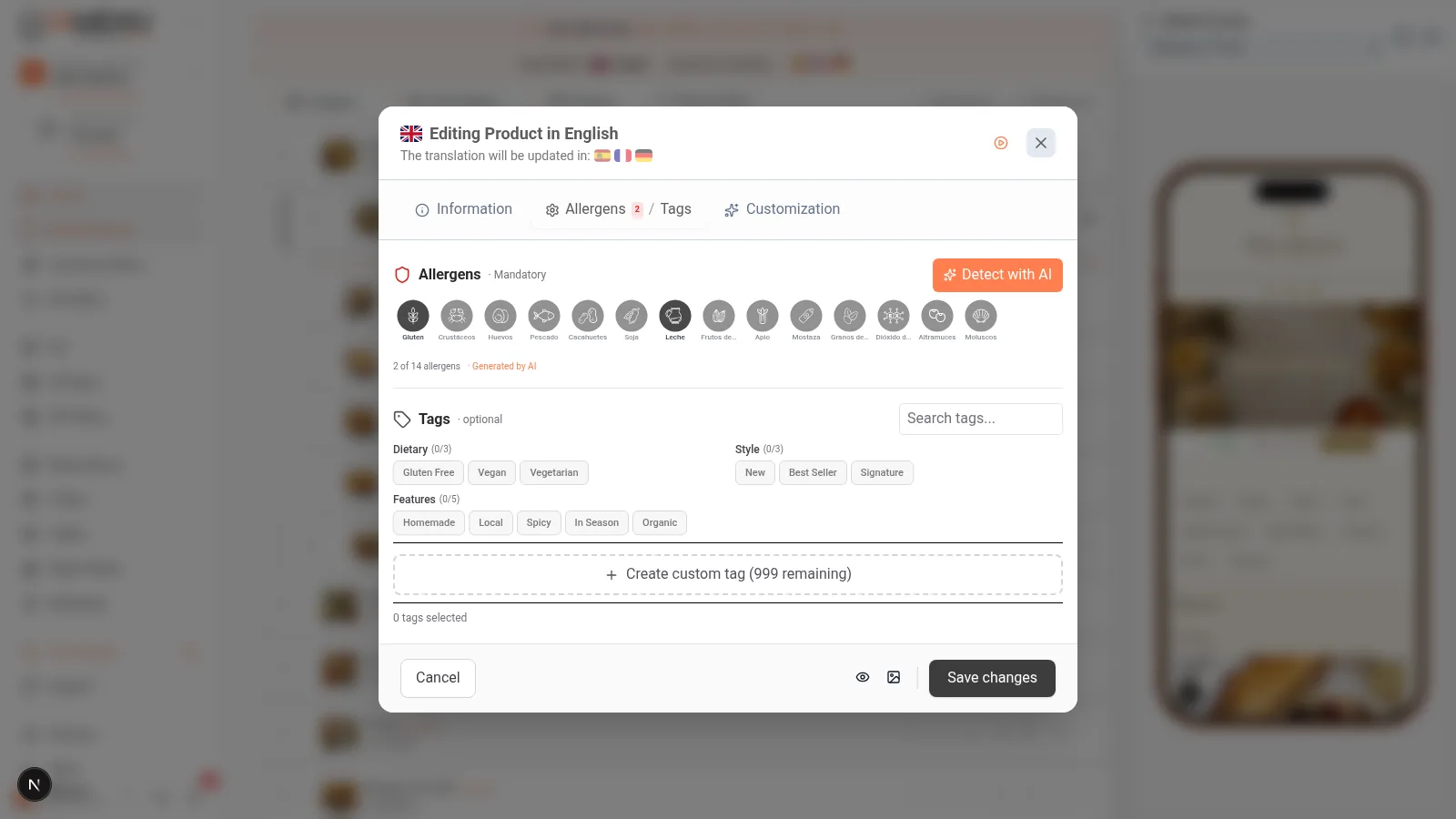
The labels appear as colorful badges in the customer view, helping to filter dishes and highlight the most appealing ones.
Swipe to the labels section in the product modal. Tap on each one to add it.
Tip
The labels are automatically translated using the same AI system that translates your menu. If you create a label "Trufa Negra" in Spanish, your French customers will see "Truffe Noire" automatically. Learn more about translations in the section Translate your menu into multiple languages.
Create Custom Labels
If the predefined labels do not meet your needs, you can create your own:
- Open the Label Manager from the settings icon in the tags selector
- Tap "New Label"
- Write the name in your current language (for example, "Trufa Negra")
- IAMenu automatically translates it into all active languages of your menu
If you create a label in a different language than the base (for example, you write "Black Truffle" while in the dashboard in English), the Smart Swap system translates it to Spanish as the base language and then generates translations into the other languages.
Importante
Custom labels are available in the Professional and Premium plans. The Starter plan can use the 11 global labels without limit.
Where Allergens and Labels Are Displayed
The allergens and labels of your products are automatically displayed in:
- The management dashboard — icons next to each product in the accordion
- The customer menu — public view when they scan the QR code
- The exported PDF menu — with official icons in the 10 professional templates
- The product detail view — complete listing when tapping on a dish
- The customer filters — your customers can filter by "Gluten-Free" or exclude specific allergens
Responsibility and Local Requirements
IAMenu is a publishing and review tool; it does not certify a recipe or guarantee legal compliance. The food business remains responsible for the information shown to guests.
- Verify suggestions against recipes, preparation methods and supplier labels.
- Consider cross-contact separately; it cannot be inferred from a dish name.
- Train staff to answer allergen questions and escalate uncertainty.
- Review information whenever a recipe, supplier or preparation process changes.
- Check the rules that apply in your country and region. Regulation (EU) 1169/2011 provides an EU framework, while national implementation and enforcement differ.
For broader guidance, use IAMenu's dedicated compliance pages as an orientation and consult the relevant authority or a qualified professional for your location.
Tips and Best Practices
Follow these recommendations for managing allergens and labels professionally:
- Write detailed ingredients in the description. The more detail you include, the better Super Chef works. Mention sauces, sides, and dressings.
- Always review the suggested allergens. You know the recipes, preparation methods and suppliers; the model does not.
- Use marketing labels to highlight dishes. Labels like "Vegan", "Gluten-Free", or "Chef's Recommendation" help customers find what they are looking for quickly.
- Create custom labels for your restaurant. If the 11 predefined ones do not meet your needs, create your own. They are automatically translated into all active languages.
- Train your team on allergens. IAMenu automates detection, but your staff must know the allergens in each dish in case a customer asks directly.
- Update allergens when changing recipes. If you modify the ingredients of a dish, edit the product in IAMenu and Super Chef will automatically re-analyze the allergens.
Common Problem Solutions
Super Chef does not detect an allergen that should be present
The AI may not detect allergens in very specific ingredients or uncommon names. Add detailed ingredients in the product description and save again. If the allergen is still not detected, mark it manually.
I manually marked an allergen but the AI removed it
This should not happen. When you manually mark an allergen, it is protected as "reviewed" and the AI does not touch it. If it occurs, check that you saved correctly after the manual edit.
I do not see the allergen icons in the customer view
Verify that the product has at least one assigned allergen. The icons only appear when there are marked allergens. Also, check that your menu template shows the allergens section.
Custom labels are not translating
Custom labels are automatically translated when created. If a label does not have a translation, open it in the label manager and save it again. The Smart Swap system will generate the missing translations.
I want to reset the allergens and have the AI re-analyze them
Open the product, unmark all allergens manually, save, and edit the product again. When saving again, Super Chef will re-analyze the product from scratch without restrictions from previous edits.
Frequently Asked Questions
How does IAMenu detect allergens?
Super Chef analyzes the name, description, ingredients and category context to suggest relevant allergen categories for human review.
Can I correct the allergens detected by the AI?
Yes. You can manually mark or unmark any allergen. Your edit is protected and the AI will never overwrite it.
Does IAMenu guarantee allergen compliance?
No. IAMenu helps organize and publish information, but the food business must verify the final data and comply with the rules applicable in its location.
Are the allergens translated?
Yes. The 14 allergens are automatically translated into the customer's language. A German customer will see the names in German without additional configuration.
What are marketing labels?
They are badges like Vegan, Gluten-Free, or Spicy that you can assign to your products. They are automatically translated. You can use the 11 predefined ones or create your own.
Related Tutorials
Continue setting up your digital menu with these guides:
- Create Products to add dishes with prices, images, and AI descriptions
- Customization to configure happy hour, availability, and multiple prices
- Menu Management to reorder, duplicate, and create multi-menus
- Compliance to understand the complete EU regulations on allergens and GDPR
- Gaston - Your AI Assistant to detect allergens with voice commands
Review and Publish Allergen Information More Clearly
Create your account and review the current plans and terms.
No credit card required for the 14-day trial. Always verify allergen information before publishing.
More information: