Export Your Menu in Professional PDF: 10 Templates for Restaurants
7 minutes
Generate a PDF menu ready to print with the content from your digital menu. IAMenu includes 10 professional templates designed for different types of restaurants, with multilingual support, allergen display options, color controls according to your plan, and 8 paper formats (A4, A5, A3, Letter, ½ Letter, Tabloid, Cocktail, and Rack — for Europe and America).
What You Will Learn in This Section
- Access the PDF generator from the dashboard
- Choose from 10 professional templates and understand their differences
- Customize colors, typography, and content
- Set language, allergens, and prices
- Download in PDF image or editable PDF format
Step 1: Access the PDF Exporter
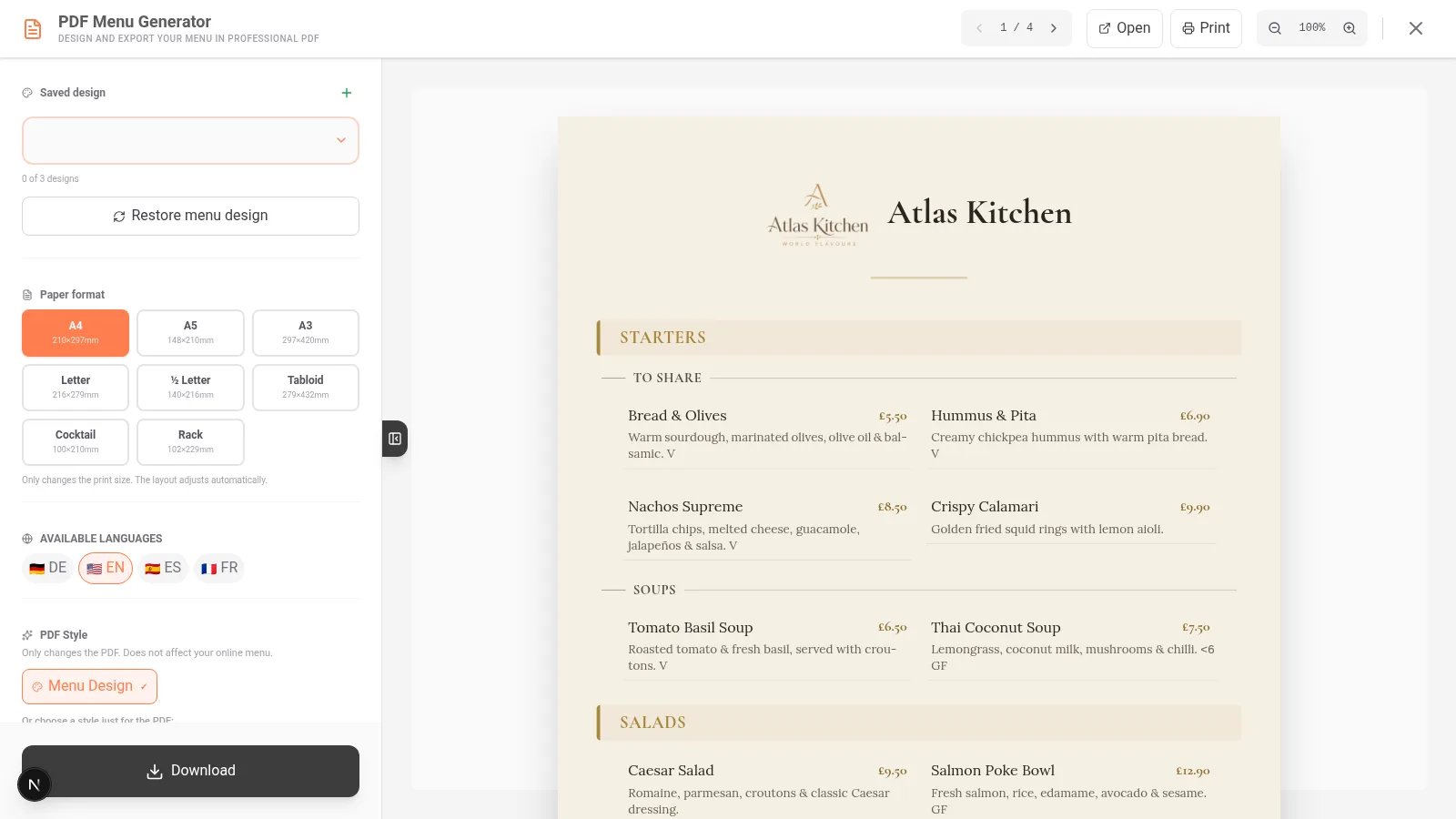
From the dashboard, open the left sidebar menu and click on "Export PDF". The PDF generator modal will open with a real-time preview of your menu.
The panel is divided into two areas: on the left, the configuration options, and on the right, the document preview that updates automatically with each change.
On mobile, tap the menu icon (three lines) in the upper left corner and select "Export PDF". You will see a mini preview at 35% of the actual size that you can tap to view in full screen.
Tip
The PDF is generated with the content from the active menu. If you have multiple menus (breakfast, lunch, dinner), make sure to select the correct one before exporting.
Step 2: Choose a Professional Template
IAMenu includes 10 PDF menu templates designed by professionals, each tailored for a different restaurant style. The templates are divided into 9 text-only and 1 with images (Catalog).
Click on "Templates" to see all available options. When you select one, the preview updates instantly so you can see how your menu will look.
Modern
Minimalist design with sans-serif typography and a 2-column grid layout. Uses decorative circles as separators between sections. White background with color accents in category titles. Default typography: Inter.
Ideal for: contemporary restaurants, brunch, specialty cafes, businesses with a young and urban image.
Classic
Elegant serif typography with decorative dotted lines between each product and its price. Ornamental diamonds separate the categories. 1-column layout gives it a traditional European menu appearance. Default typography: Georgia.
Ideal for: fine dining, classic European restaurants, brasseries, hotels with table service.
Premium
Solid black background with text in gold and cream tones. Conveys exclusivity at first glance. Subtle gold borders and frames. Default typography: Playfair Display.
Ideal for: haute cuisine, exclusive dinners, Michelin-starred restaurants, gala events, 5-star hotel restaurants.
Chalkboard
Simulates an authentic chalkboard with a dark background and white handwritten text. Includes chalk art-style decorations between sections. Default typography: Caveat.
Ideal for: cafes, bistros, tapas bars, craft breweries, charming informal restaurants.
Minimalist
Only data, no decorative design. Shows name, price, and description in a clean and readable format. No embellishments, no colored backgrounds, no separators. Maximum content per page. Default typography: Inter.
Ideal for: sending to graphic designers as a working base, restaurants that prefer maximum content per page, extensive menus with more than 80 products.
Vibrant
Rotating colors by category (each section uses a different color from the spectrum). Includes decorative emojis next to product names. Cheerful and energetic design. Default typography: Montserrat.
Ideal for: fast food, ice cream shops, pubs, themed restaurants, food trucks, casual pizzerias.
Rustic
Background with aged parchment texture and earth tones (browns, ochres, olive greens). Decorative edges evoking wood. Categories with naturalistic icons. Default typography: Georgia.
Ideal for: taverns, rural restaurants, traditional food houses, steakhouses, roadside restaurants with homemade cooking.
Coastal
Oceanic blue palette with maritime decorations (anchors, stylized waves, sailor knots). White or light sand background. Conveys freshness and the sea. Default typography: Inter.
Ideal for: seafood restaurants, beach bars, beachside restaurants, coastal lounge bars, hotels with sea views.
Mediterranean
Tricolor design with green, white, and red as accents. Inspired by the Italian flag but adaptable to any Mediterranean cuisine. Decorative lines between categories. Default typography: Montserrat.
Ideal for: trattorias, pizzerias, Italian restaurants, Greek cuisine, Spanish cuisine with a Mediterranean touch.
Catalog
The only template with product photographs. Displays images in a catalog-style visual grid. Each product appears with its photo, name, price, and brief description. Default typography: Inter.
Ideal for: any restaurant that has quality photographs of its products. Especially effective for short or medium menus (20-40 products) where images are the focus.
Swipe horizontally to explore the 10 templates. Tap on any to apply it and see the updated preview.
The templates are divided into two categories:
- Text-only (9 templates): Modern, Classic, Premium, Chalkboard, Minimalist, Vibrant, Rustic, Coastal, Mediterranean
- With images (1 template): Catalog (shows photos of your products in a grid)
Each template comes with predefined colors that you can customize in the next step. If you don't know which to choose, try Modern for a neutral and professional style, or Classic if you're looking for something more formal.
Pro Tip
If your restaurant has quality photographs of the products, the Catalog template is the most impactful. If you don't have photos, the text-only templates look more professional than showing empty spaces. You can generate images with GPT Image from the dashboard to complete your gallery.
Step 3: Customize Colors and Typography
Each template comes with a default color palette, but you can fully adapt it to your restaurant's visual identity.
In the sidebar, you will find 5 color selectors that you can adjust:
- Primary color - Category titles and headers
- Secondary color - Accents, decorative lines, prices
- Background color - General background of the page
- Text color - Main text (names, descriptions)
- Title color - Restaurant name and main sections
You can also choose from 5 fonts:
- Inter - Modern, clean (default for most templates)
- Georgia - Classic, serif, ideal for formal menus
- Playfair Display - Elegant, for fine dining and special events
- Montserrat - Geometric, professional, good readability
- Caveat - Handwritten, informal, perfect with the Chalkboard template
Each change is reflected in the preview instantly. You can experiment with combinations until you find the one that best represents your restaurant.
Scroll down in the options panel to find the color selectors. Tap each one to open the selector and choose the exact shade you need.
The typography is selected from a dropdown just below the colors. Each change is reflected in the mini preview in real-time.
Ahorra Tiempo
If you have already set the colors of your business in the menu customization, the color palette of the PDF will start from those same values. This way, your printed menu will be consistent with your digital menu.
Step 4: Configure PDF Content
Decide what information you want to include in your printed menu. Not all restaurants need to display the same data.
Activate or deactivate each element with the toggles in the sidebar:
- Prices (ON/OFF) - Show or hide prices in the menu
- Descriptions (ON/OFF) - Include descriptions for each product
- Allergens (ON/OFF) - Show icons for the 14 EU allergens next to each product
- Restaurant logo (ON/OFF) - Include your logo in the header
- Center logo (ON/OFF) - Logo centered or aligned to the left
- Restaurant title (ON/OFF) - Show the name next to the logo
- QR Code (ON/OFF) - Include QR to the digital menu in the footer
- Columns (1, 2, or 3) - Content distribution on the page
If you activate the QR Code, your customers will be able to scan the printed menu and access your interactive digital menu directly from their mobile.
The same toggles are available on mobile. Swipe to see all options and activate only what you need.
For restaurants with many products, using 2 columns helps reduce the number of pages. For menus with long descriptions, 1 column is more readable.
Importante
If you activate allergens in the PDF, make sure the approved product records have been checked against recipes and supplier information. EU Regulation 1169/2011 requires allergen information for non-prepacked food, while the permitted presentation method depends on national rules. See Allergens and Labels.
Step 5: Generate the PDF in Multiple Languages
One advantage of the IAMenu PDF generator is support for the platform's 54 languages, with the number of active menu languages determined by your plan. Review AI-assisted translations before printing.
Select the language in which you want to generate the PDF. You have two options:
- Single language: Generate the complete menu in one active language
- Multi-language: Generate a PDF with blocks separated by language. Each section shows one language first and then the next, clearly differentiated with flags
The multi-language result looks like this:
+---------------------------+
|  Spanish                  |
|  Categories and products...|
+---------------------------+
|  English                  |
|  Categories and products..|
+---------------------------+
This option is perfect for restaurants that need a single printed menu that serves customers from different nationalities.
Choose the language from the dropdown before generating the PDF. The multi-language option is ideal for restaurants in tourist areas or international hotels that need a printed menu in multiple languages.
Ahorra Tiempo
If you already have languages active in your business, select one of the reviewed translations when generating the PDF. Check Automatic Translations to activate languages and review menu content before export.
Step 6: Download and Print the Menu
Once everything is configured to your liking, it’s time to download the file.
IAMenu offers two download formats:
-
PDF Image - The document is generated as a rendered image. Text is not selectable or directly editable, which is useful for consistent print output.
-
Editable PDF - Selectable and copyable text. Useful if you need to make minor adjustments in an external PDF editor or if you want a designer to use the content as a base.
Click on "Generate PDF" and select the desired format from the dropdown. The file will automatically download to your downloads folder.
Tap "Generate PDF" and the file will be saved in your device's downloads folder. From there, you can share it via WhatsApp, email, or send it directly to the printer.
Tip
The PDF Image format is recommended for direct printing. The Editable PDF format is better if you plan to make final touches with a design program like Adobe Acrobat, Canva, or similar.
Practical Example: Menu for a Trattoria
Let’s look at a real case of how to configure the PDF for an Italian trattoria with 60 products:
- Template: Mediterranean (tricolor green/white/red that reinforces Italian identity)
- Typography: Playfair Display (classic elegance without losing readability)
- Colors: Dark green primary (#2d5016), Italian red secondary (#c41e3a), cream background (#fef9f0)
- Content: Prices ON, Descriptions ON, Allergens ON, Centered logo, QR activated
- Columns: 2 columns (for extensive menu with 60 products)
- Language: Multi-language (Italian + English + Spanish)
The result is a professional menu that conveys the restaurant's identity and presents the approved allergen information selected by the restaurant. The QR in the footer allows customers to access the digital menu with more photos and details.
Pro Tip
For restaurants with extensive menus (more than 50 products), use the Minimalist template with 2 or 3 columns. Maximize content per page and save paper. If you need a more elaborate design, export as Editable PDF and pass it to your graphic designer as a working base.
Quick Guide: Which Template to Choose
If you are unsure which is the best template for your business, use this guide as a reference:
| Your Business | Recommended Template | Columns | Suggested Typography |
|---|---|---|---|
| Modern restaurant, brunch | Modern | 2 | Inter |
| Fine dining, hotel, gala | Premium or Classic | 1 | Playfair Display |
| Cafe, bistro, bar | Chalkboard | 1-2 | Caveat |
| Fast food, ice cream shop, pub | Vibrant | 2-3 | Montserrat |
| Tavern, steakhouse, rural | Rustic | 1-2 | Georgia |
| Seafood restaurant, beach bar | Coastal | 2 | Inter |
| Trattoria, pizzeria | Mediterranean | 2 | Montserrat |
| With professional photos | Catalog | 2 | Inter |
| To send to designer | Minimalist | 2-3 | Inter |
| Short and elegant menu | Classic | 1 | Georgia |
Tip
All templates are included in all paid IAMenu plans, starting with Starter. Full PDF customization is available on Professional and Premium.
Tips and Best Practices
Follow these recommendations to ensure your PDF menu looks professional and is ready to print:
- Choose the template according to your type of restaurant. Premium for fine dining, Chalkboard for cafes, Mediterranean for trattorias. The right template reinforces your brand identity.
- Use 2 columns for extensive menus (more than 40 products). Save pages and the customer does not have to flip through so many sheets. For short menus, 1 column gives a more elegant appearance.
- Include approved allergen information through the format your restaurant uses. Verify records before enabling the 14 EU allergen icons in the PDF.
- Include the QR in the footer. Customers can scan the printed menu and access the interactive digital menu with more photos, translations, and details.
- Download in PDF Image for direct printing. The Editable PDF is better only if you need to make minor adjustments in an external editor like Adobe Acrobat or Canva.
- Generate in multi-language for tourist areas. A single PDF with blocks separated by language avoids having to print separate menus for each language.
- Review the preview before downloading. Changes are reflected in real-time. Ensure that prices, descriptions, and allergens are displayed correctly.
Common Troubleshooting
The PDF does not show the correct products
Make sure you have the correct menu selected. If you are using multi-menu (breakfast, lunch, dinner), verify that the active menu is the one you want to export from the dashboard selector.
Allergens do not appear in the PDF
Check that you have activated the allergen toggle in the PDF options and that the products have allergens assigned. You can use the automatic detection with AI to assign them en masse.
The menu looks good on screen but bad when printed
Download in PDF Image format for the best print quality. The Editable PDF may vary depending on the printer. Use paper with a weight of 120g or higher for table menus.
The logo is cut off or distorted
Upload a logo in square or rectangular format with a transparent background (PNG). Recommended resolution: at least 300x300 pixels. Activate "Center logo" for perfect automatic alignment.
I want a template that does not exist
You can use the Minimalist template as a base and export it as Editable PDF. Then a graphic designer can customize the complete design based on your already structured content.
Frequently Asked Questions
How many PDF templates does IAMenu include?
It includes 10 professional templates: 9 text-only (Modern, Classic, Premium, Chalkboard, Minimalist, Vibrant, Rustic, Coastal, Mediterranean) and 1 with photographs (Catalog).
Can I export my menu in several languages?
Yes. IAMenu supports 54 languages across the platform. You can export active, reviewed languages individually or use the multi-language option to create separate blocks in one PDF.
Are the templates free?
All 10 templates are included in the paid plans, including Starter. Professional and Premium unlock full PDF customization.
Can I customize the colors and typography?
Yes. Each template has 5 configurable colors and 5 available fonts (Inter, Georgia, Playfair Display, Montserrat, Caveat). Changes are visible in real-time.
What is the difference between PDF Image and Editable PDF?
The PDF Image is a rendered document protected against copies, ideal for direct printing. The Editable PDF allows text selection and copying, useful for tweaks or for designers.
Related Tutorials
Continue customizing your digital menu with these guides:
- Generate QR Code to create the QR that your customers will scan at the tables
- Create Products to add dishes with images, prices, and descriptions
- Allergens and Labels to comply with European allergen regulations
- Automatic Translations to translate your menu and export multi-language PDF
- Gaston - Your AI Assistant to automate your menu management with artificial intelligence
Ready to Create Your Professional PDF Menu?
Create your account and review the current plans and terms.
No credit card required. 10 PDF templates included in all paid plans.
More information: