QR Menus for Food Trucks: A Practical Guide for 2026
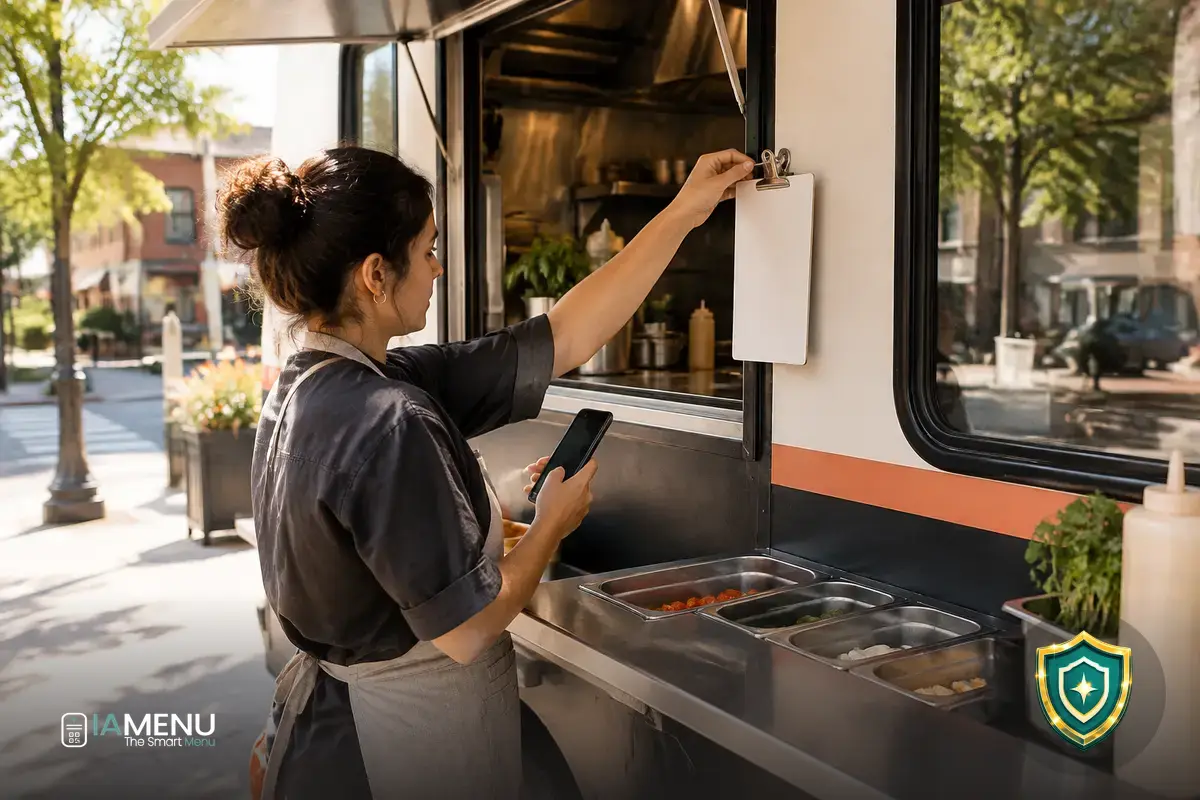
A food truck menu is always changing: you move between locations, adjust your offerings for each event, and sometimes run out of a dish just as the lunch rush begins. If you rely on a printed menu, correcting a price or removing an item can mean crossing things out, repeating explanations, or using a menu that no longer matches what you can serve. A QR menu for food trucks lets you update your information from your phone and keep one link, even when you move locations. If you’re thinking about how to organize yours, check out the QR digital menu for publishing and updating your menu.
The key is not to turn every change into a tech task. It’s to create a simple menu, assign someone to update it, and make sure customers see the same thing your team can prepare. That way, you can announce where you are today, flag limited stock, and avoid printing a new menu every time something changes.
Why a QR menu fits the way food trucks work
A restaurant with a permanent location can put a menu on every table and stay in one place. A food truck usually works differently: today it’s at a market, tomorrow at a festival, and over the weekend in another area. You might also adapt your dishes to the season, the length of the event, or the ingredients you have left. Your menu needs to keep up.
With a permanent QR code, the printed code leads to your current menu, even when the content changes. You can keep it on a sign by the service window, on the counter, or on a reusable card. When your location or offerings change, update the digital information without redoing your printed materials.
That doesn’t mean you need to put your entire operation in the menu. Its main purpose is to clearly answer the most common questions: what’s available, how much it costs, what’s included, and what has sold out. You can add today’s location as a visible notice, especially if you share the link on social media or send it to regular customers.
Example: one QR code, three locations
Imagine you work at a market on Friday, a festival on Saturday, and a local fair on Sunday. If you keep the same menu address, you can use the same QR code all three days and update the location notice each morning. The code on the sign stays the same; only the information it opens changes.
Before publishing, make sure the notice shows the correct location and date. A reusable QR code saves you from reprinting, but it won’t update an outdated location on its own.
How to set up your digital menu before your first service
Start with a list of what you actually sell, not a long description of your business. For each dish, gather its name, price, main ingredients, and a brief description that helps customers decide. If there are size options, add-ons, or sides, explain how to choose them so customers don’t have to ask the same questions at the window.
Next, organize the menu around the ordering process. A practical structure might separate main dishes, sides, drinks, and extras. If you have a signature item or a combo you want to highlight, put it somewhere easy to find—but don’t make customers scroll through several screens to find the prices.
You can get started in four steps: add your items, check the prices, publish the menu, and test the QR code with a phone. Try scanning it with the camera and with a code-reading app, if your team uses one. Also make sure the link opens the right menu—not an editing view or an old page.
A 15-minute setup checklist
- Minutes 1–5: review your items, prices, and initial availability.
- Minutes 6–10: organize the categories and check the descriptions.
- Minutes 11–15: open the menu on another phone and scan the printed QR code.
This is a rough guide for a menu that’s already prepared, not a promise that any menu can be set up in that time. If you still need to confirm photos, recipes, or prices, sort those out before publishing.
If you want to see which features can help you build and maintain your menu, explore the digital menu features. If you’d rather use AI to create or update information from the dashboard or through WhatsApp, iaMenu’s AI assistant can help with those tasks. Always review the result before publishing and make sure the details match what you actually offer.
Changing locations: let customers know where you are today
A QR code keeps your menu accessible, but it doesn’t guarantee customers will know where to find you. That’s why it helps to separate two things: the permanent menu address and the information that changes, such as today’s location. Add a clear notice with the venue or area name, the date, and, if needed, an easy-to-recognize landmark.
Update the notice before heading to the event or when you arrive, depending on when your location is confirmed. If the organizer changes your assigned spot, update the menu as soon as possible and check it from a second phone. Avoid vague messages like “we’re at the festival”—there may be several entrances or food areas.
You can also use the same text as a starting point for your posts. For example: “Today, Saturday, October 19, next to the market’s north entrance.” Adapt the message to the confirmed details, and don’t leave yesterday’s location on the menu just because today’s event is at the same venue. If you share a link on social media, use the permanent address so the post doesn’t become outdated when the dishes change.
A simple check for every service day
Before opening, check three things: location, hours, and menu availability. For example, if service starts at 12:00, set aside a few minutes beforehand to confirm that today’s notice and listed items match that shift.
At the end of the day, remove or replace the temporary notice. This reduces the chance of someone finding yesterday’s location by scanning an old photo of the code or opening a saved link.
Limited stock: how to mark items as sold out
A useful menu during service should reflect what’s still available, not just what you prepared at the start of the day. If you sell a limited number of a special dish, decide in advance who will update its status and when. It’s usually best to update it as soon as it sells out rather than waiting until the end of the shift.
Depending on the options your tool offers, you can temporarily hide the item, mark it as unavailable, or add a notice. Keep the label direct: “Sold out for today” is clearer than a clever phrase customers might interpret in different ways. When the item is available again, check that it shows up correctly.
To avoid mistakes, agree on a quick routine with your team. For example, whoever confirms the last order for an item tells the person responsible for the menu. That person makes the change and checks the public view. If you’re working alone, update it during a safe pause without neglecting customers or order prep.
Example of tracking the day’s stock
Say you prepare 30 servings of a special for lunch. If you confirm at 1:20 p.m. that there are no servings left, update the menu then—don’t wait for the next customer to ask at the window.
The number is just an example. What matters is that your team knows when an item counts as sold out and who communicates the change.
It also helps to distinguish between “sold out” and “unavailable right now.” If you pause a dish because the team is handling a line, don’t mark it as sold out if you can still serve it later. Use messages that reflect the actual situation, and remove them when they no longer apply.
Update your QR menu from your phone during the day
At a food truck, a computer isn’t always within reach. That’s why it’s important to make sure the editing process works on the phone you bring to work. Before relying on it, sign in, find the items that change most often, and practice a simple edit: change a description, adjust a price, or mark a dish as unavailable.
Don’t wait until there’s a long line to figure out where each control is. Save the tool’s shortcut somewhere easy to find and decide who has permission to edit. If several people share the task, agree on how to confirm that a change has been published so no one assumes someone else has done it.
An update isn’t finished when you press “save.” Open the customer-facing version and make sure the item changed as intended. Pay special attention to the name, price, and availability status: errors in these details are common sources of confusion. If the connection is slow, wait for the change to finish before trying again.
A rule for price changes
If you change a price because of an extra, a size change, or a limited-time offer, update the menu before announcing it out loud or on social media. Then check the price on the public page and on any printed signs that are still on display.
A QR code reduces your reliance on printed menus, but it doesn’t eliminate physical materials that are already in circulation. If you keep a chalkboard, make sure its information matches the digital menu too.
If you use several tools to handle orders or manage your business, check how they connect and what information they share. Explore the integration options with other tools and see whether they fit the way you work. Don’t assume that changing the menu will automatically update your other channels—check each place where it’s published.
Design for quick reading at the service window
People scanning the QR code are often standing, with others waiting, and little time to compare options. Design the menu so it’s easy to understand at a glance: familiar names, visible prices, and short category lists. Don’t hide essential information in long descriptions or in an image that customers have to zoom in on.
Write descriptions with the questions customers usually ask in mind: what’s in the dish, whether it comes with a side, what size it is, or which extras are available. You don’t need to describe every recipe with a string of adjectives; a specific sentence can be more helpful. If you change a recipe, update the description too so it doesn’t promise ingredients you no longer use.
Photos can help customers recognize an item, but they don’t replace its name or price. Use current images that match the dish you serve. If a photo shows a different presentation or a side that isn’t included, clarify that in the description to avoid setting the wrong expectations.
If your menu has a lot of items, organize it so customers can find the most popular ones without scrolling through the whole page. A drinks section separate from the food, for example, can make it easier to complete an order. For a short menu, don’t add categories just for the sake of it: every section should help customers choose.
Going paperless doesn’t mean going without a backup plan
A digital menu reduces the need to print a full menu every time your offerings change, but it’s wise to have an alternative ready. That could be a short list of items and prices saved on your phone, or a chalkboard you can update. The goal isn’t to duplicate all your work—it’s to keep serving customers if someone can’t open the QR code or the connection goes down.
Before an event, check the coverage in the area if you can. Save the menu link, make sure it loads using mobile data, and make sure your team knows what to do if it won’t open. If you lose your connection during service, don’t announce a digital change until you’ve confirmed the public version has updated.
What to bring as a backup
- A concise list of current items and prices saved on your phone.
- A reusable sign for sharing temporary updates at the service window.
- Access to the editing dashboard, tested before you arrive at the event.
- A team member who can let customers know which dishes are sold out while the menu is being restored.
If you include ingredient or allergen information, handle it with the same care as your prices. Check that the details match your current recipes and any supplier changes; don’t keep an old description just because it’s convenient. A digital menu makes information easier to correct, but careful review is still essential to ensure it reflects what you prepare.
Opening and closing routines to keep your menu up to date
A short routine keeps the menu from relying on the memory of whoever is busiest. Before opening, one person can check the location, hours, availability, and prices. During service, the team reports sold-out items as soon as they’re confirmed. At closing, temporary notices are removed, and information for the next event is prepared if it’s already confirmed.
If you make several changes during the day, you can keep a simple log in a shared note: time, item, and change made. For example: “1:20 p.m., daily special, marked as sold out.” There’s no need to turn it into a complicated report; just make sure the team can see what changed and avoid accidentally making an item available again.
Five closing checks
- Remove the location notice that’s no longer relevant.
- Check which items should be available again tomorrow.
- Update descriptions or prices if the offerings will change for the next service.
- Make sure the physical QR code and shared link still open the current menu.
- Note any outstanding changes and who will review them before opening.
If you’re organizing your business’s digital operations beyond the menu, the restaurant solutions page can help you explore other related uses. For a food truck, the principle is still practical: choose features you can maintain between events and that don’t add steps that are hard to keep up with during a busy shift.
Frequently asked questions
These answers cover common questions about setting up a QR menu for a food truck, from the first code to changes in location, stock, and connectivity.
What does a food truck need to set up a QR menu?
You need a digital menu that customers can access on their phones and a QR code that links to it. It’s a good idea to test the link and scan the code before your first service, and to prepare an alternative for customers without a connection or a working camera.
Can I change my food truck’s location on the menu?
Yes. You can show the day’s location on the menu or in a prominent notice and update it from your phone. If you use the same link and QR code, you don’t need to reprint the code when you move.
How do I mark a dish as sold out during service?
Update its availability in the menu dashboard as soon as it sells out. If the system lets you hide it or mark it as unavailable, the change can help prevent customers from ordering it. Then check that it appears correctly on the public menu.
Do I need to print a new QR code every time the menu changes?
No, as long as the QR code points to a permanent address and you update the content of that menu. The printed QR code can stay the same even when you change dishes, prices, or location.
What should I do if the internet connection goes down?
Let your team know and use a backup copy of the menu, such as a saved version or a short list of items and prices. Check coverage before opening, and don’t rely on an important online change until you’ve confirmed it’s been published.
Does a QR menu work for a food truck with a small menu?
Yes. Even a short menu benefits from showing current prices, ingredients, and availability in one place. It can be especially useful when your offerings change depending on the event or the day’s stock.
How can I share allergen information on a QR menu?
Include clear information for each dish and check that it matches the recipes and ingredients you’re using that day. If you use automatic allergen suggestions, review them before publishing and confirm any supplier or preparation changes.
Can I manage my digital menu from my phone?
Yes, you can review and update the menu from your phone if your tool has a compatible dashboard. It’s a good idea to test the access and make changes before service, when you have time to check how the public version looks.
A QR menu works best when it reflects today’s service: confirmed location, checked prices, and up-to-date stock. If you want to learn more about creating an AI-powered digital menu, check out the guide to the best AI digital menu in 2026.