QR Orders at the Table: How to Let Your Customers Order from Their Mobile Without External Apps or Additional Hardware
The Lost Minute That Eats Up Your Turnover
Tuesday, 14:15. Table for four. They already know what they want. They have been waiting for three minutes for someone to come and order a couple of waters and an extra dessert. The waiter is attending to another table, the bar is crowded. Three minutes. Five. Fifteen.
Those minutes add up, peak hour after peak hour, resulting in fewer turns per table, lower tickets (because the customer doesn’t add that dessert they were going to order) and worse reviews for "slow" service. The problem isn’t your team. The problem is that demand peaks are short, and a waiter can’t be in five places at once.
The Three Consequences of the Lost Minute
- • Lower turnover: table occupied longer without generating additional ticket.
- • Less upselling: the customer who hesitates for 5 minutes about whether to order dessert usually ends up saying "forget it".
- • Worse reviews: "good food but slow service" is the #1 complaint on Google Maps during peak hours.
What is Self-Ordering (QR Orders at the Table)
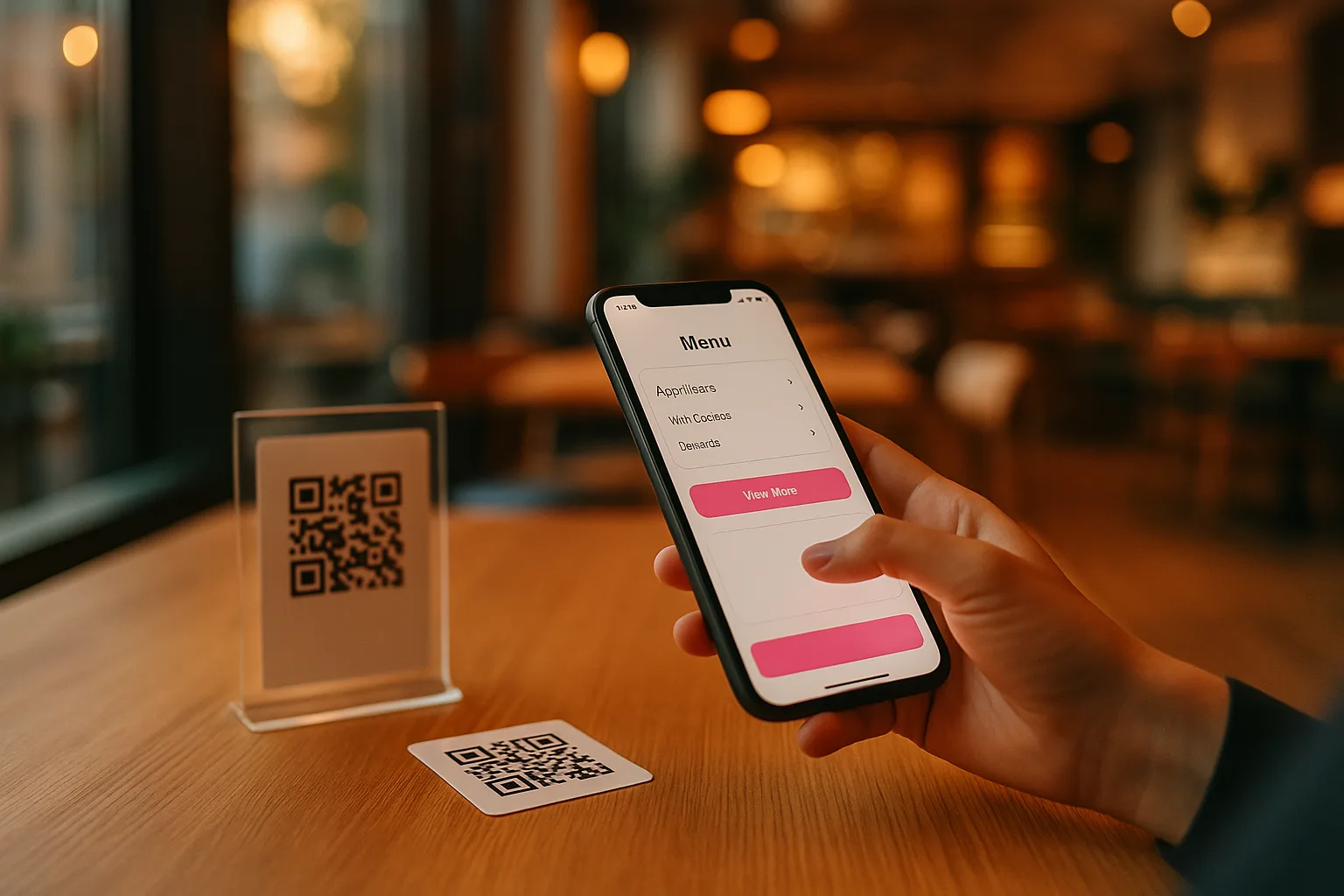
Self-ordering means the customer builds their own order from their mobile, without waiting for the waiter to appear. It’s called "QR at the table" because the customer scans a fixed QR code on the table (not at the entrance, not on a general menu) that identifies exactly which table it is.
It’s a model that comes from fast-casual (large chains have been implementing it since 2020) and is now being adopted by independent restaurants because it no longer requires specialized POS: just a modern QR menu with an integrated ordering module and a dashboard that staff can access on any device.
The 4 Modes: Which Fits Your Restaurant
Not all restaurants want the same flow. A family bistro and a gastrobar with 70 covers have different rhythms. That’s why a good QR ordering system offers four configurable modes, and you choose the one that respects your identity:
Mode 1 — Call Waiter Only
The customer does NOT build an order on their mobile. They only have a "Call Waiter" button on their screen. The kitchen/room receives the notification and goes to that table.
Fits with: premium restaurants / white tablecloth / personalized experience. The QR digitalizes the call, not the order.
Mode 2 — Shared List
The customer builds their cart with everything they want and, instead of sending it to the kitchen, shows it to the waiter when they arrive. The conversation shifts from "what do you want" to "let’s confirm this list".
Fits with: restaurants that want to save time on taking orders but keep the waiter as a human filter for suggestions / upselling.
Mode 3 — Direct to Kitchen (Auto-Accept)
The customer confirms and the order goes directly to the kitchen kanban. The staff sees it, an alert sounds, and they start preparing. It’s the fastest mode and the one that frees up the most turnover.
Fits with: fast-casual, burger joints, pizzerias, shopping mall restaurants, terraces with high turnover.
Mode 4 — With Staff Approval
The customer confirms and the order is marked as "pending approval". A staff member reviews it on the panel and gives the OK (with a click) for it to go to the kitchen.
Fits with: restaurants with complex menus or many variations, where a double human verification avoids costly errors (allergies, modifications).
How It Works in Your Restaurant, Step by Step
Imagine you decide to activate QR orders at the table this week. The system starts on a Tuesday afternoon, and you complete the first full shift on Friday night. Here’s what happens, step by step:
Register your physical tables. From the panel, you create each table with its number, capacity, and location. The system automatically generates a unique QR for each table. You can generate them in bulk (from 1 to 20) in one operation.
Print the QR codes and laminate them. Download the PDF with the QR codes by table. A4, A5, and A6 templates with the restaurant's branding. Stick each QR on its corresponding table.
Choose the ordering mode that fits your flow (from the four above). If you have doubts, start with mode 2 (shared list) which has a lower risk of cultural change and allows you to migrate to mode 3 when the team is comfortable.
Configure hours, messages, and notifications. Up to how many minutes before closing orders are accepted, personalized welcome messages, optional notes (allergies, no onion). All from the same panel.
Activate sound and staff notifications. The dashboard plays a sound when a new order arrives. The staff can use their own mobile, a tablet at the bar, or a panel in the kitchen (full-screen mode). No POS or additional hardware is needed.
Manage orders on the kanban. Each order flows through columns: New → Recognized → Preparing → Ready → Served. Drag-and-drop or a click to advance. The kitchen marks the items one by one and the waiter sees when to serve.
Walk-in: Why It Matters to Register When a Table is Occupied
Half of the tables in an average Spanish restaurant are occupied without prior reservation (walk-in customers). The classic operational problem is that the staff does not have a formal record of "table 5: occupied since 13:42, 4 diners". That data lives in the head of the head waiter. If the shift changes, it is lost.
A modern QR ordering system solves this with a simple concept: the table session. The staff clicks "Open Table" when the customers arrive, optionally records how many they are, and from that moment that table is officially occupied on the panel. All QR orders made by customers from their mobiles are automatically linked to that session.
What Formal Walk-in Gives You
- • Real-time visibility: the dashboard shows how many tables are occupied and for how long, without having to ask the head waiter.
- • Group rounds: table 5 makes three rounds (starters, mains, desserts) and is seen as a single session with three related orders, not as three separate tickets.
- • Measurable times: how long it takes a table of four to complete a full turn. That data is worth gold for staffing planning.
- • Clean closure: when closing the table, all served orders are marked as completed and the table is freed up on the panel.
Multi-Cook: So Two Chefs Don’t Make the Same Dish
In a restaurant with two active cooks, the most typical conflict is: both see the same order, both assume the other is doing it, and in the end, no one does it (or both do). Five minutes lost. Dish plated twice.
The solution is order assignment by cook. When a new order arrives, either cook can press "Take" and it gets assigned to them (visible with a colored badge on the order card). A "Only My Orders" filter allows each cook to see their load without the noise from the rest.
If a cook leaves in the middle of the afternoon, any order can be reassigned to another with a click. If a table orders something complex that requires two cooks, it can be left open and worked on as a team.
Self-Ordering vs Delivery Apps vs Traditional POS: What Each Does
This is the most common confusion. Let’s separate concepts because each tool has a different purpose and they don’t overlap:
| Aspect | Self-Ordering (this article) | Delivery App | Traditional POS |
|---|---|---|---|
| Purpose | Order at the table (in-restaurant) | Order for delivery (shipping) | Charge and invoice |
| Hardware | Existing mobile/tablet | Existing mobile/tablet | Physical POS + printer + cash drawer |
| Commission | No (fixed fee) | 25% – 30% per order | Cost of equipment + maintenance |
| Customer Outside the Restaurant | Not applicable | Yes (it’s its reason for being) | No |
| Delivery Person | No | Yes | No |
| Replaces POS | No (complements) | No | N/A |
Key Idea
Self-ordering does not replace your POS nor does it try to. Charging, invoicing, cash closures, and tax reports still go through the POS you already have. Self-ordering only digitalizes the moment of ordering at the table: that lost minute between when the customer decides what they want and when the waiter writes it down. It’s a complement, not a replacement.
Operational Metrics That the POS Doesn’t Provide
A good QR ordering system records every transition of each order with a timestamp. That means you can answer questions that your POS doesn’t:
- Average Kitchen Time (preparing → ready): if it goes from 18 to 25 minutes, something is changing in the kitchen flow.
- Average Time Table → Staff (sent → recognized): measures how long it takes your team to realize an order has arrived. If it increases, there’s a lack of staff or attention.
- Real Peak Hour in histogram by time slots: tells you if the critical slot is 13:30-14:00 or 14:00-14:30, to plan staff exactly when needed.
- Top 5 Products by Number of Orders (not by sales): tells you what people are ordering, regardless of margin. Useful for menu design.
- Percentage of Cancellations with Reason: if 15% cancel due to "product out of stock", there may be a stock issue dragging from the kitchen.
For tax reports (VAT, cash closures, accounting margins), your POS is still needed. These metrics are operational: they help decide how to organize the team and kitchen, not to present the quarterly tax.
What Happens When You’re Closed
A customer tries to place an order at 23:45 when the restaurant closes at 23:00. What should happen? There are two approaches:
Bad Approach (Technical Error)
The system returns "Error 403 ORDERS_CLOSED" and the customer is left not understanding what’s happening. A bad first impression that they probably won’t return from.
Good Approach (Clear UX)
"We’re sorry, we no longer accept orders. We open tomorrow at 12:00. If you need something urgent, call us: 912 345 678." With a direct call button on mobile. The customer leaves with a good feeling, knows when to return, and can call if they have an urgent matter.
This difference may seem small, but it defines the perceived quality of the restaurant. A good QR ordering system should make the second approach the default, without you needing to configure it.
How IAMenu Does It
IAMenu integrates QR orders at the table within the same QR menu that the customer is viewing. No app to download, no additional POS, no commission per order. The monthly fee covers the complete module.
The four modes (call waiter, shared list, direct to kitchen, with approval) are configurable from the restaurant panel. Physical tables with their own QR are unlimited in the Premium plan. Walk-in tracking, multi-cook assignment, history with CSV export, and operational statistics are included.
And to close the loop: since the ordering system lives in the same QR menu you’ve already digitalized, it inherits the translation system into 54 languages. Your Chinese, French, or Italian customer places their order in their language. The kitchen receives it in yours.
Try It Free for 14 Days
No card, no commitment. Activate QR orders at the table, test the 4 modes, and discover which one fits your flow. The difference in turnover is noticeable from the first peak hour.
Start Free Trial
Frequently Asked Questions
Is it the same as ordering through a delivery app?
No. Delivery apps are for taking food home (shipping + delivery person + 25-30% commission). QR orders at the table are for customers who are already seated.
Do I need a POS or special hardware?
No. It works on any device with a browser: the waiter’s mobile, a tablet at the bar, the head waiter’s laptop, a touchscreen panel in the kitchen. No POS or connected thermal printers are required.
Do my customers need to download an app?
No. They scan the QR code with their mobile camera and the menu opens directly in the browser. No downloads, no accounts, no passwords.
How is a table with multiple diners managed?
Each diner scans the QR code with their mobile and builds their cart separately. The system groups all orders under the same table but maintains the identity of each one.
And what about tax reports / VAT / cash closures?
That’s still your POS. QR orders are operational (flow, tables, kitchen), not accounting. It’s a complement to the POS, not a replacement.
If you want to see how the entire restaurant flow fits with digital menu + reservations + orders on a single platform, also check out the article on
reservations without cover commissions
. Reserving + ordering + serving, all from the same QR menu.