Turn a PDF menu into a digital menu with AI — photos too
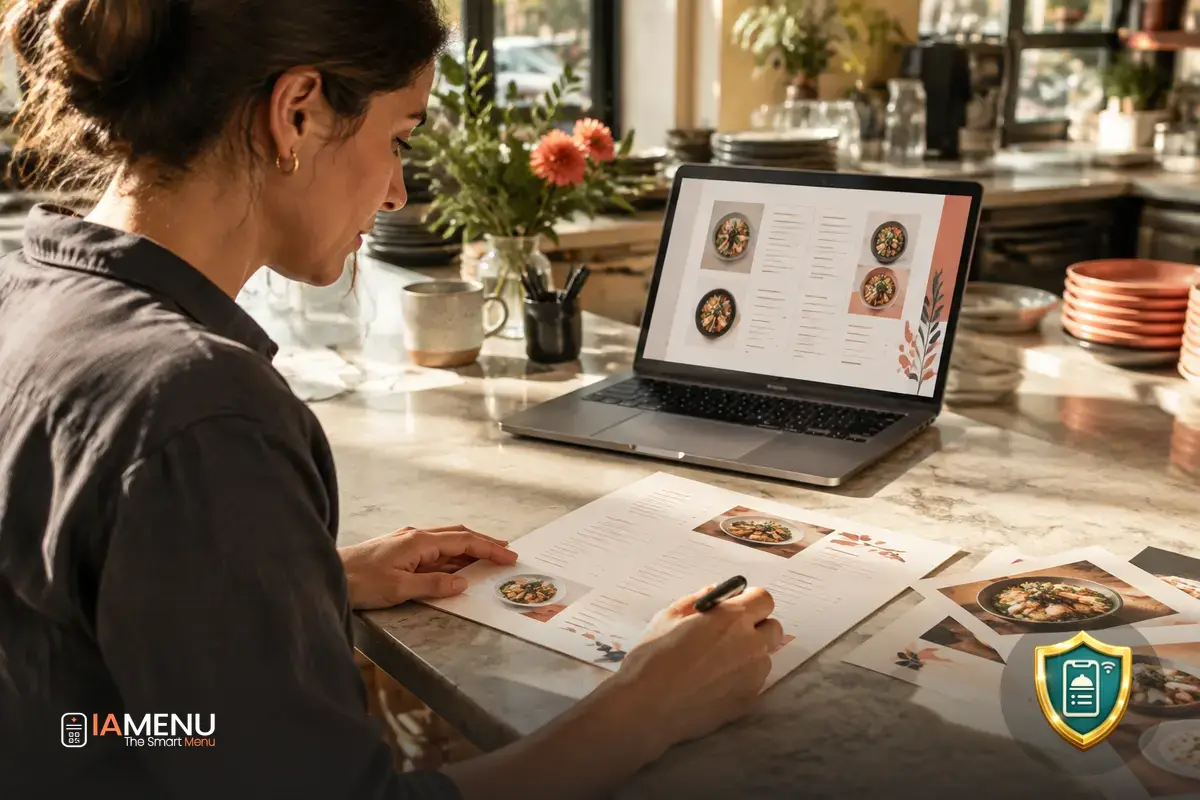
Turning your restaurant menu into a digital one can be a time-consuming task if you have to retype every category, dish, price, and description. Now you can convert a PDF menu into a digital menu with AI, or start with the photos and documents you already use. Find out how to import your menu with AI, then review the suggestion before publishing it.
What AI menu import is
It’s a way to start your digital menu from the materials you already have, instead of entering every dish one by one from scratch. Upload your menu, and AI will read its contents to prepare a first draft with the categories, dishes, prices, and descriptions it finds.
You can use a PDF, photos, a Word document, or an Excel spreadsheet. Whether you work with a printed menu or keep the information in a file, you can use it as a starting point for creating your digital menu. The iaMenu AI assistant also lets you access this option later from the dashboard.
Importing doesn’t replace your judgment: AI organizes a suggestion, and you decide what to confirm, edit, or complete. The result is a draft you can adapt to the way you actually present your restaurant’s offerings.
How to convert a PDF menu into a digital menu with AI
The process starts with the materials you want to import. Choose the menu file or photos and let AI read the visible information. Then review the suggested structure and the details for each dish. Once everything looks right, confirm the changes and continue to publish your digital menu.
- PDF: Upload your existing menu so AI can prepare a digital version.
- Photos: Import up to 16 images at once. During setup, you can also take photos with your phone’s camera.
- Word or Excel: Import the file you use to organize your menu, one at a time.
Choose the format you already have
You don’t need to prepare a special version of your menu before getting started. You can use a PDF, photos—up to 16 per import—or a Word or Excel file, imported individually.
AI suggests a structure; you check that the details accurately represent your offerings before confirming them.
Review every detail before publishing
Menus can change often: a price is updated, a dish is removed, or a description is revised. That’s why you can review and correct what AI has read after importing. Check the names, categories, and prices, as well as any descriptions you want to adjust for your customers.
AI makes a suggestion, and you confirm it. Don’t assume the document was interpreted exactly as you expected: compare the suggestion with your original menu and complete or change anything necessary. That way, you stay in control of the information shown on your digital menu.
A simple example
Before: You have a PDF with sections for appetizers and main courses, along with names, prices, and descriptions.
After: AI prepares those sections and items as a digital menu suggestion. You check that each dish is in the right category, the prices match, and the descriptions reflect what you serve. Once you’ve finished reviewing, you confirm the menu.
Less repetitive work when updating your menu
Starting from a file or some photos saves you from having to rebuild your entire menu manually from a blank page. The initial suggestion brings together the information AI was able to read, giving you a starting point to review instead of requiring you to enter every item from scratch.
You can also choose the timing that works best for you: import during setup or later using the dashboard’s AI assistant. If you run a restaurant, learn about other ways to present and maintain your information digitally on the digital menu solutions for restaurants page.
The result depends on what appears in the materials you upload, so a careful review is part of the process. Once your suggestion is ready, you can continue setting up your menu and decide how to show it to your customers.
Frequently asked questions
Here are some practical answers to help you choose a format and complete your menu import.
What formats can I import to create my digital menu?
You can import a PDF menu, photos, a Word file, or an Excel file. Word and Excel files are imported one at a time.
How many photos can I import at once?
You can import up to 16 photos at once. You can also take them with your phone’s camera during setup.
Is the menu published automatically after importing?
No. AI prepares a suggestion, and you review and correct the categories, dishes, prices, and descriptions before confirming and publishing it.
Can I use the import feature after signing up?
Yes. You can import your menu during setup or later using the dashboard’s AI assistant.
Do I need to review what AI reads?
Yes. Review the suggestion before publishing and correct any details that don’t match your menu.
Start with the format you already use and create a first draft of your menu. Learn about AI menu import and review your menu before publishing it.