Digital Menu for Pizzerias: A Practical Guide for 2026
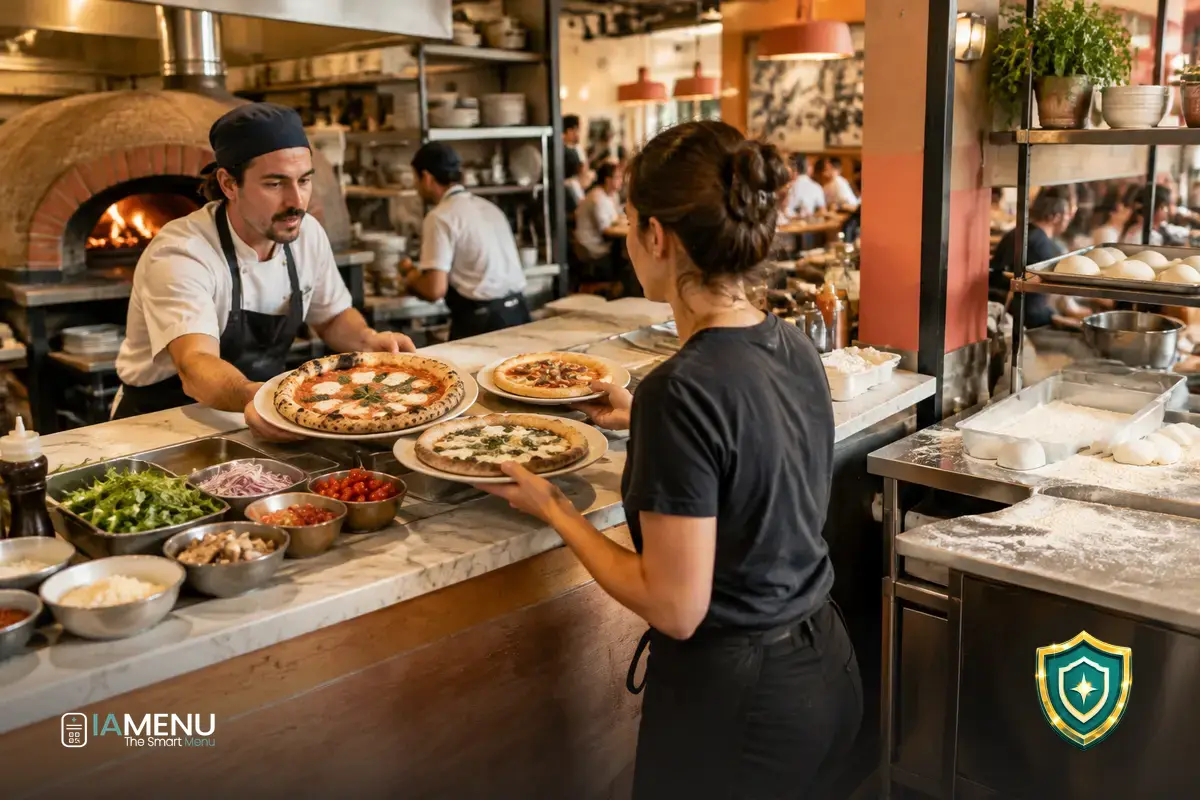
In a busy pizzeria, a confusing menu quickly becomes obvious: a customer asks whether the large pizza costs extra, the staff has to explain the dough options again, and the kitchen receives an order with unclear add-ons. A well-organized digital menu for pizzerias can make those choices easier without turning every order into an interrogation. In this guide, you’ll learn how to structure your menu and what to check. Visit the QR digital menu for restaurants page to learn how to bring this kind of menu to diners’ phones.
How to design an AI-powered digital menu for pizzerias
A pizzeria menu isn’t just a flat list of products. Each pizza can combine size, dough, ingredients, and extras; the restaurant may also offer starters, drinks, desserts, and sharing options. The challenge is to present all those choices in an order that’s easy to understand at a glance.
Start by thinking about the customer’s actual journey at the table. Someone who arrives hungry usually wants to answer four questions, in this order: What pizzas are available? How much do they cost? What can I change? And how do I order? If customers have to search for an extra charge in a note at the end of the menu, they’ll probably ask the staff again.
An AI-powered menu can also help answer questions written in everyday language, as long as the information about dishes, ingredients, and allergens is entered correctly. The AI waiter can respond to diners’ questions and recommend options based on the menu; it doesn’t replace recipe reviews or confirmation from the team when a request requires checking with the kitchen.
The rule for an easy-to-read menu
Show each important choice at the point where the customer makes it. If customers choose a pizza and then its size, show the price for the selected size. If a dough option costs extra, show that next to the option. Don’t hide necessary information in a generic note.
Sizes and dough: show multiple prices clearly
Size and dough are the two options most likely to cause misunderstandings. A customer may assume the price shown is for the large pizza, while the restaurant intended it for the small one. Make it clear which combination each price applies to and what changes when customers select another option.
Two menu structures tend to work well, depending on your offerings. If nearly all pizzas come with the same options, show sizes and dough types as consistent choices within each product. If some pizzas aren’t available in every size, show only the combinations customers can actually order. That way, they won’t select an option that later has to be removed from the order.
Illustrative pizza example
- Small, classic dough: €9.50.
- Large, classic dough: €13.50.
- Large, thin crust: €13.50.
- Large, gluten-free dough: €15.00, if available and if that price reflects the restaurant’s actual pricing policy.
These are example prices, not a pricing recommendation. What matters is that each option shows its final price before the order is confirmed.
Avoid describing a dough option simply as “special.” Specify whether it’s thin, thick, whole wheat, or gluten-free, as long as the label accurately describes how it’s made. If pizza sizes vary or an option isn’t available for a particular recipe, say so in the product listing.
Consistency also helps the staff. If every pizza follows the same pattern—size, dough, ingredients, and extras—it’s easier to interpret each order. A new server can quickly spot where to check the selected option, while the kitchen receives a more explicit request.
Check the final price before publishing
Test every available combination. For example, a pizza with four sizes and three dough options could have up to 12 combinations to review. Check the amount diners will see and make sure extra charges aren’t added twice.
Pizza extras: group options and avoid ambiguous orders
Extras make your menu more flexible, but a long, unstructured list can slow down ordering. Group them by kitchen category: cheeses, meats, vegetables, and other add-ons. Include the ingredient name and price for each option. “Extra cheese” is more informative than “add ingredient,” and “mushrooms” is more specific than “vegetables.”
It’s also worth clarifying how customers can choose. Can they add more than one extra? Is there a limit? Does an option replace an ingredient or get added to the ingredients already on the pizza? If the answer varies by product, explain the rule in that product’s listing. Don’t assume everyone interprets “customize your pizza” the same way.
- Use one category for each type of extra instead of one endless list.
- Show the price next to each add-on.
- Specify limits or substitutions if they affect preparation.
- Check that each extra is available during the shift and in the kitchen where it’s offered.
An example that saves a trip back to the table
Instead of writing “customize with extras,” list options like “extra mozzarella — €1.50,” “black olives — €1.00,” and “ham — €1.80.” If customers can choose up to three, say so before they confirm. These prices are illustrative: use the prices from your current menu.
Automatic allergen information and gluten: inform without overpromising
When discussing gluten at a pizzeria, it’s important to distinguish between a recipe’s ingredients and the actual conditions in which it’s prepared. A pizza made with dough labeled “gluten-free” isn’t, by itself, enough to guarantee that the finished dish is suitable for someone with celiac disease. Handling, surfaces, utensils, and the oven may all matter, depending on the restaurant’s practices.
Keep each pizza and dough option linked to its actual ingredients. Automatic allergen information can make it easier to identify the allergens associated with recipes, but the restaurant must check the data and explain any cross-contact risks based on its processes. Learn more about managing this information on the allergen management for menus page.
A helpful warning, not an impossible guarantee
If you share an oven, preparation area, or utensils, don’t imply that a pizza is risk-free unless your team can guarantee it. Describe accurately what the product contains and what precautions the restaurant takes. If a customer has a specific question, refer it to the staff member responsible.
Check modifications, too. A pizza’s allergen profile may change when an extra is added, an ingredient is substituted, or a different dough is selected. Review the information for each variation, not just the base listing. A simple process is to update the internal recipe first, then check that every option shown on the menu reflects the change.
QR table ordering: keep the process short and clear
A QR code shouldn’t add another task for customers. Place it somewhere visible when they sit down, and explain in one sentence what they can do: browse the menu or, if the restaurant’s process allows it, place an order from the table. Customers should know whether their order has been sent, whether any confirmation is still needed, or whether they need to alert a staff member.
Decide what happens after a customer taps “Order.” Does the request go to the dining room staff, the kitchen, or an ordering system? Who checks ingredient modifications? What does the team do if an item runs out? These operational decisions matter just as much as the customer-facing screen. Review the features for menus and QR ordering and confirm that the workflow you choose matches how your restaurant actually operates.
Test the ordering process as if you were a customer
- Scan the QR code at the table and open the pizza category.
- Choose a size, dough, and two extras, then check how they appear in the order summary.
- Make sure the total price includes every selected option.
- Submit a test order and check where the team receives it.
- Ask a question about an ingredient and check how it’s answered.
Not every customer wants to order without speaking to anyone. Keep the option to contact the dining room staff and explain how to ask for help. A QR code can speed up part of the service, but it doesn’t remove the need to handle changes, questions, or requests that require checking availability with the kitchen.
High-volume service: organize the menu for peak hours
When many tables are occupied at once, small ambiguities come up repeatedly: which pizza has which ingredient, whether the gluten-free dough allows extras, or whether a drink is included in a set menu. Design the menu with those busy moments in mind, not just a quiet review in the office.
Picture a service with 20 occupied tables and several orders arriving within minutes. If every group needs to ask about the size or dough surcharge, the team has to interrupt other tasks to answer the same questions. A consistent product listing, with prices and options clearly visible, helps customers make informed choices and gives staff clearer orders to interpret. It doesn’t guarantee a specific service time: that also depends on the kitchen, demand, and organization.
Prioritize the information customers need to understand
Put categories in a useful order: pizzas, starters, drinks, and desserts, for example. Use short names and descriptions within each category. Save notes for clarifications that genuinely affect a customer’s choice, rather than repeating what’s already shown in the size or price fields.
If your menu changes by shift or availability, decide who can update it and how changes are communicated to the rest of the team. A sold-out pizza that still appears available leads to frustration and extra work. With a digital menu, you can update it from the dashboard; IAMenu’s AI assistant also lets you build or edit the menu by chatting in the dashboard or on WhatsApp. The person responsible should review the result before customers see it.
If you want to organize the entire dining experience, see the digital menu for restaurants use case. The key is to align the menu with your operations: everything offered on a customer’s phone must be available to prepare and serve at that time.
How to launch a pizzeria’s digital menu
You don’t have to publish the whole menu at once to start reviewing it. First, gather the information customers need to choose and the team needs to prepare the order: names, descriptions, sizes, dough options, prices, ingredients, extras, allergens, and availability. Then review the whole menu as if you were ordering at a table during your busiest shift.
- 1. Organize your inventory: identify the categories, products, and variations that are actually available.
- 2. Check the prices: test every size and dough combination, including any extra charges.
- 3. Validate ingredients and allergens: compare the menu with your recipes and kitchen practices.
- 4. Check the extras: clarify the price, permitted quantity, and whether they replace or add ingredients.
- 5. Test the QR process: confirm that orders reach the right place and that the team knows what to do.
- 6. Review after every change: check that the menu matches the product being prepared and served.
A practical test before launch
Ask one person from the dining room team and one from the kitchen to complete a test order: a large pizza, an alternative dough, two extras, and a note about an ingredient. If both can identify what to prepare, what to charge, and which question needs confirmation without asking for clarification, your menu structure is much closer to working during peak hours.
Before publishing, check the menu on an actual phone, not just in the admin dashboard. Make sure names aren’t cut off, prices are easy to read, and customers don’t have to scroll through lengthy notes to find options. A clean product listing makes information easier to find; a precise description means the presentation doesn’t depend on the photo alone.
Frequently asked questions
These answers cover the most common decisions when preparing a QR menu for a pizzeria, from price variations to gluten information and the ordering process.
What should a digital menu for pizzerias include?
It should show pizzas, sizes, dough options, prices, ingredients, extras, drinks, and desserts, with clear names and descriptions. It’s also a good idea to include allergen information and explain how to order from the table.
How should I show different sizes and dough options with different prices?
List each size and dough option clearly, with its price visible before customers add the pizza to their order. If a dough option costs extra, show that next to the option rather than only in a general note.
How can I keep extras from confusing customers?
Group extras by type, show the individual price of each one, and clarify whether customers can choose a maximum number or add several. Use specific names like “extra mozzarella” or “black olives” instead of vague categories.
How should I provide gluten information on a digital menu?
Link each pizza and dough option to its ingredients and automatic allergen information, and check that the details match the kitchen’s actual product listings. If there’s a risk of cross-contact, explain it clearly and don’t present an option as safe for people with celiac disease unless you can guarantee it.
Can customers order from the table using a digital menu?
Yes. A QR menu can help diners browse the menu and, if the system allows it, place an order from their table. Decide how the team will receive each request and who will confirm changes or special requests.
What if the price of a pizza or an ingredient changes?
Update the price or ingredients in the digital menu as soon as the recipe or cost changes, and check that the update appears in the correct option. This helps prevent differences between what customers see and what the team prepares.
Does a digital menu replace explanations from the staff?
Not necessarily. It can answer common questions about ingredients, sizes, and allergens, while the team handles questions that require judgment or confirmation from the kitchen. The menu information should always match the actual recipes.
How should I organize a digital menu for peak hours?
Cut unnecessary steps, put the most frequently viewed categories first, and present each pizza’s options consistently. Before activating the menu, test the whole process as a customer and confirm that the kitchen and dining room teams understand how orders come through.
A digital menu for a pizzeria works best when it makes every choice—size, dough, extras, and ordering—clear and easy to verify. If you’re preparing to move your menu to a QR format, start by reviewing the QR digital menu solution and adapt its structure to your restaurant’s recipes and service.