Common Mistakes When Digitizing a Restaurant Menu: 2026 Guide
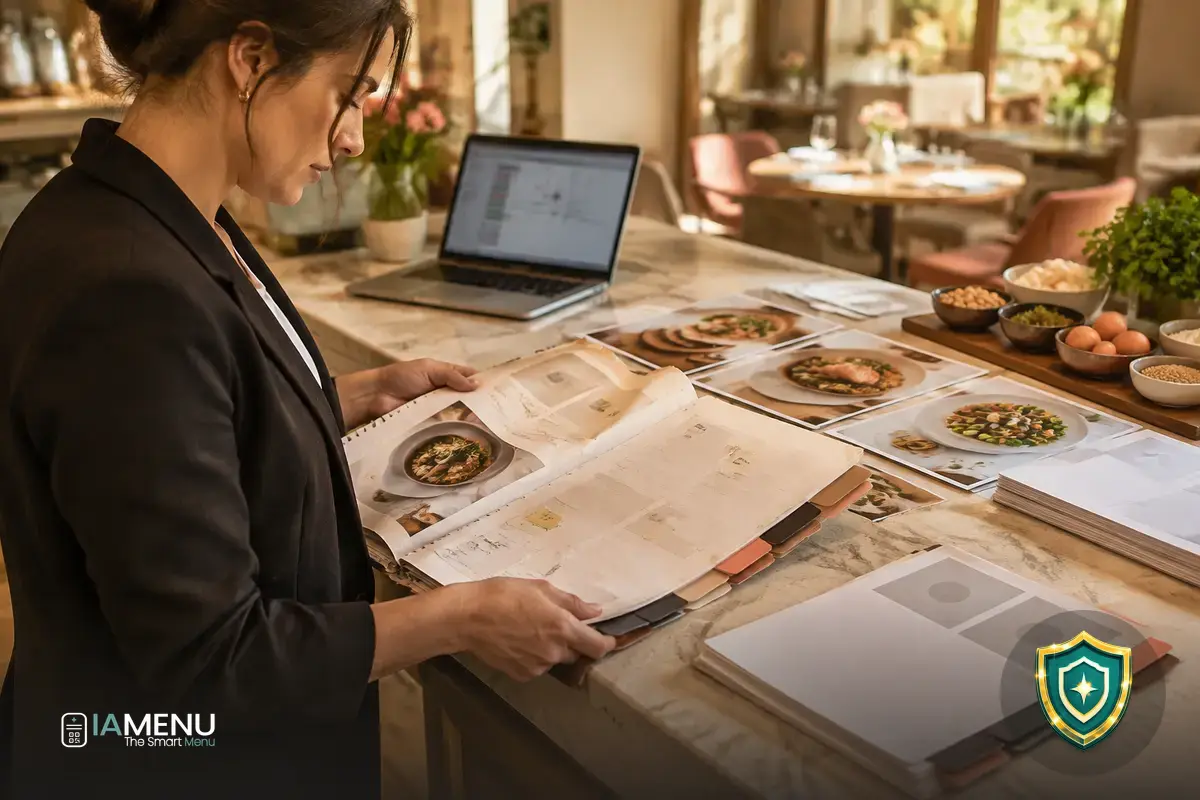
Errors when digitizing a restaurant menu often show up after the QR codes have been printed: customers scan them and find a slow PDF, prices that don’t match the printed menu, or descriptions that don’t answer their questions. Going digital isn’t just about converting a file; it’s about creating a menu that’s easy to browse, reliable, and simple to maintain. If you already have a PDF menu, you can see how AI-powered PDF menu import works and use it as a starting point for organizing the digital version.
Below, we look at the most common mistakes and a practical solution for each one. The goal isn’t to add technology for its own sake, but to help diners find the information they need and make it easy for your team to update without redoing all the work.
1. Leaving a large PDF behind the QR code
A PDF designed for printing across several pages may be convenient on paper but frustrating on a phone. High-resolution photos, decorative backgrounds, and embedded fonts all increase the file size. And if each section is laid out as an image, customers may have to keep zooming in and scrolling to find a dish or check a price.
The problem isn’t that PDF is always the wrong format. The mistake is publishing one without checking its size, how it reads on screen, and how quickly it loads on a typical mobile connection. A 12 MB file, for example, may take longer to load than an optimized 2 MB file, especially in a restaurant with patchy coverage. It’s worth measuring the difference before printing hundreds of QR codes.
Solution: test the entire journey
Scan the QR code from a table and measure how long it takes for the content to appear. As an initial check, aim to have the menu start displaying within a few seconds, without making customers zoom in on every section to read it. Also check the file size and compress it if the images are larger than they need to be.
If you’re keeping the PDF, export an optimized version and test it again on several phones. If you want to make updates and mobile browsing easier, turn its content into a web menu with sections and selectable text.
An AI-powered menu can help turn the original content into an editable starting point, but it doesn’t replace a review. Check that imported names, categories, and descriptions match what the kitchen serves. A typo spotted in the dashboard is easy to fix; an error published at every table can lead to questions throughout the service.
2. Keeping outdated or inconsistent prices
One of the most serious mistakes is having the QR menu show different prices from the printed menu, the chalkboard, or the ordering system. This can happen when you upload a new PDF but forget to remove the old one, update a price in only one version of the menu, or duplicate a dish and correct just one copy.
It’s also worth checking how prices are displayed. If the digital menu leaves out the currency symbol, mixes formats, or visually associates a price with the wrong dish, customers may misunderstand the offer. Options, add-ons, and sizes should be clear: “from €8” doesn’t mean the same thing as a single fixed price.
Example: a simple change with four checkpoints
Imagine a dish goes from €14 to €15. The change should appear in the digital menu, any printed version still in use, any shared links, and the system the team uses to take orders. If even one of these four references still shows the old price, two versions of the offer are already in circulation.
Choose a single source of truth and assign one person to publish changes. Then scan the QR code and confirm the price in the customer-facing view, not just in the editing dashboard.
To reduce errors, keep a record of what changed and when. A simple spreadsheet with the dish name, previous price, new price, date, and person responsible may be enough for a small restaurant. If you have lunch menus, dinner menus, or seasonal prices, make it clear which one is current and avoid leaving an old link accessible.
3. Leaving out automatically identified allergens or using unclear information
A digital menu shouldn’t make customers guess what a dish contains. Phrases like “ask a member of staff” may be useful as a backup, but they don’t replace checking ingredients and preparation methods. The risk of an incomplete list increases when sauces, sides, or suppliers change and the menu isn’t updated at the same time.
The information should match the recipe that actually comes out of the kitchen, not an old version saved in a document. You should also distinguish between an ingredient that’s part of the recipe and potential cross-contact risks, which the team should communicate according to its procedures. If you’re not sure how to organize this information, check out the options for reviewing allergen information on your menu.
Solution: validate the recipe with the kitchen, not just the office
Before publishing, review each dish against its ingredient sheet and with someone who knows how it’s prepared day to day. Check sauces, oils, toppings, and sides too: even a small change can affect the information customers need to see.
Tools can help identify allergens, but the final review should be based on the actual ingredients used at the restaurant. When a customer has a specific question, the team should be able to confirm the information and explain the limits of what’s known.
Avoid icons without a legend or symbols that aren’t immediately clear. If you use pictograms, pair them with readable labels and an accessible explanation. That way, the digital menu works for people who recognize the symbols and those who need to read the full information.
4. Publishing only one version when customers speak other languages
A half-finished translation can cause more confusion than it solves. Translating section names while leaving descriptions, ingredients, or notices in the original language forces customers to interpret each dish for themselves. The same goes for menus that offer several languages but hide the selector or don’t make it work on mobile.
Not every culinary term translates word for word. A local dish name may need a brief explanation; a side dish may mean something different in another country; and an unreviewed machine translation can change a description or introduce an ingredient that isn’t there. Consistency matters: the same dish shouldn’t appear under different names in different sections.
Review checklist for each language
- Translate categories, names, descriptions, ingredients, and relevant notes.
- Check prices, sizes, and add-ons in every version.
- Review local expressions and culinary terms with someone fluent in the language.
- Scan the QR code and switch languages on a phone, not just in the dashboard.
Prioritize the languages your customers actually need, starting with the information that helps them choose confidently: what the dish is, what it includes, and how it’s served. If you have an extensive menu or welcome international visitors, compare tools in our guide to AI software for translating restaurant menus.
5. Adding unclear photos or failing to review images
Photos can help customers understand a dish’s size, presentation, or visible ingredients. But a dark, pixelated image—or one that doesn’t match what arrives at the table—can set the wrong expectations. It’s also easy to reuse an old photo after changing a recipe or presentation.
You don’t need to add a photo to every item. It’s better to have fewer photos that match what you actually serve. If a dish changes every week or its presentation depends on the season, an accurate description may be more useful than a photo that no longer represents the offer.
Solution: create simple visual guidelines
Take photos with similar lighting, uncluttered backgrounds, and consistent framing. Before publishing each image, compare it with the dish served by the kitchen. If the restaurant offers two sizes, don’t use a photo that makes them look like the same portion.
Also make sure the images are optimized for mobile. An oversized photo can slow down the menu; an over-compressed thumbnail loses detail. Find a balance and test it on a phone screen.
If you don’t have a suitable image, leave the dish without a photo for now and write a specific description instead: the main ingredients, cooking method, or side dish. Honest information is more helpful than a generic image that doesn’t match what you offer.
6. Copying the printed menu without adapting it for screens
Printed menus are usually organized around pages and visual layout. On a phone, that same structure can turn into narrow columns, cut-off headings, and long blocks of text. If customers have to scroll through several screens to find a category, they lose time and may miss important options.
For digital menus, use clear categories and keep each dish in a consistent format: name, short description, and price. Variations should appear next to the item they belong to. Avoid separating the price into a column that’s hard to associate with a dish, or using long descriptions for details that don’t help customers choose.
A layout that’s easy to understand at a glance
For example, an “Appetizers” section can list the available dishes with each price next to its name. The description can focus on what makes the recipe different. If customers can choose between two sides or add a €3 extra, put that information next to the relevant option, not in a note at the end of the menu.
Make sure headings are easy to recognize, the text is readable without zooming, and the contrast works both indoors and on a sunlit patio.
It’s also worth reviewing the order of categories based on your service. A restaurant serving breakfast, lunch, and dinner may need different sections for different times of day, or navigation that makes it easy to get to each one. The menu should reflect how the business operates, not just how the original file was organized.
7. Not deciding who updates the menu or checking the QR code
A digital menu isn’t finished on the day it’s published. Dishes sell out, ingredients change, prices are reviewed, and special menus go out of date. If no one knows who’s responsible for updates, different people may edit different versions, and the QR code ends up showing outdated information.
A clear workflow prevents many of these problems: one person requests the change, another reviews it if it affects ingredients or allergens, and someone confirms the update from a phone. In a small team, one person can handle several steps, as long as there’s a checklist and the process doesn’t rely on memory during service.
A five-minute check before publishing
- Verify the dish name, availability, and price.
- Confirm that the description and ingredients match the current recipe.
- Review versions in other languages and the associated images.
- Scan the QR code at a table and confirm it opens the current menu.
- Test the link on another phone to catch readability or loading issues.
Do a full review before each season and a quick check every week. Don’t wait for a customer to point out a mistake: checking the QR codes in different areas of the restaurant can help you find damaged codes, old links, or worn-out printouts.
If you want to bring menu editing, publishing, and other tasks together in one place, check out the features available for managing a digital menu. The important thing is to choose a process that fits how the restaurant works and doesn’t require rebuilding the entire file every time a dish changes.
8. Assuming the QR code alone improves the experience
A QR code simply connects the table to content. It won’t fix a confusing description, update prices by itself, or answer a question if the menu doesn’t contain the information customers need. The value lies in what happens after the scan: finding a section, comparing dishes, and understanding what each option includes.
That’s why you should review the menu as if you were a new customer. Is it clear how to get back to the categories? Are add-ons explained? Is the important information available before customers have to ask? If customers can order from the menu, also check that the options and modifications match what the kitchen can prepare.
An AI waiter can help answer questions about dishes, ingredients, and allergens on the menu, but the information it uses needs to be carefully reviewed. Don’t present it as a replacement for your team: when a customer has an allergy, requests a special modification, or needs an answer confirmed with the kitchen, staff remain an essential part of the service.
Good digitization doesn’t mean turning every interaction into a tech process. Keep it easy to ask the team for help, and make sure the QR code isn’t the only way to view the menu. That way, the digital menu adds convenience without leaving out anyone who would rather ask.
Frequently asked questions
These answers summarize the essential checks for publishing a useful, consistent, and easy-to-maintain digital menu.
What’s the most common mistake when digitizing a restaurant menu?
Publishing a PDF designed for print without checking how it looks on a phone. It may take a long time to load, force customers to zoom in, and make dishes and prices hard to read.
Is a PDF or a web menu better for a QR code?
A web menu usually adapts better to small screens and lets you update dishes or prices without replacing the file. A PDF can work if it’s optimized, easy to read on mobile, and kept up to date.
How can I prevent outdated prices from appearing on my QR menu?
Set a single source of truth and update the digital menu first whenever a price changes. Then test the QR code and confirm it shows the correct version before the next service.
What allergen information should a digital menu show?
It should help customers identify the allergens present in each dish, using information reviewed by the restaurant. The menu doesn’t replace confirmation from the team when there are questions about ingredients or cross-contact.
Should I translate the entire restaurant menu?
It’s a good idea to translate names, descriptions, ingredients, and relevant notices—not just section headings. Pay particular attention to culinary terms and allergens to make sure the translation doesn’t change the meaning.
Do I need to add photos of every dish?
No. It’s better to use clear, accurate images for dishes where they help explain the presentation or portion size, and leave dishes without a photo if you don’t have a suitable image.
How can I check that the QR code works properly?
Scan it with several phones, from the table, and in the restaurant’s usual lighting. Make sure the link opens the correct menu, loads quickly, and makes prices, descriptions, and options easy to read.
How often should I review a digital menu?
Review it whenever prices, ingredients, availability, or translations change, and do a full check before each season. A quick weekly review can also help you catch sold-out dishes or links that are no longer correct.
If you’re creating or updating your restaurant’s QR menu, see how a digital menu for restaurants is organized, and use this checklist before sharing the code with your customers.